How to Contact the Workspace Team or a Single Team Member (RingChat)
RingChat is CallRing’s built-in team chat. Use it to message one team member, or everyone in a workspace at once. The owner can always message any of their team members. Team members can message each other only inside a workspace they share and where RingChat is turned on. Your team and messages will look different from the sample data in the screenshots.
4 min read · 5 steps
Before you start
- You need at least one team member and one workspace. If not, see How to Create a Team Member and How to Assign a Workspace to a Team Member.
- Only the main account owner can turn RingChat on or off for a workspace.
-
Step 1: Turn RingChat on for a workspace
In the left menu, click Workspaces, then click Edit (the pencil icon) on the workspace. Scroll to the RingChat section: Allow team chat in this workspace. Switch it on (purple). Click Update Workspace if you changed other fields.
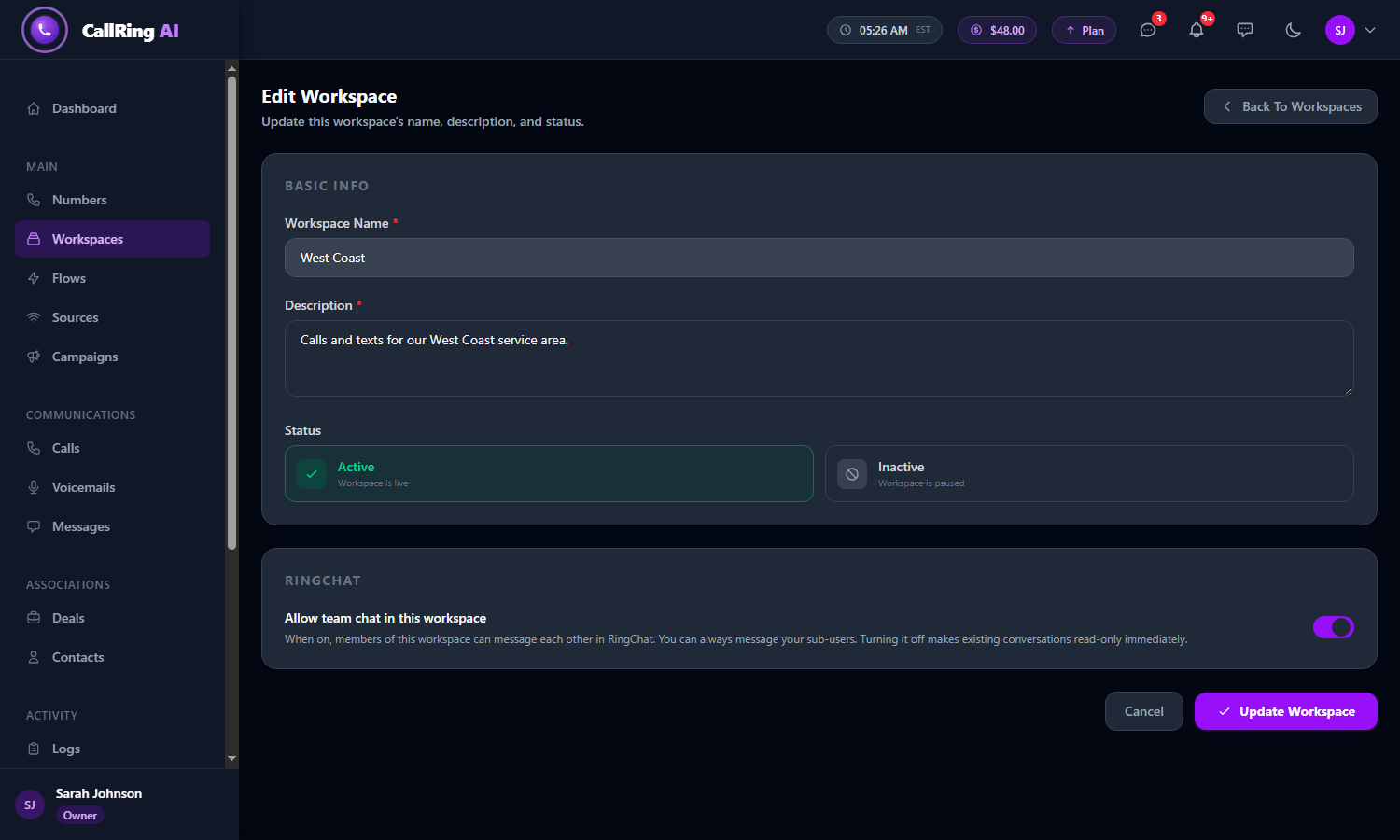
Edit Workspace: switch on Allow team chat in this workspace Note: When it is off, team members cannot message each other in that workspace. Old conversations stay visible but become read-only. You can turn it back on at any time. You can always message your own team members, even when it is off. -
Step 2: Open RingChat
In the left menu, click RingChat. A purple number next to it shows unread messages. The page has three tabs:
- Chats: your conversations, with the latest message and unread counts.
- Workspaces and Team.
- The Search chats... box finds a conversation.
- Click a conversation on the left to open it on the right.
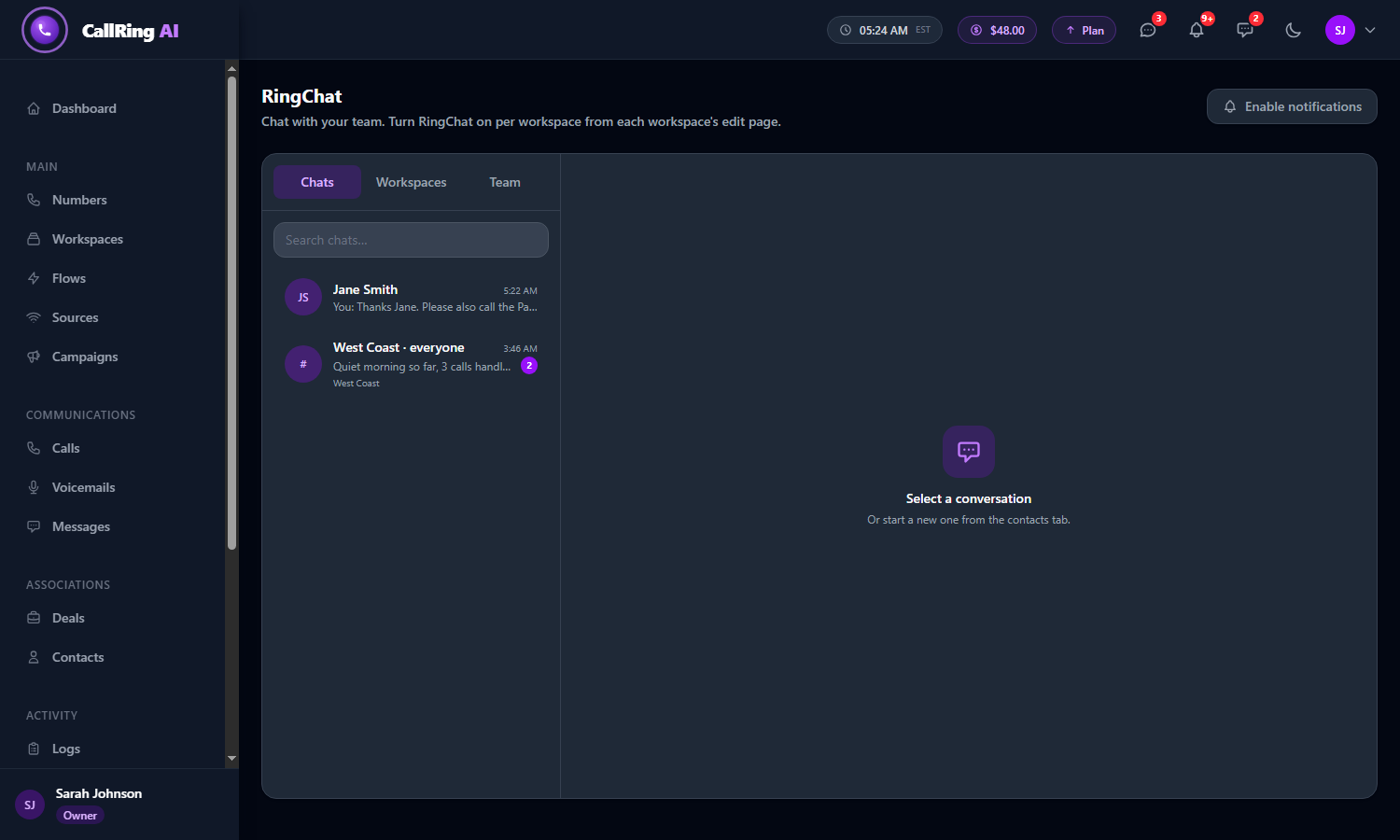
The RingChat page, with the Chats, Workspaces and Team tabs -
Step 3: Message a single team member
Click the Team tab. It lists all your team members with their role. Click the person’s name. Their chat opens (or a new one starts) and you return to the Chats tab.
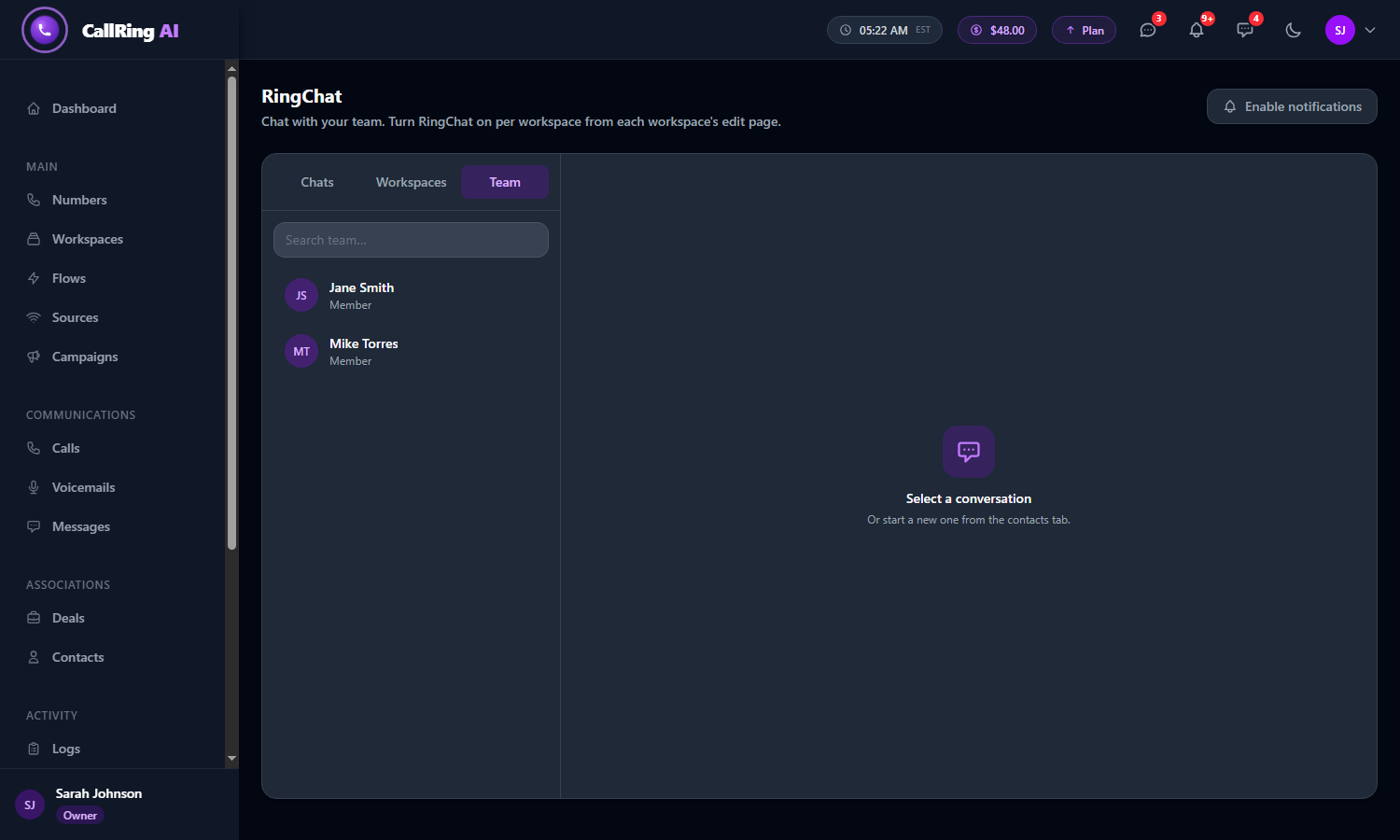
The Team tab lists your team members: click a name to chat Note: The owner starts one-to-one chats from the Team tab. Do not start a one-to-one chat from the Workspaces tab. -
Step 4: Write and send
Click the box Write a message... and type your message. Click the purple Send button, or press Enter. Press Shift+Enter to start a new line.
- Your message appears on the right in purple with “Sent” under it. Their messages appear on the left in gray.
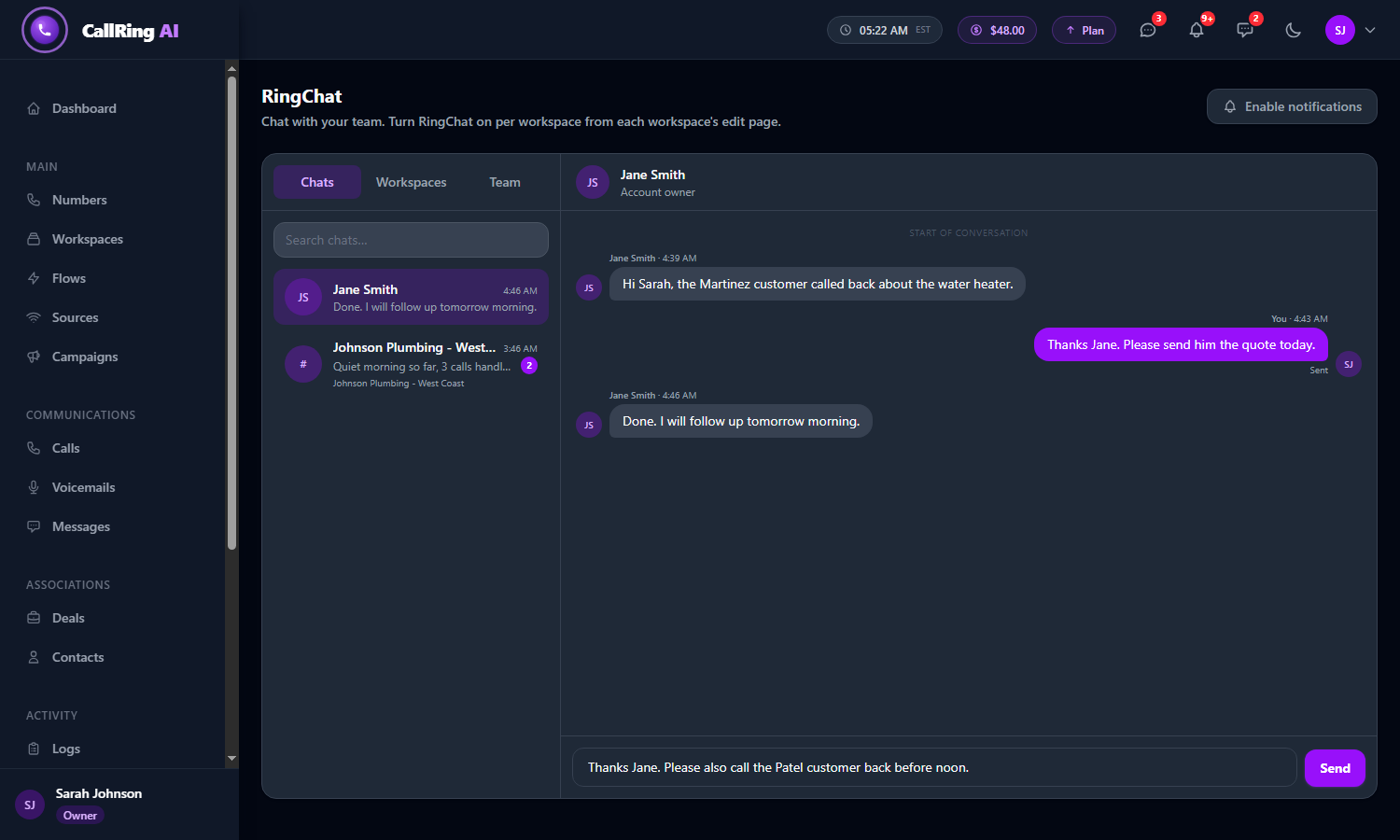
Type your message in the Write a message box 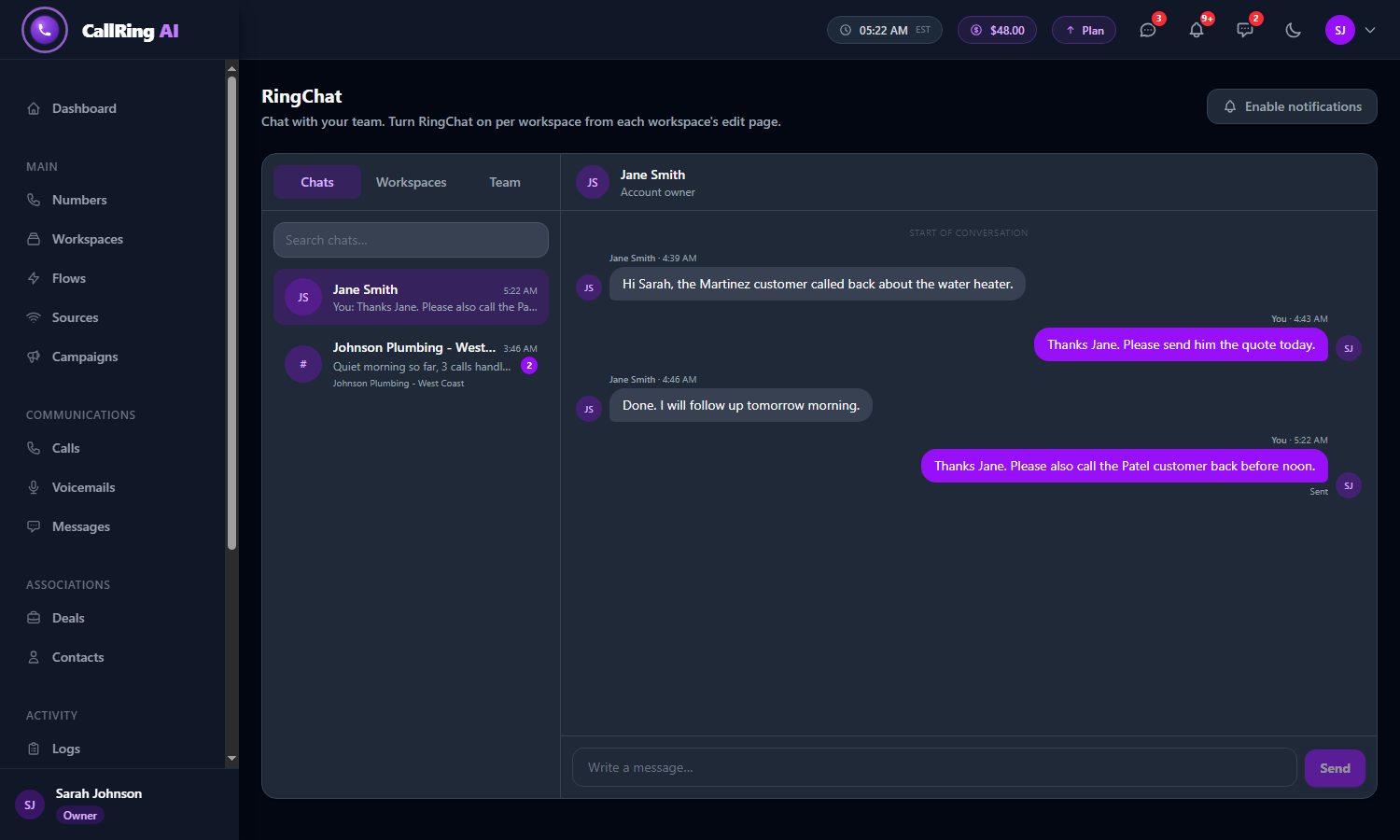
Your sent message appears on the right in purple -
Step 5: Message everyone in a workspace
Click the Workspaces tab. Each workspace shows a green RingChat on or gray RingChat off label and how many other members it has. Click a workspace to open it. Under a workspace that is on, click Everyone in this workspace.
- The workspace channel opens in Chats with a “#” icon.
- Everyone in that workspace sees the message, and the sender’s name appears above each message.
- Type and send as in Step 4.
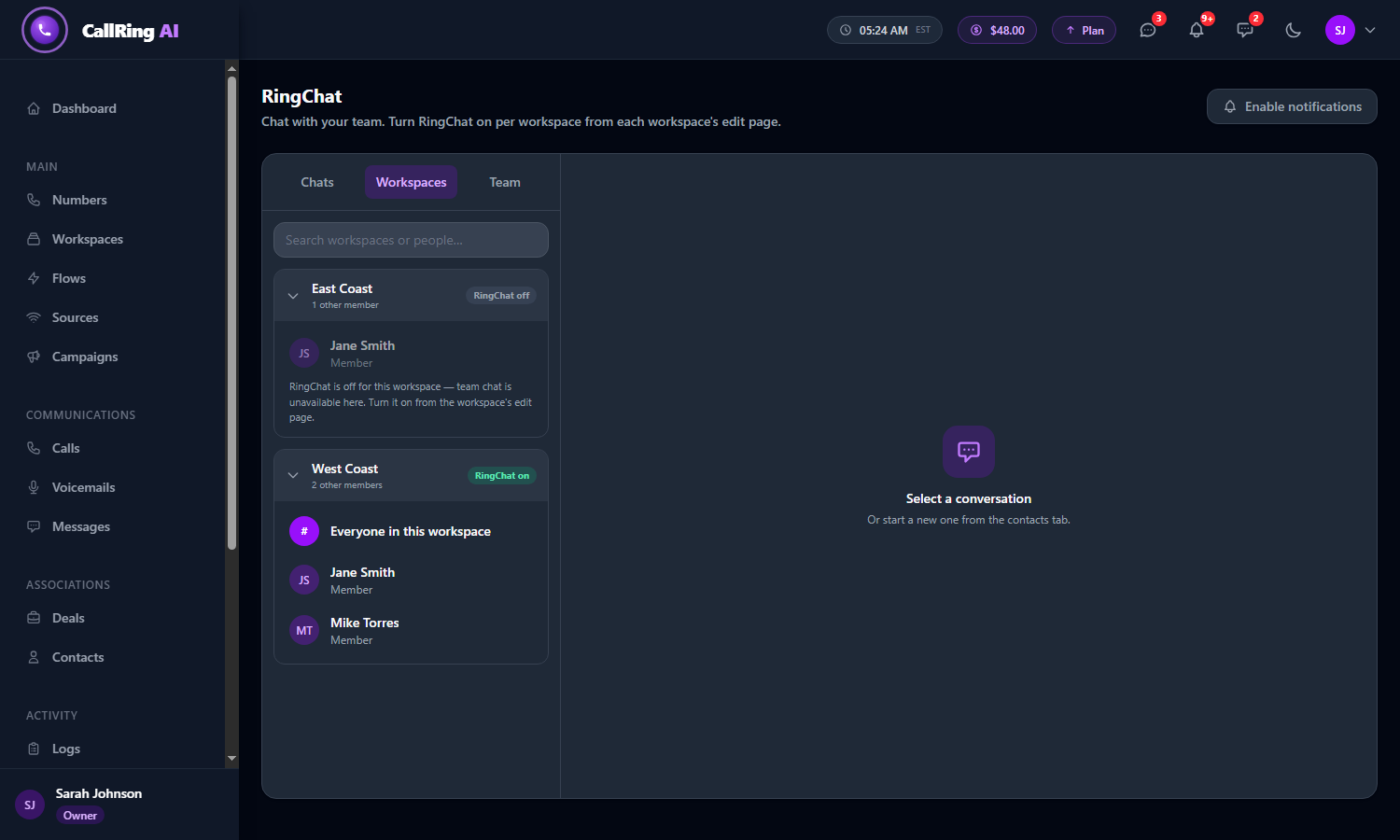
The Workspaces tab shows which workspaces have RingChat on 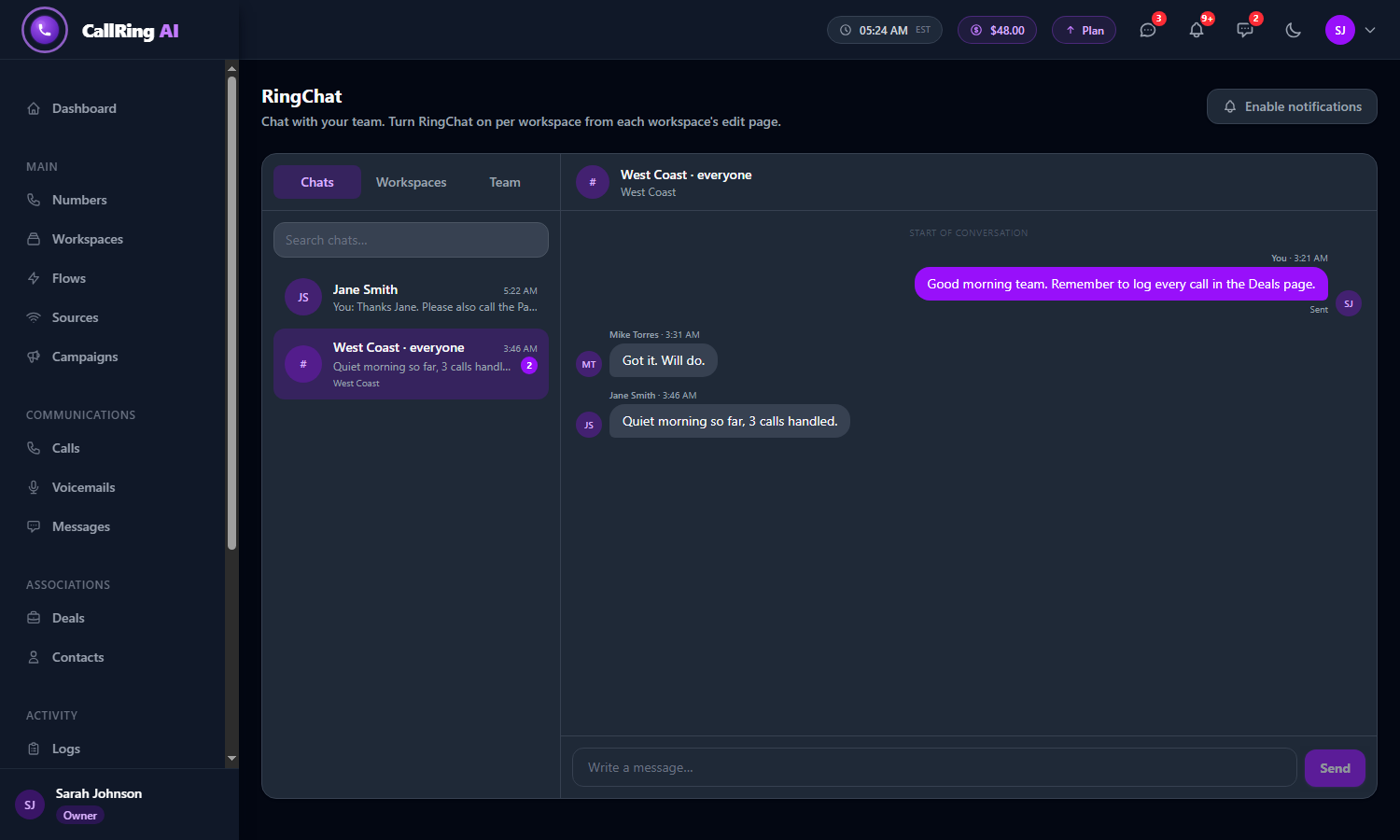
The workspace channel: everyone in the workspace sees the message Warning: A workspace that shows RingChat off cannot be used for team chat. Turn it on first (Step 1).
Good to know
- Unread messages show as a purple number in the left menu and on the chat bell at the top of the page.
- Click Enable notifications (top right of the RingChat page) if you want browser notifications for new messages.
- Team members see the same page, but their Team tab is called Contacts. They can message the owner, and teammates only in workspaces that have RingChat on.
- A message can be up to 5,000 characters.
Need help? Open a support ticket from your account.