How Calls Connect Automatically to a Source and a Campaign
You do not link each call by hand. You link your phone number once to a source and to a campaign. From then on, every new call to that number is connected to them automatically. Your numbers, sources and campaigns will look different from the sample data in the screenshots.
4 min read · 5 steps
Before you start
- Source means where your customers come from, for example “Google Ads - Brand”.
- Campaign means the marketing effort you are running, for example “Summer Promo 2026”, with its own budget.
- Create the source and the campaign, and attach your number to them. See How to Create a Source and a Campaign and Attach a Number and How to Buy a Phone Number.
- Calls that came before you attached a source or campaign keep their old details.
-
Step 1: Check what your number is connected to
In the left menu, click Numbers and open your number (Number Detail). On the right side you can see Workspaces, Campaigns (for example “Summer Promo 2026”) and Sources (for example “Google Ads - Brand”). This is what every new call to this number will be connected to.
- The Activity box shows how many calls, messages and voicemails this number has had.
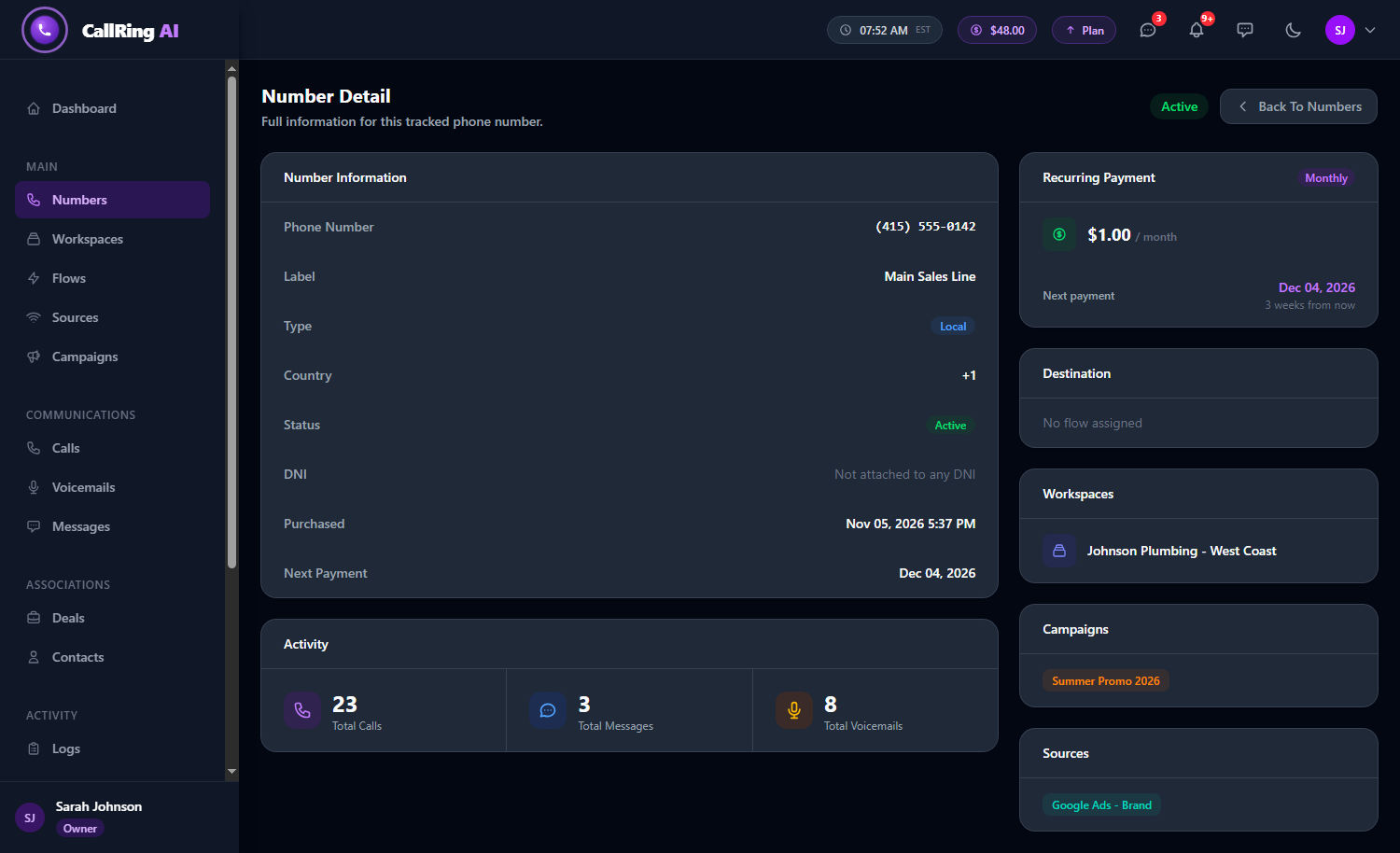
Number Detail shows the workspace, campaign and source this number is connected to -
Step 2: See new calls arrive with their source
In the left menu, under Communications, click Calls. Each new call appears at the top. The Source column shows the source of the number that was called, with its colour dot, for example “Google Ads - Brand”. You did not have to do anything.
- A dash means that number has no source attached.
- If a number has more than one source, the call uses the first one (the one created first).
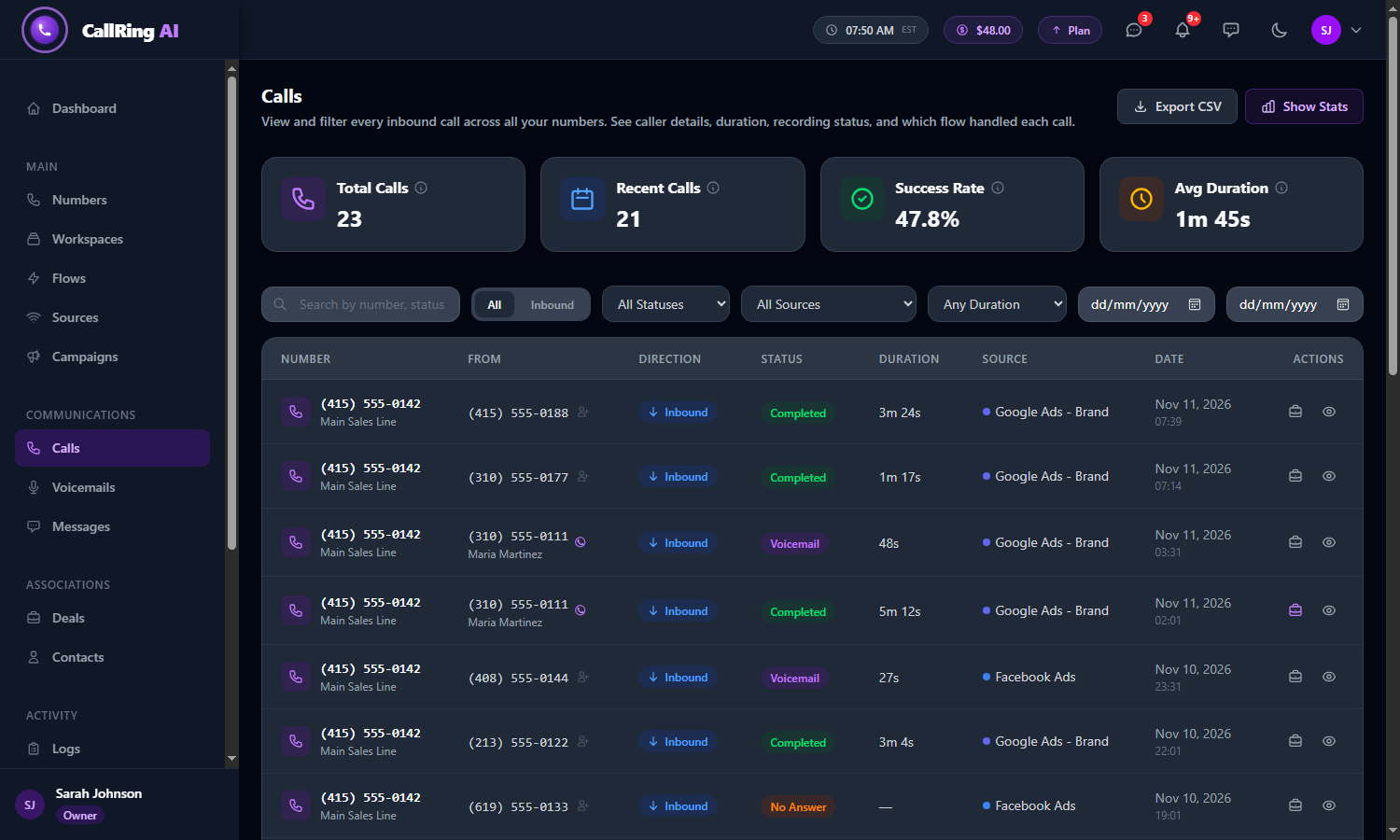
New calls arrive with the source of the number that was called -
Step 3: Open a call to see its source and campaign
Click the eye icon on a call. On the Call Detail page, the right side shows:
- Phone Number: the number that was called.
- Source: the source name, its colour and its description.
- Workspace: the workspace the number belongs to.
- Campaign: the campaign name, its status and its budget, for example “Summer Promo 2026 - Budget: $500.00”.
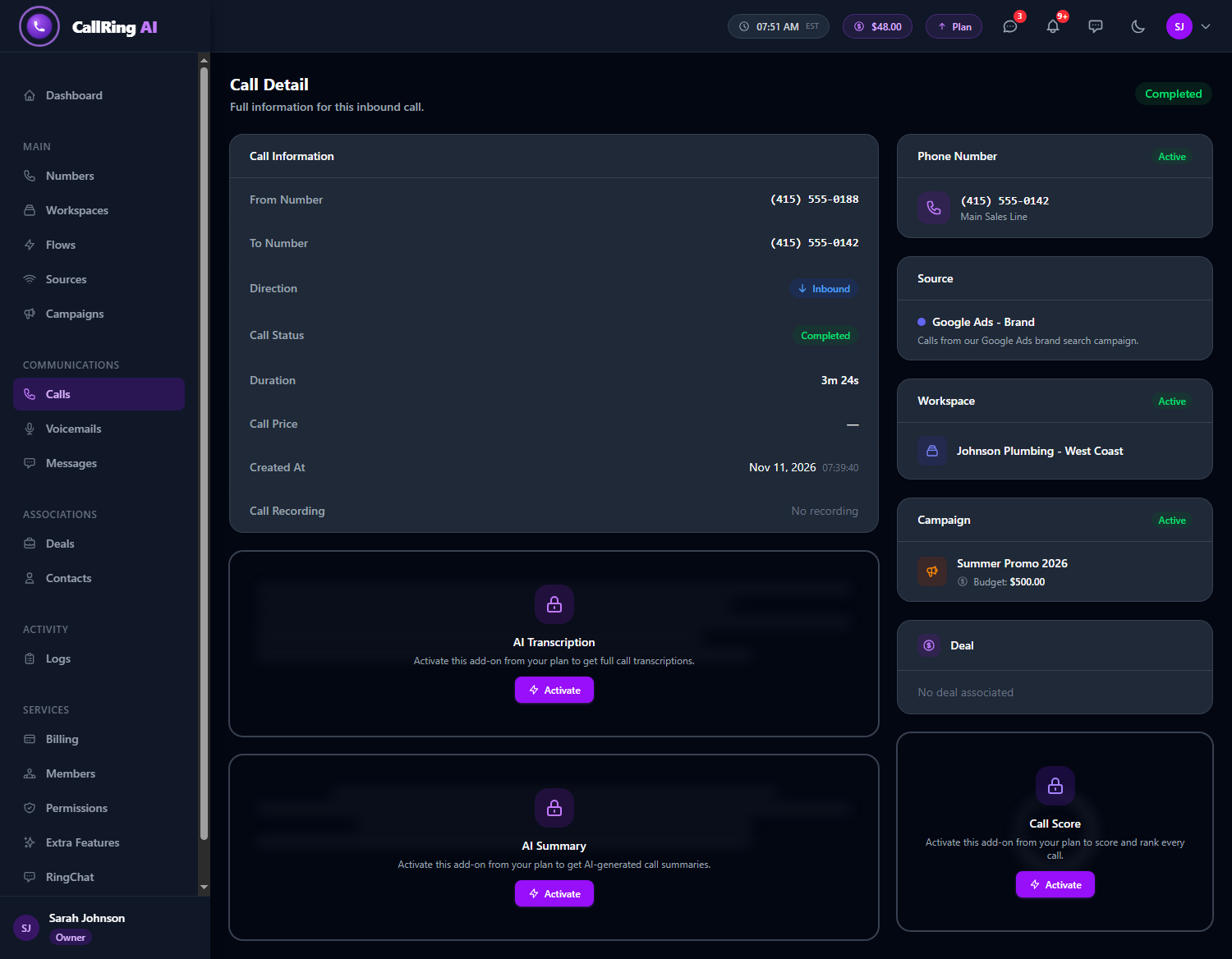
Call Detail: the Source and Campaign cards fill in by themselves Note: The Source and Campaign cards fill in by themselves, because of the number that was called. -
Step 4: Filter your calls by source
On the Calls page, open the All Sources menu and choose a source, for example “Google Ads - Brand”. The list now shows only calls from that source, so you can compare how each source performs.
- A red Clear button resets the filter.
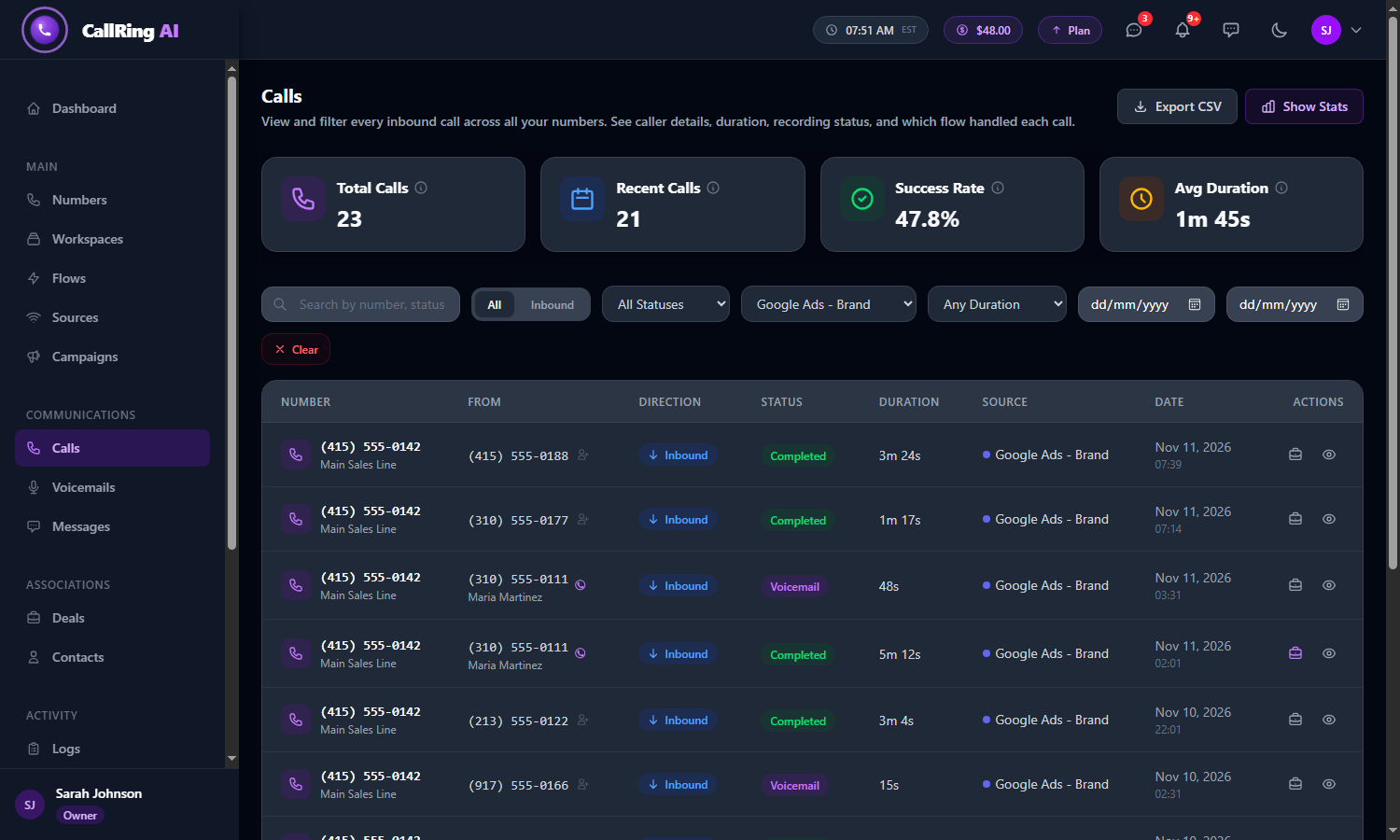
Choose a source in All Sources to see only its calls -
Step 5: See all calls of a campaign
In the left menu, click Campaigns, then open your campaign (Manage). The campaign page shows:
- Its source, and the Attached Numbers.
- The Budget and the Deal Revenue (Won and Lost).
- The list of all Calls received on the attached numbers, newest first. You can search the list and move between pages.
- To change which numbers belong to the campaign, add or remove them in Attached Numbers.
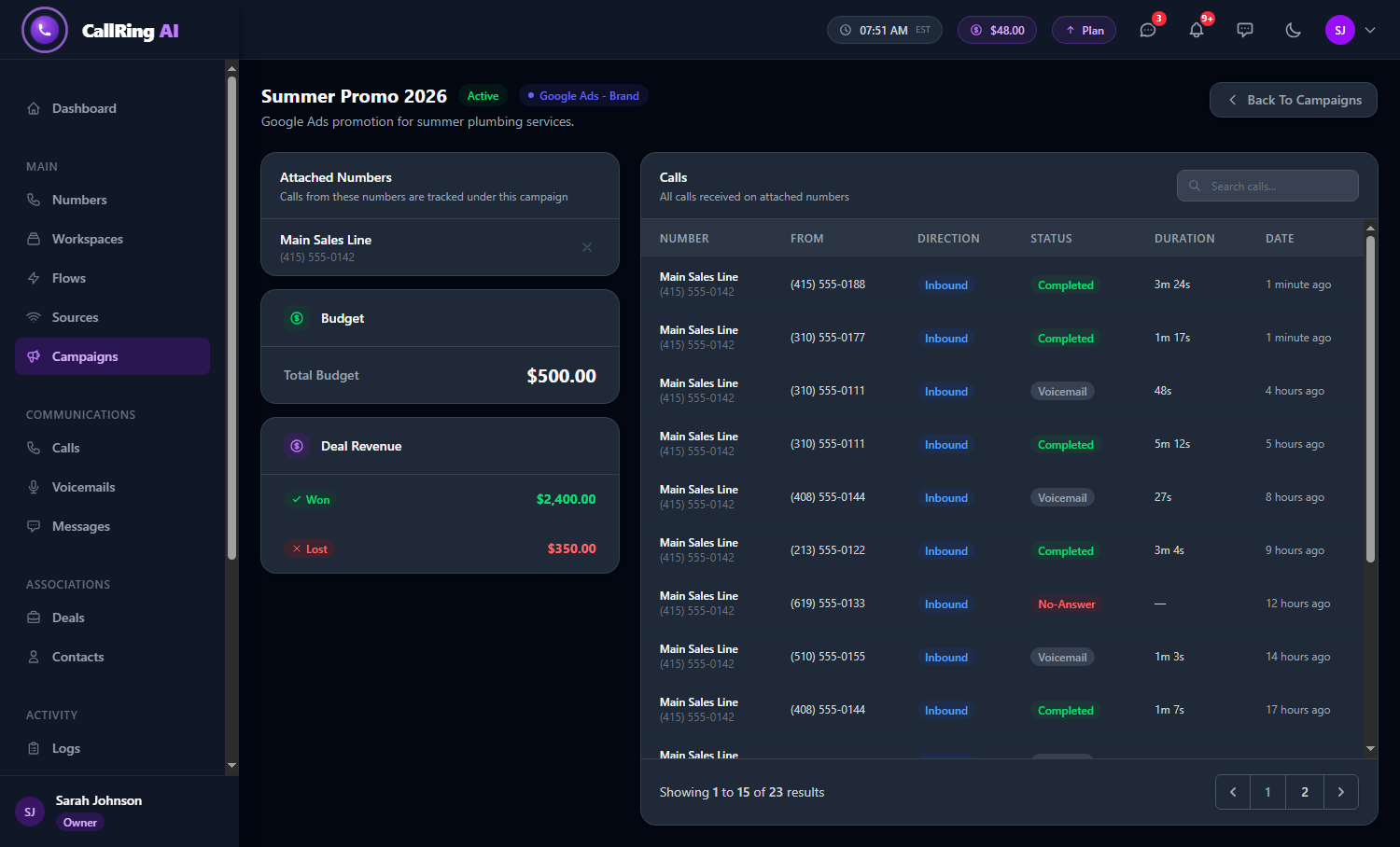
The campaign page lists every call received on its attached numbers
Good to know
- Connecting happens when the call arrives. If you attach a source to a number later, older calls are not changed.
- You can still connect a call to a deal by hand. See How to Connect a Call with a Deal.
- Team members only see calls on the numbers assigned to them.
Need help? Open a support ticket from your account.