How to Connect a Call with a Deal
When you connect a call to a deal, you can see which calls led to which jobs and how much revenue your calls bring in. It takes a few clicks. Your calls and deals will look different from the sample data in the screenshots.
4 min read · 7 steps
Before you start
- A deal is one sales opportunity, for example “Sewer line inspection - Brooks”.
- Create the deal first on the Deals page. See How to Create a Deal. You can also create a new deal right from the call, as shown in Step 3.
- Owners and team members can open the Calls page and use the deal button on each call.
- Creating or editing a deal itself on the Deals page is for the main owner only.
-
Step 1: Find the call
In the left menu, under Communications, click Calls. Find the call you want. At the end of each row, in the Actions column, there is a briefcase icon. Move your mouse over it and you will see Associate Deal. Click the briefcase icon.
- A grey briefcase means the call is not connected to any deal yet.
- A purple briefcase means it already is.
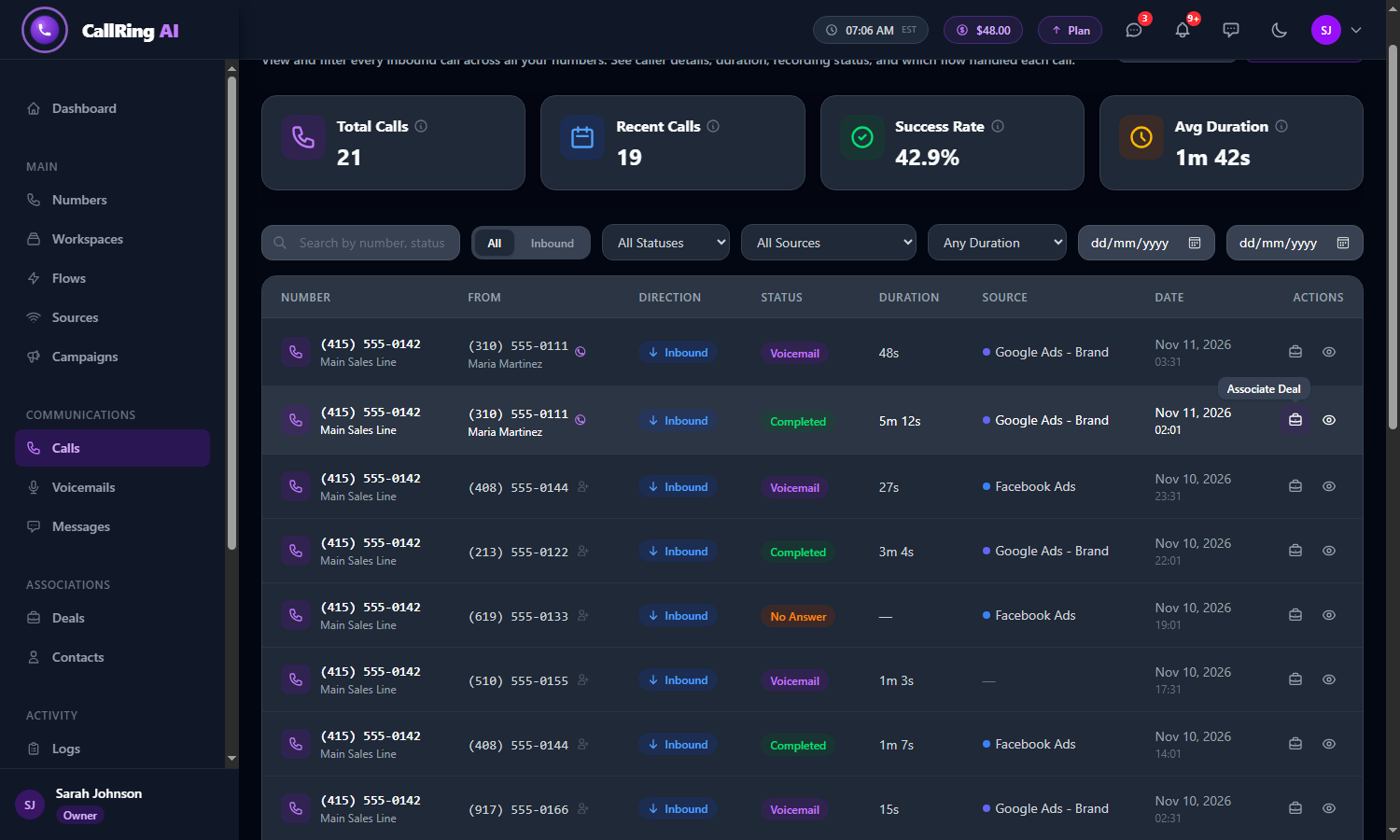
Hover over the briefcase on a call to see Associate Deal, then click it Tip: Use the search box, the status filter or the date boxes to narrow the list. See How to Track Your Calls. -
Step 2: Choose an existing deal
The Associate Deal window opens (“Connect this call to an existing deal or create a new one”). The Existing Deal tab is selected. Click the deal you want. That is all. The call is connected right away.
- You see your deals with their status, value and how many calls are already linked, for example “Open - $1,800.00 - 2 calls”.
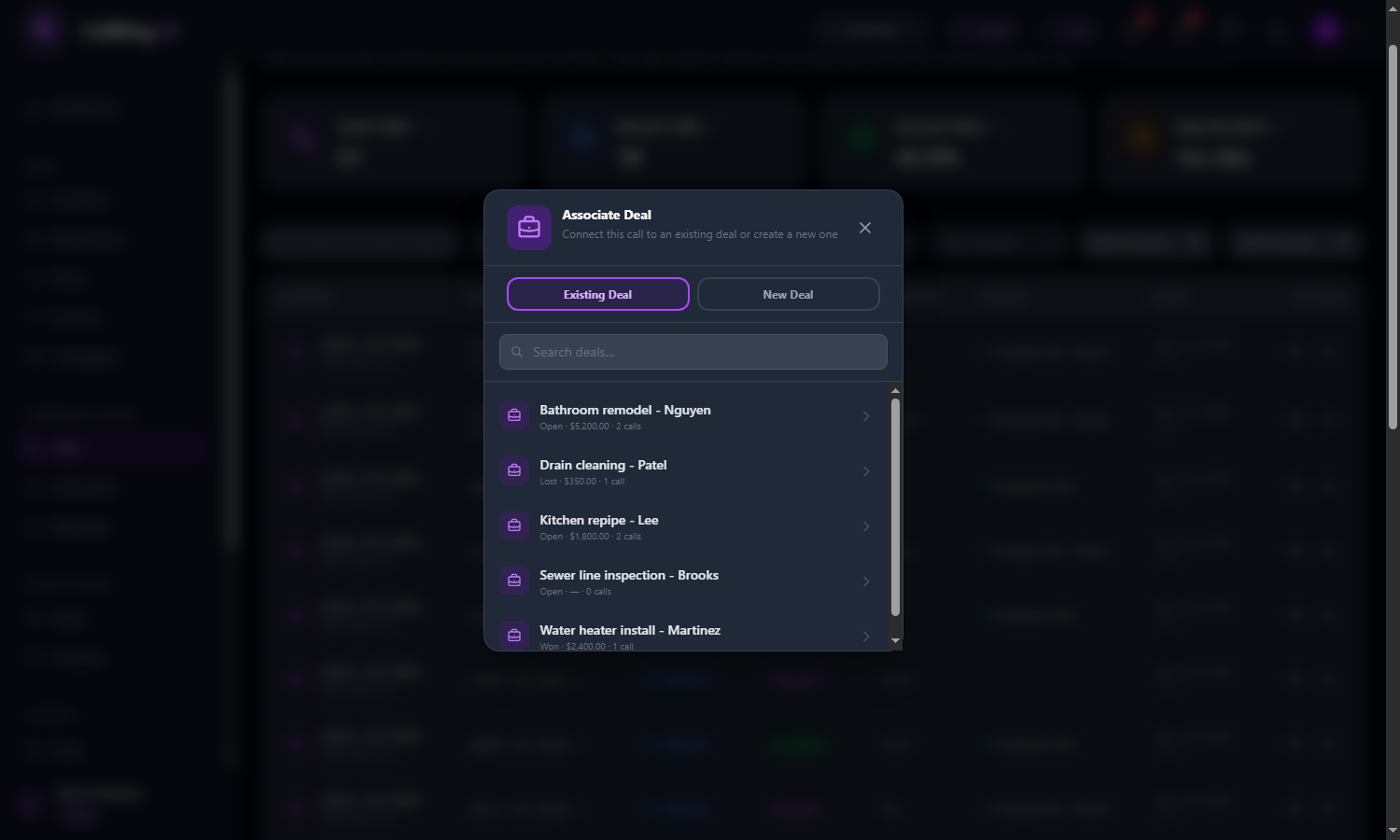
Click a deal in the list to connect the call Tip: If you have many deals, type part of the name in Search deals... to find it. -
Step 3: Or create a new deal from the call
Click the New Deal tab in the same window. Type a Deal Name (required) and, if you like, a Value ($), for example “Water leak repair - Davis” and 450. Then click Create & Associate.
- The deal is created with the status Open, and the call is connected to it in one step.
- If you leave the name empty, a red message asks you to type a name.
- Click Cancel to close the window without saving.
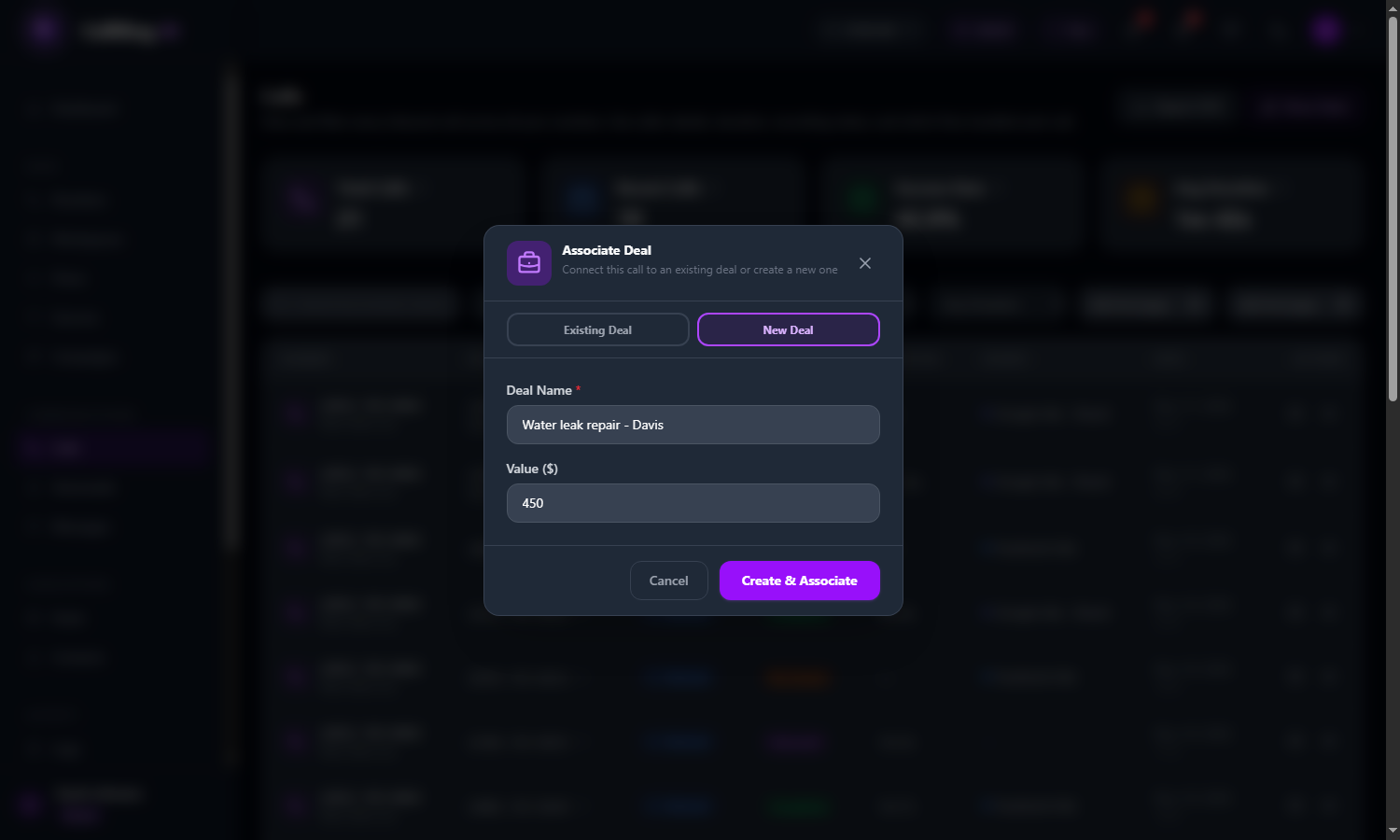
New Deal tab: type a name and a value, then click Create & Associate Note: Finish with Create & Associate before switching back to the Existing Deal tab, so the text you typed does not show up in the search box. -
Step 4: Confirm the connection
The window closes and a green message appears at the bottom right, for example: Call associated with “Sewer line inspection - Brooks”.
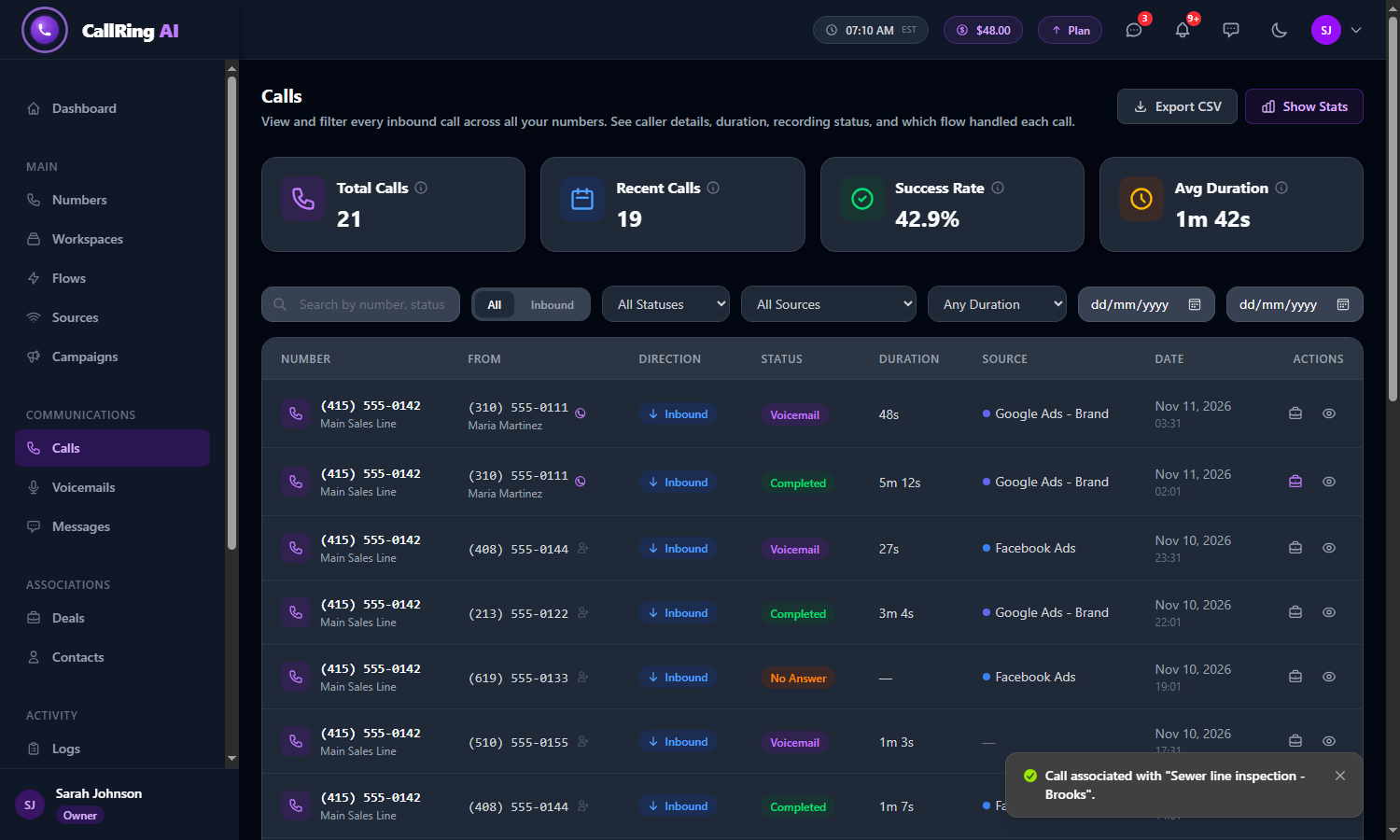
A green message confirms the call is connected -
Step 5: See it on the Calls list
The briefcase icon on that call is now purple. Hover over it to see Deal: followed by the deal name.
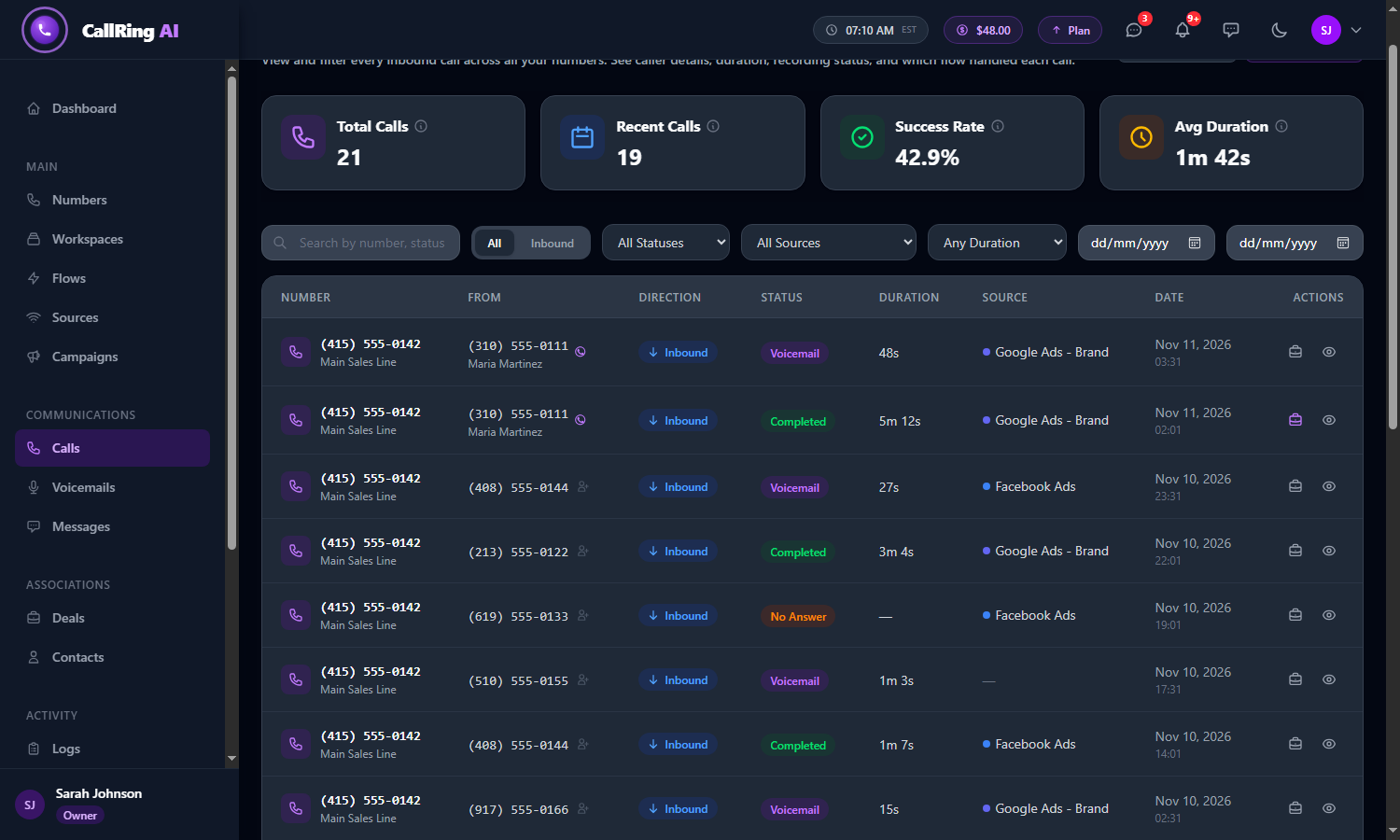
A purple briefcase means the call is connected to a deal -
Step 6: See it on the call detail page
Click the eye icon (Show Call Detail) on the call. On the right side, the Deal card shows the deal’s Name, Status (Open, Won or Lost) and Value.
- If no deal is connected, the card says “No deal associated”.
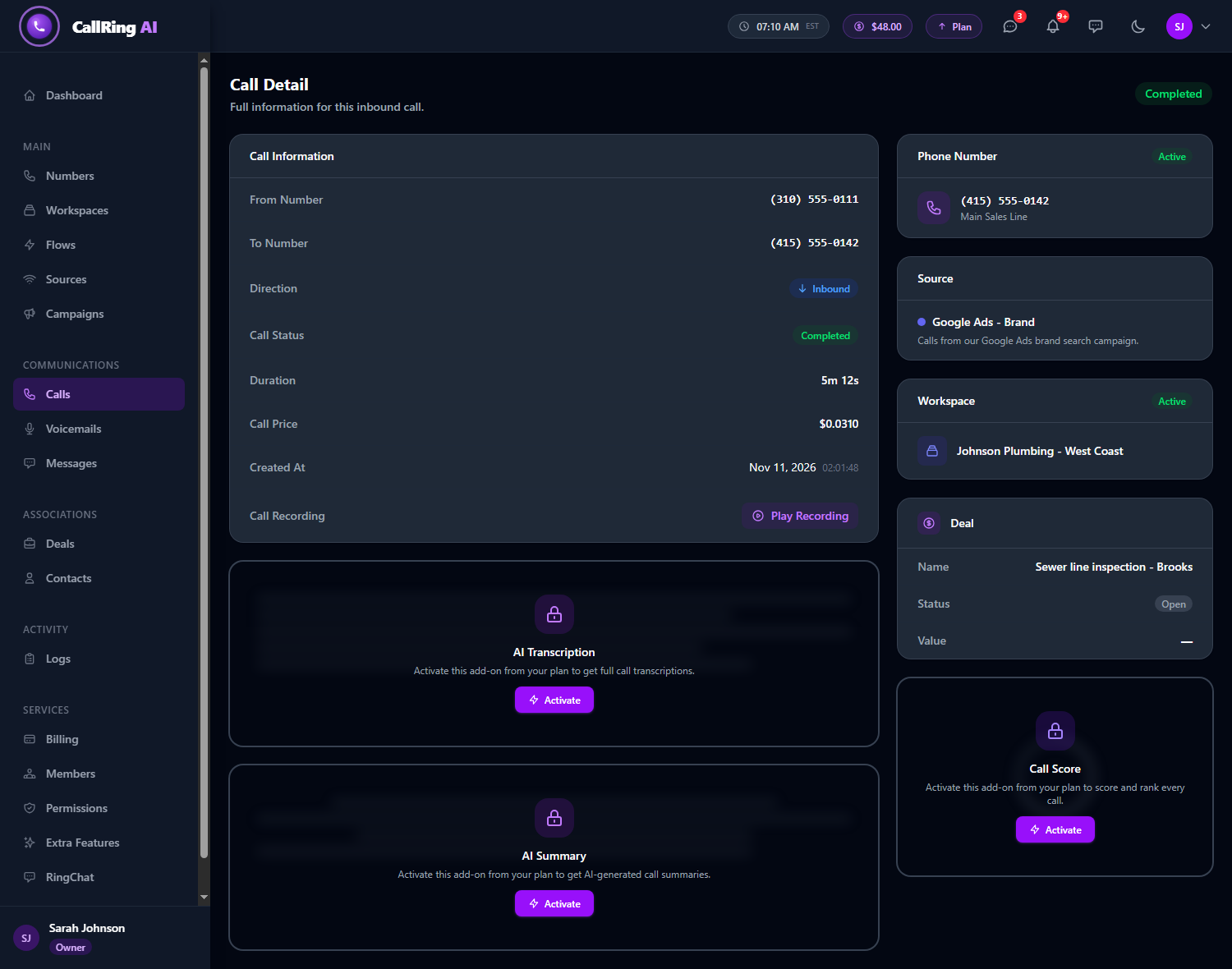
The Deal card on the Call Detail page -
Step 7: Change or remove the connection
Click the purple briefcase icon again. At the top of the window it says “Currently associated with” and the deal name.
- To connect the call to a different deal, just click another deal in the list.
- To disconnect the call, click the red Remove link. A green message “Deal association removed.” confirms it.
- The call and the deal are both kept.
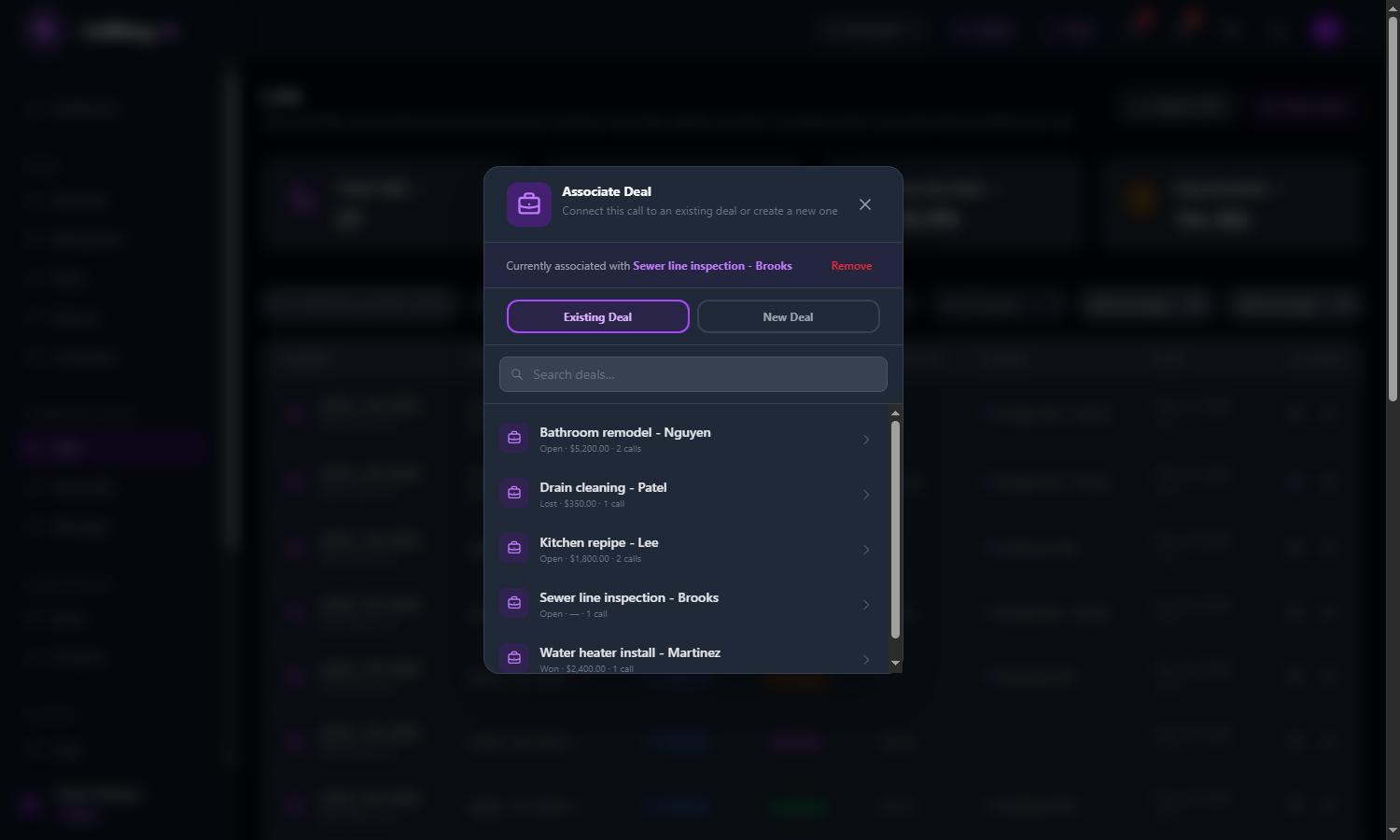
Currently associated with a deal: pick another deal, or click Remove
Good to know
- The deal’s Calls number on the Deals page goes up by one. Click that number to see all calls linked to the deal.
- Text messages you exchanged with the same caller number that are not linked to another deal are linked to the deal too, so the Messages number shows the whole conversation.
- When you mark the deal as Won or Lost on the Deals page, its value is counted in the Deal Revenue totals on the Calls statistics page.
- A call can be connected to one deal at a time. Several calls can be connected to the same deal.
Need help? Open a support ticket from your account.