How to Track Your Calls
Every call that reaches your CallRing numbers shows up on the Calls page. You can see who called, what happened, where the call came from and what it was worth. Your calls and numbers will look different from the sample data in the screenshots.
6 min read · 6 steps
Who sees what
- The account owner sees calls on all numbers.
- Team members only see calls on the numbers assigned to them. Their totals and statistics only count those numbers.
-
Step 1: Open the Calls page
In the left menu, under Communications, click Calls. The top row has four cards:
- Total Calls: all calls on your numbers, whatever the outcome.
- Recent Calls: calls in the last 7 days (the last 168 hours, not calendar days).
- Success Rate: calls with the outcome “Completed” divided by all calls.
- Avg Duration: the average length of calls that have a recorded duration.
- Below the cards is the call table, with the newest call first. The columns are listed next.
- Number: your CallRing number that was called, plus its label (for example “Main Sales Line”).
- From: the caller’s number. If the caller is saved in your Contacts, their name shows under the number with a small contact icon. If not, a small “add person” icon lets owners save them as a contact in one click.
- Direction: Inbound (blue) for calls received.
- Status: Completed, No Answer, Voicemail, Busy or Failed. You may also see In Progress, Ringing or Canceled while a call is happening or was stopped.
- Duration: the length of the call, for example 5m 12s. A dash means the call was not connected.
- Source: the marketing source the number belongs to (for example Google Ads), with its colour dot, or a dash if there is none.
- Date: the day and time of the call, shown in your account time zone.
- Actions: a briefcase icon to link a deal, and an eye icon to open the call detail.
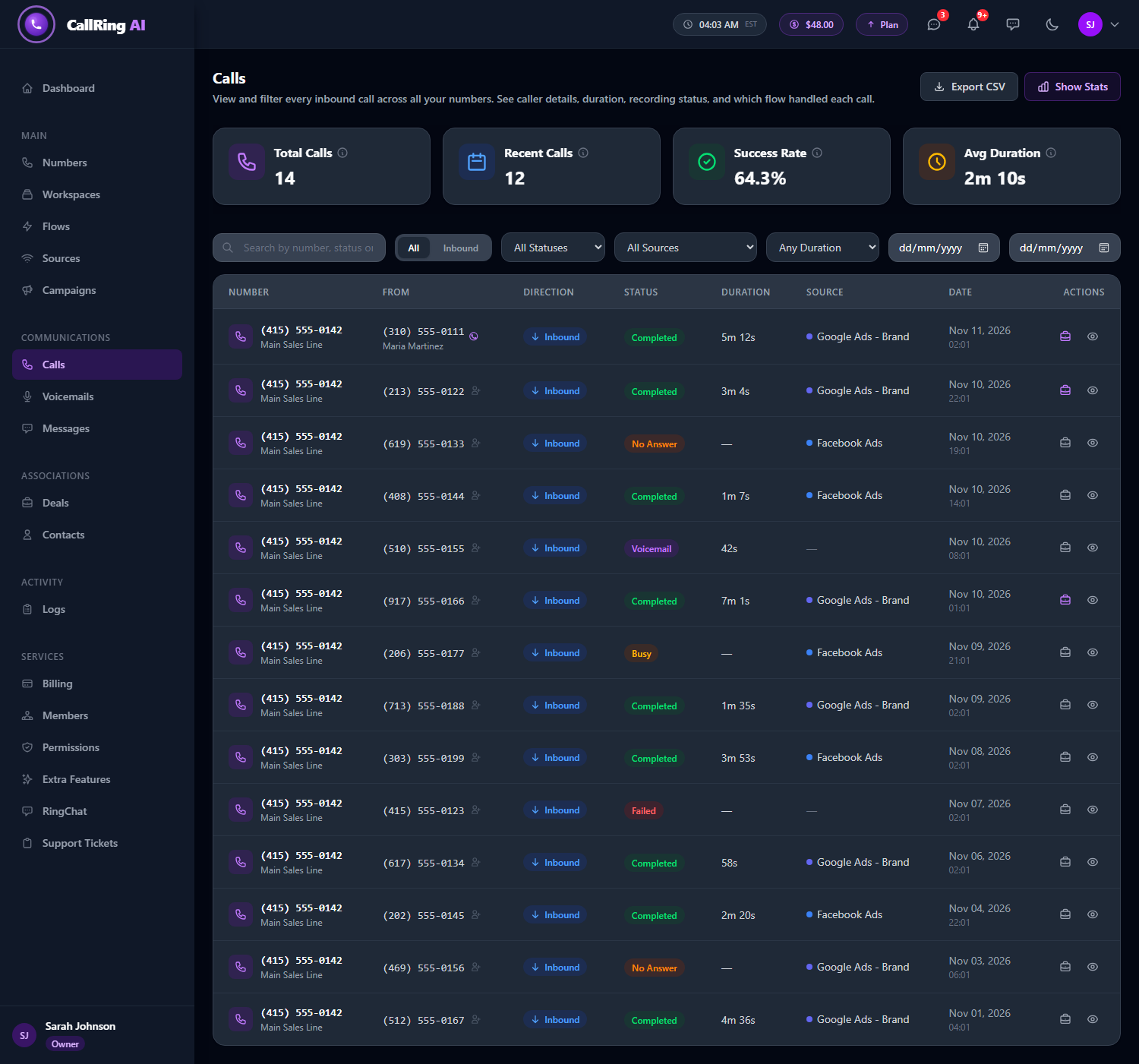
The Calls page: four summary cards and your call table Tip: Hover over the small i icon on each card to see how it is calculated. Search and filters do not change these four cards. -
Step 2: Filter your calls
Above the table you can narrow the list with these controls:
- The All / Inbound switch.
- All Statuses: Completed, Busy, No Answer, Failed or Voicemail.
- All Sources: any source you created.
- Any Duration: longer than 30 seconds, 1 minute, 5 minutes or 10 minutes.
- A From date and a To date.
- When any filter is on, a red Clear button appears. Click it to reset the filters.
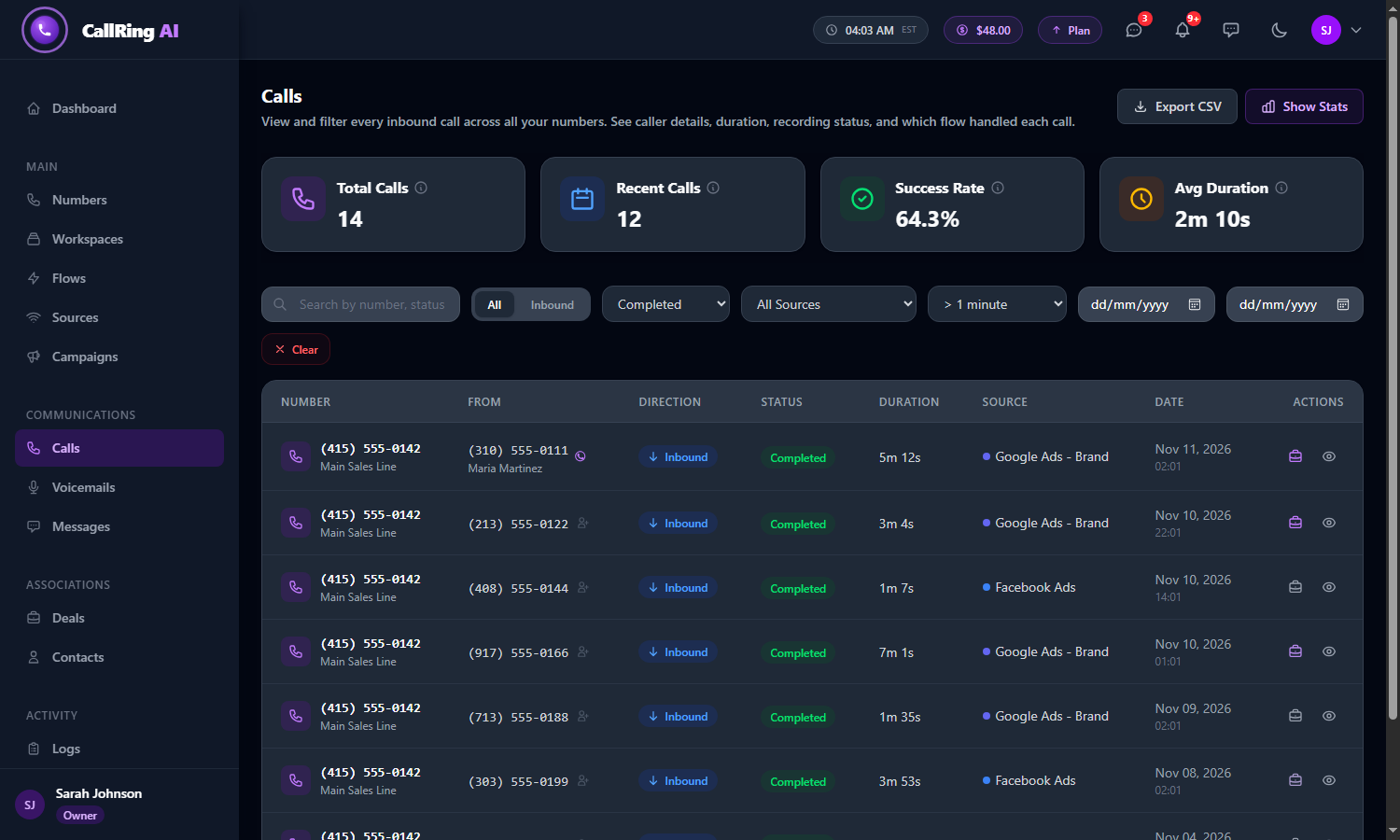
Completed and longer than 1 minute are selected, so only longer, answered calls are listed -
Step 3: Search by phone number
Type part of a phone number, a status or a number label in the search box at the top left. The list updates as you type. For example, typing “310” shows the call from (310) 555-0111.
- You can also open the Calls page already filtered by a number, flow, workspace or deal from other pages. A coloured banner then says what you are viewing, with an X to clear it.
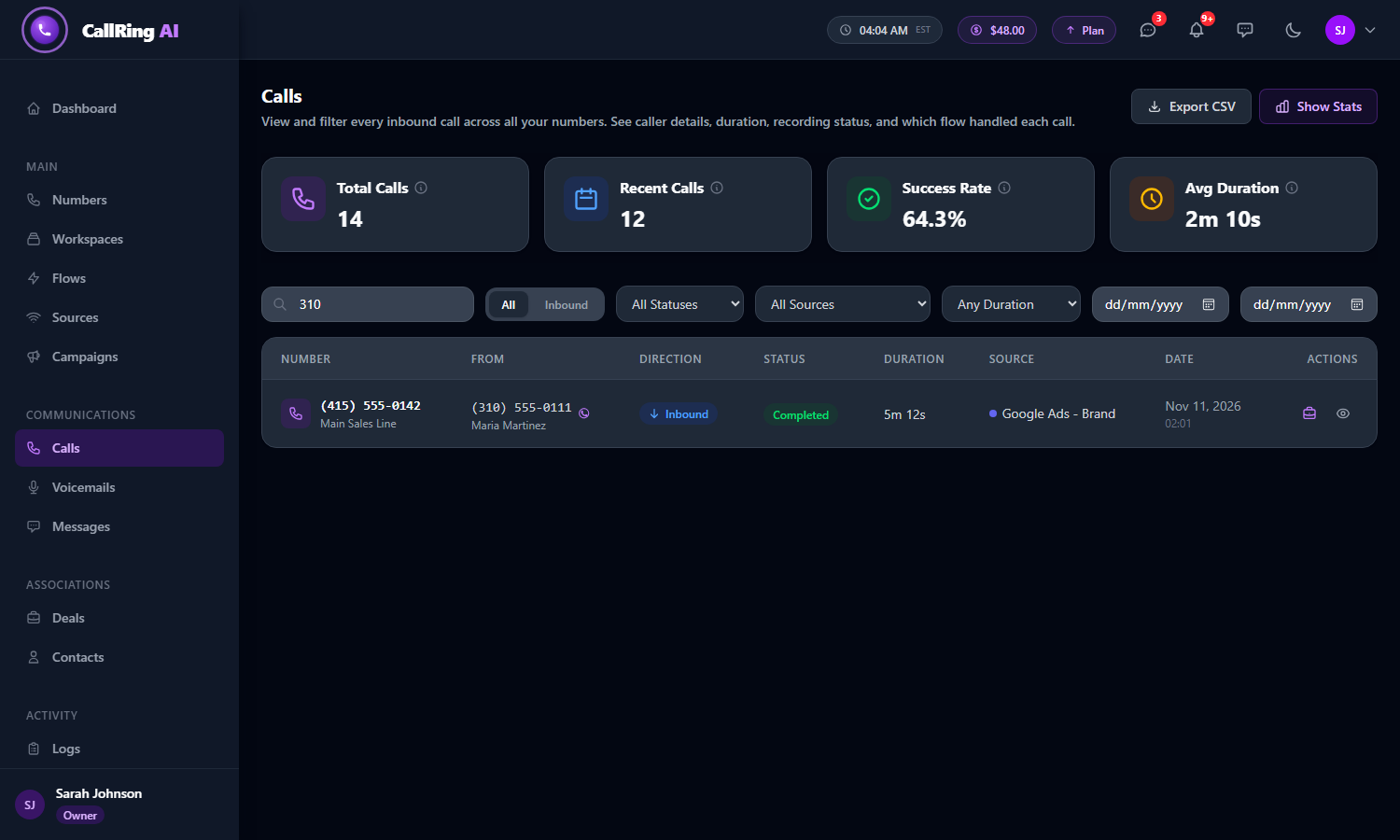
Type part of a number to find a call -
Step 4: Open a call to see the full details
Click the eye icon on any row. The Call Detail page opens. On the left, Call Information shows:
- From Number, To Number, Direction, Call Status and Duration.
- Call Price: what the call cost, shown to four decimals.
- Created At and Call Recording. If a recording exists, click Play Recording to listen to the call.
- On the right you will see cards for the Phone Number (with its status), Source, Workspace, Campaign (with its budget, if the number is attached to one) and Deal (name, status and value).
- AI Transcription, AI Summary and Call Score appear as locked boxes with an Activate button until the add-on is switched on in Extra Features.
- Once an add-on is active, you can generate the transcript, a summary and a 0 to 100 lead score for the call.
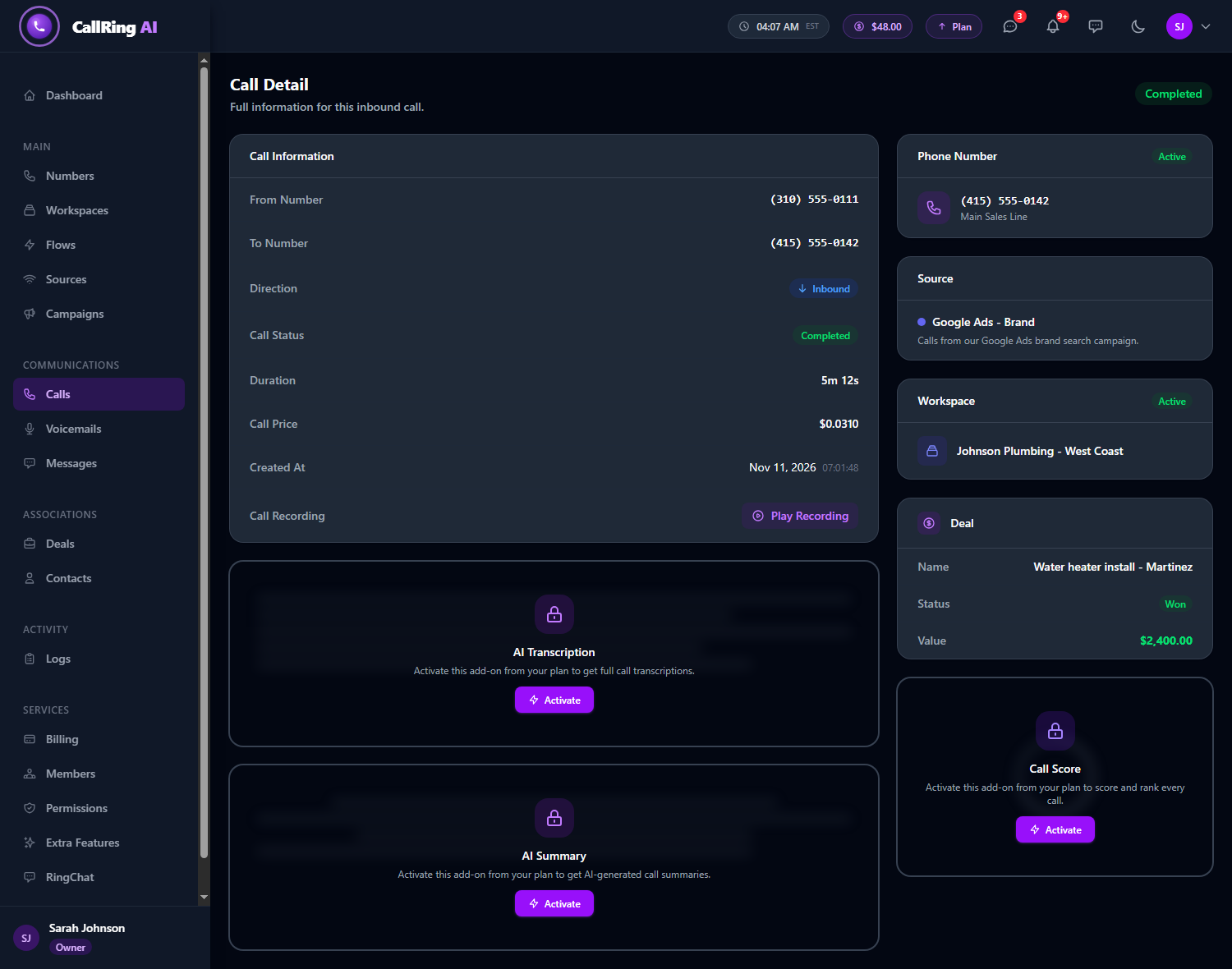
Call Detail: everything about one call, with the AI add-ons locked until you activate them Note: Generating a call score may charge a small fee from your balance. The app shows the cost and asks you to confirm first. -
Step 5: Link a call to a deal
On the Calls page, click the briefcase icon on a call. The Associate Deal window opens.
- Existing Deal: search and click a deal to link it.
- New Deal: type a deal name and an optional value, then click Create & Associate.
- A purple briefcase means a deal is already linked. Open the window again and click Remove to unlink it.
- Linked deals feed the Deal Revenue numbers on the statistics page and appear in the call detail.
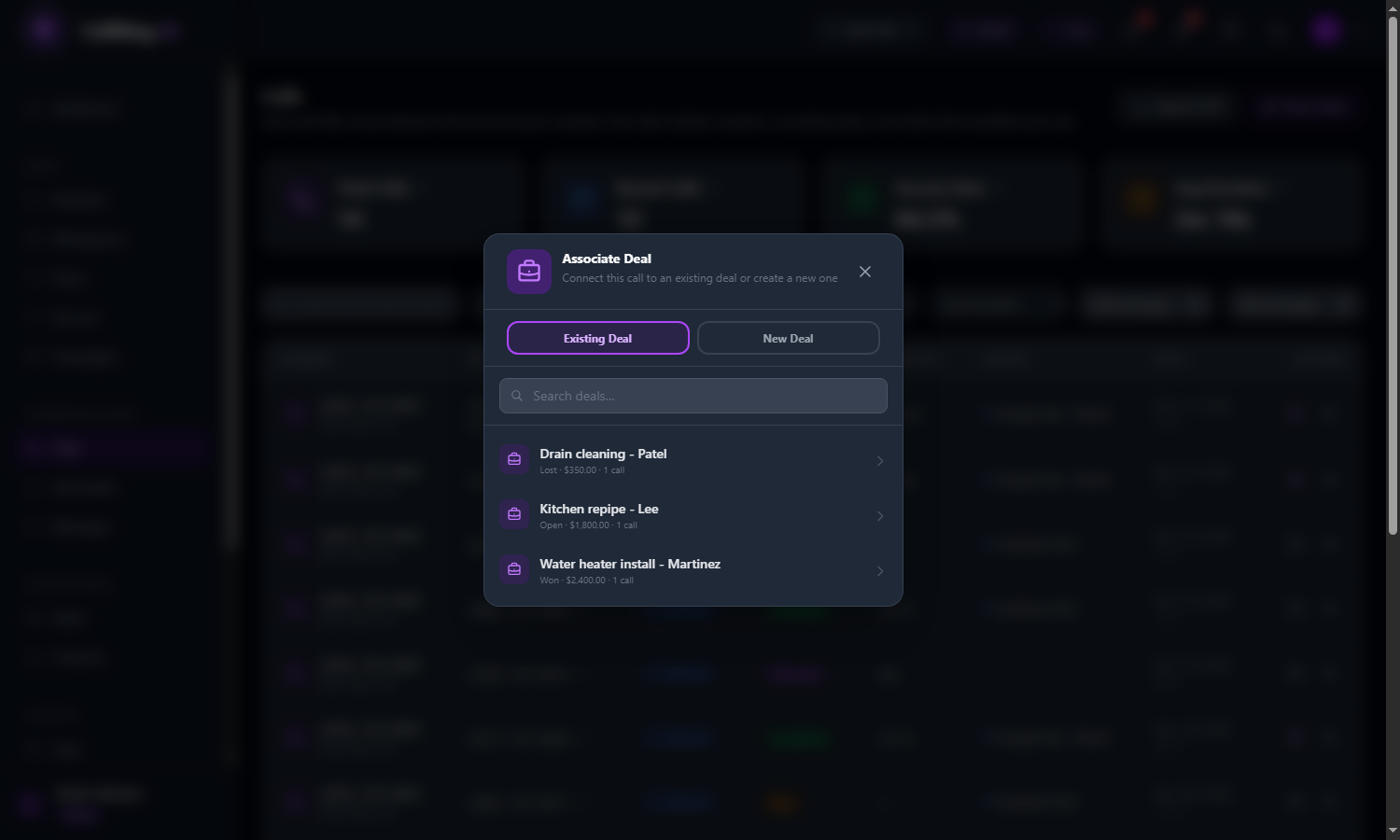
Choose an existing deal, or switch to New Deal -
Step 6: Read your call statistics
On the Calls page, click the purple Show Stats button. Click Back to return to the call list.
- Period cards: This Month, This 7 Days and Today, each compared with the previous period. A green arrow up means more calls, and a red arrow down means fewer.
- Totals: Total (all calls to date), Month-over-Month, Week-over-Week and Avg / Day (calls per day this month).
- Calls by Status: how many calls ended as Completed, No-Answer, Voicemail, Busy or Failed, with percentages.
- Deal Revenue: the total value of deals linked to calls, split into Won and Lost.
- Daily Calls graph: calls per day. Switch between Last 7 Days, Last 30 Days, Last 90 Days or Custom (pick a From and To date and click Apply).
Good to know
- Export CSV (top right of the Calls page) downloads every call that matches your current filters as a spreadsheet: number, caller, direction, status, duration, source, deal, recording link and date.
- Calls from numbers on your spam blocklist show the caller number in red with a “blocked” icon.
- Calls only appear once your number is active and connected. See the guides on buying a number and connecting it to a call flow.
Need help? Open a support ticket from your account.