How to Create a Workspace and Connect a Phone Number
A workspace is a separate area that groups phone numbers, team members and their activity. For example, you can have one per location, client or team. The screenshots use sample details, so use your own.
6 min read · 5 steps
Before you start
- A CallRing AI account (see the first guide)
- A phone number. If you do not have one yet, see How to buy a phone number
- A name for your workspace, such as a location, client or team
-
Step 1: Open Workspaces and click New Workspace
In the left menu, click Workspaces. Then click New Workspace.
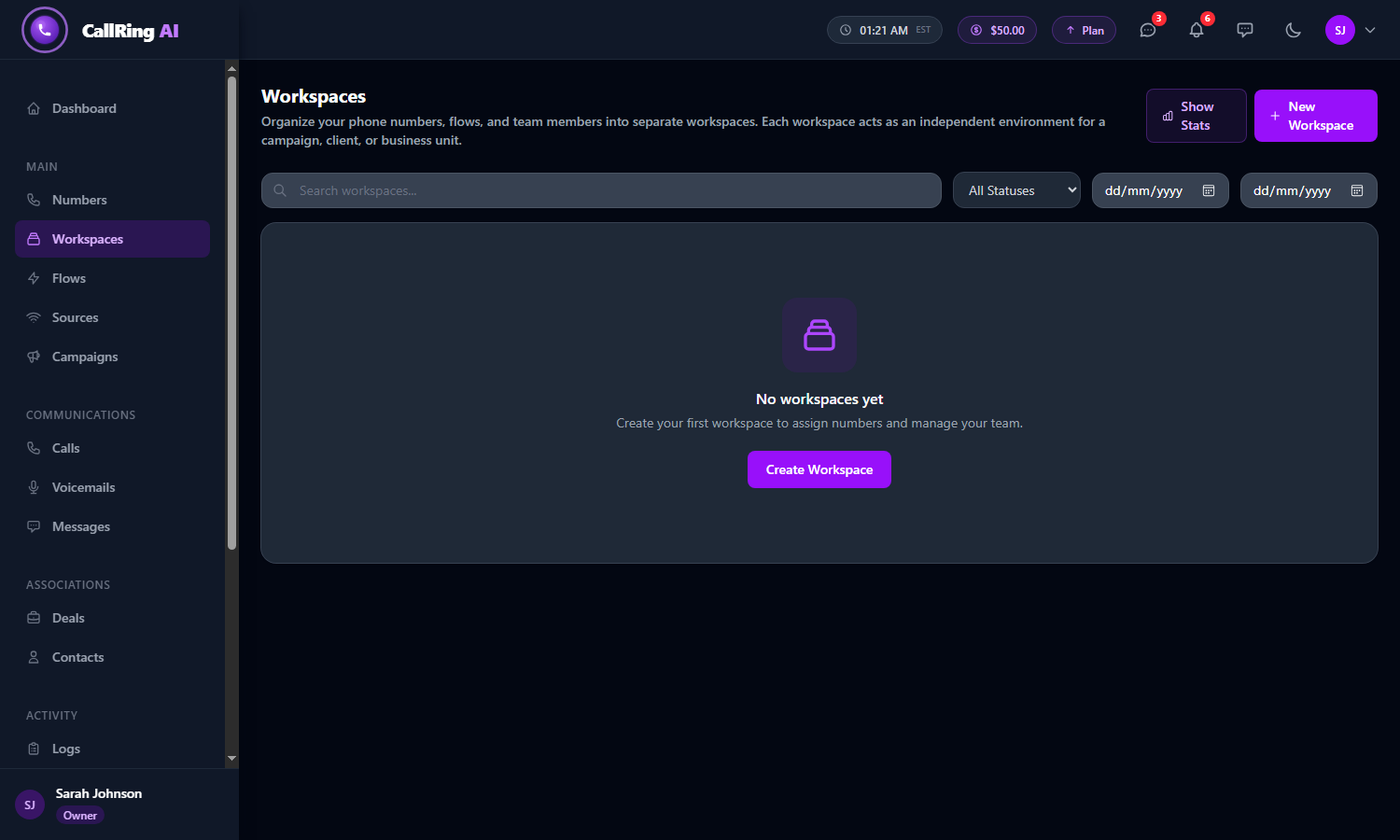
Open Workspaces and click New Workspace -
Step 2: Fill in the workspace form
Enter a Workspace Name and a Description. Both are required. In the description, say what the workspace is used for, for example “Calls and texts for our West Coast service area”. Then click Create Workspace.
- Choose a Status. Active means the workspace is live. Inactive means it is paused.
- A banner at the top tells you how many free workspaces your plan includes.
- If you have none left, the banner shows the price of a new workspace. The price is taken from your account balance. If your balance is too low, you will see an error.
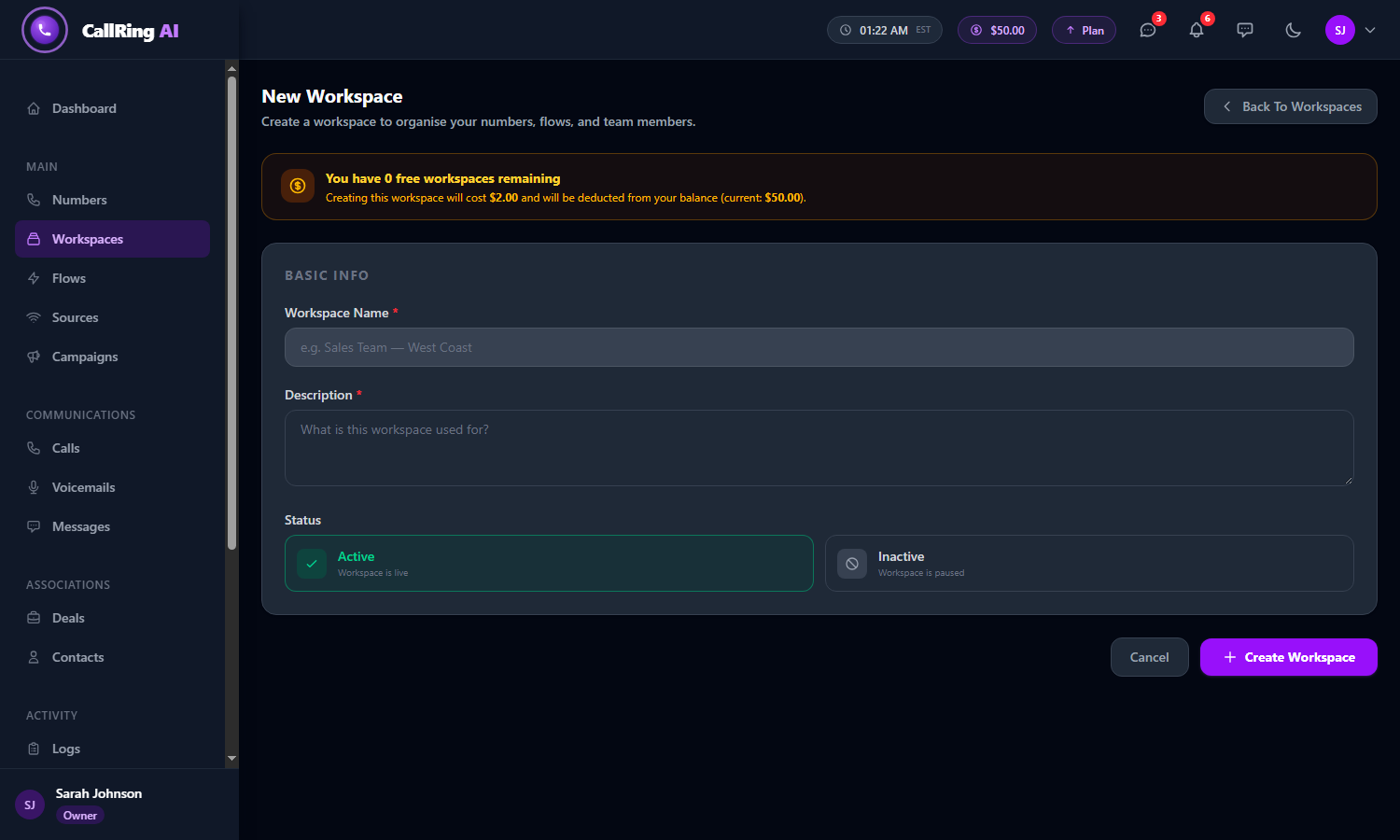
The New Workspace form 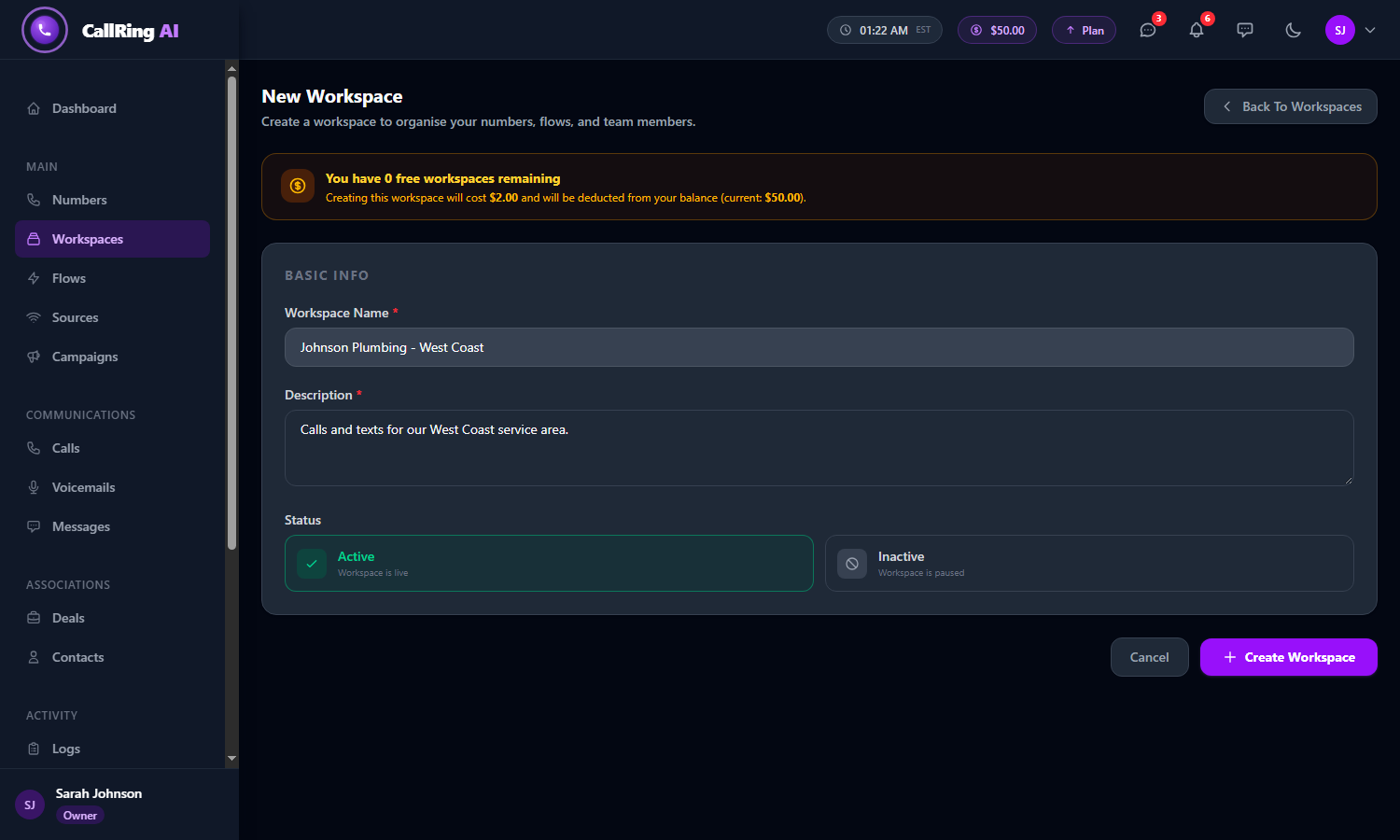
Enter a name and a description -
Step 3: Click Manage Workspace
On the Workspaces page, find your new workspace and click Manage Workspace.
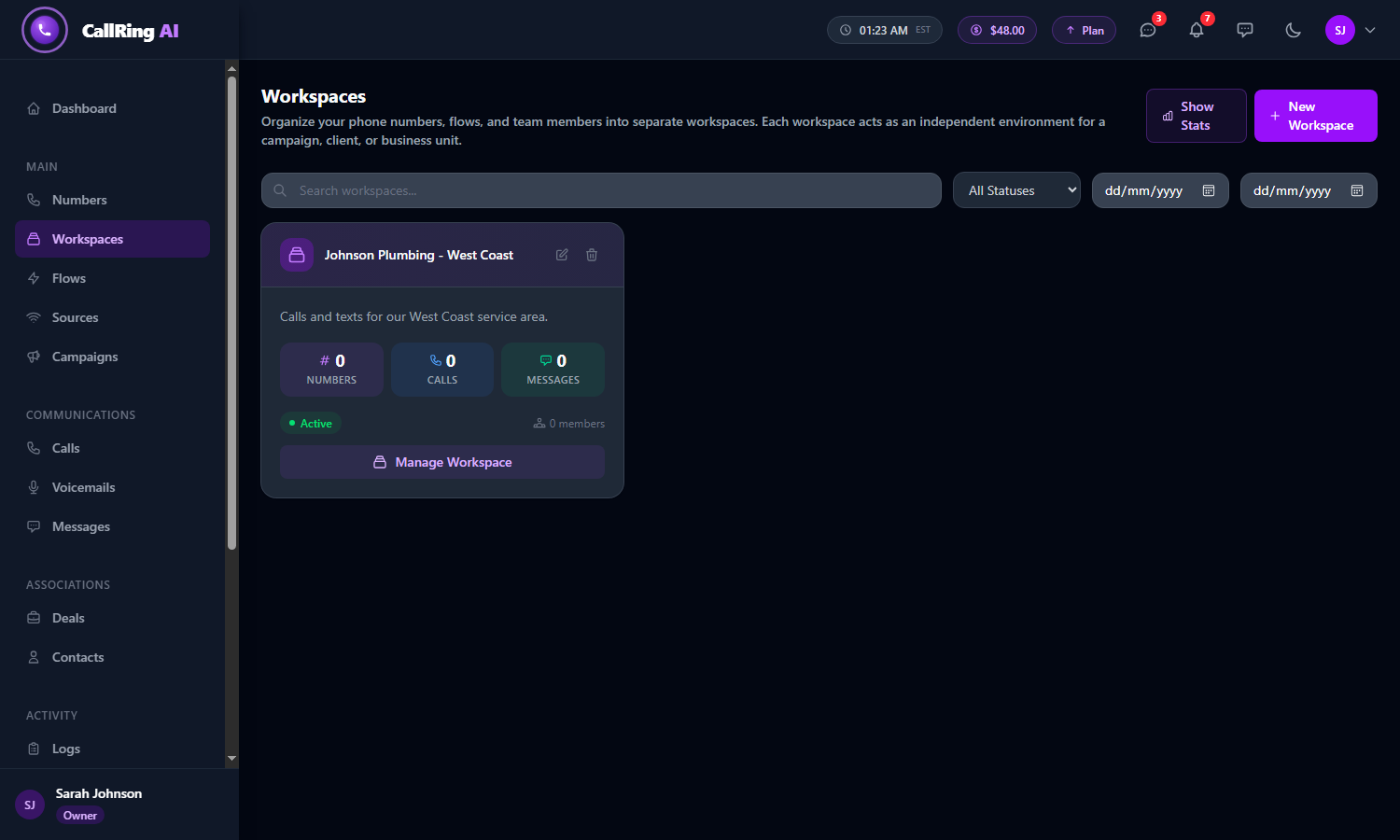
Your workspace appears. Click Manage Workspace -
Step 4: Connect a phone number
Open the Numbers tab. It lists your numbers that are not in another workspace, with their status, flow, and any sources and campaigns. Click Assign next to the number you want.
- A confirmation, “Number assigned to this workspace”, appears. The button changes to Remove.
- A number can belong to one workspace at a time.
- To take a number out again, click Remove.
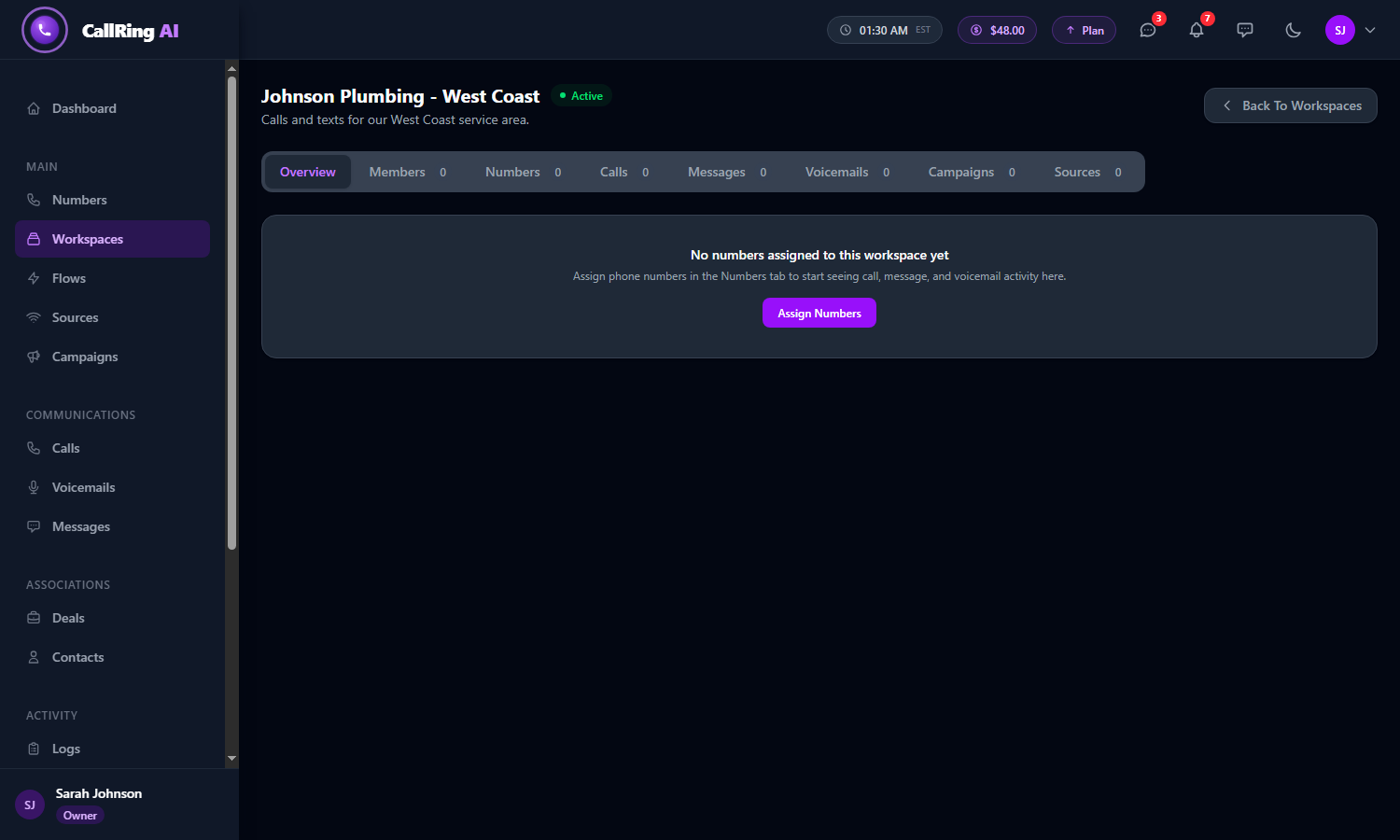
A new workspace is empty until you connect a number 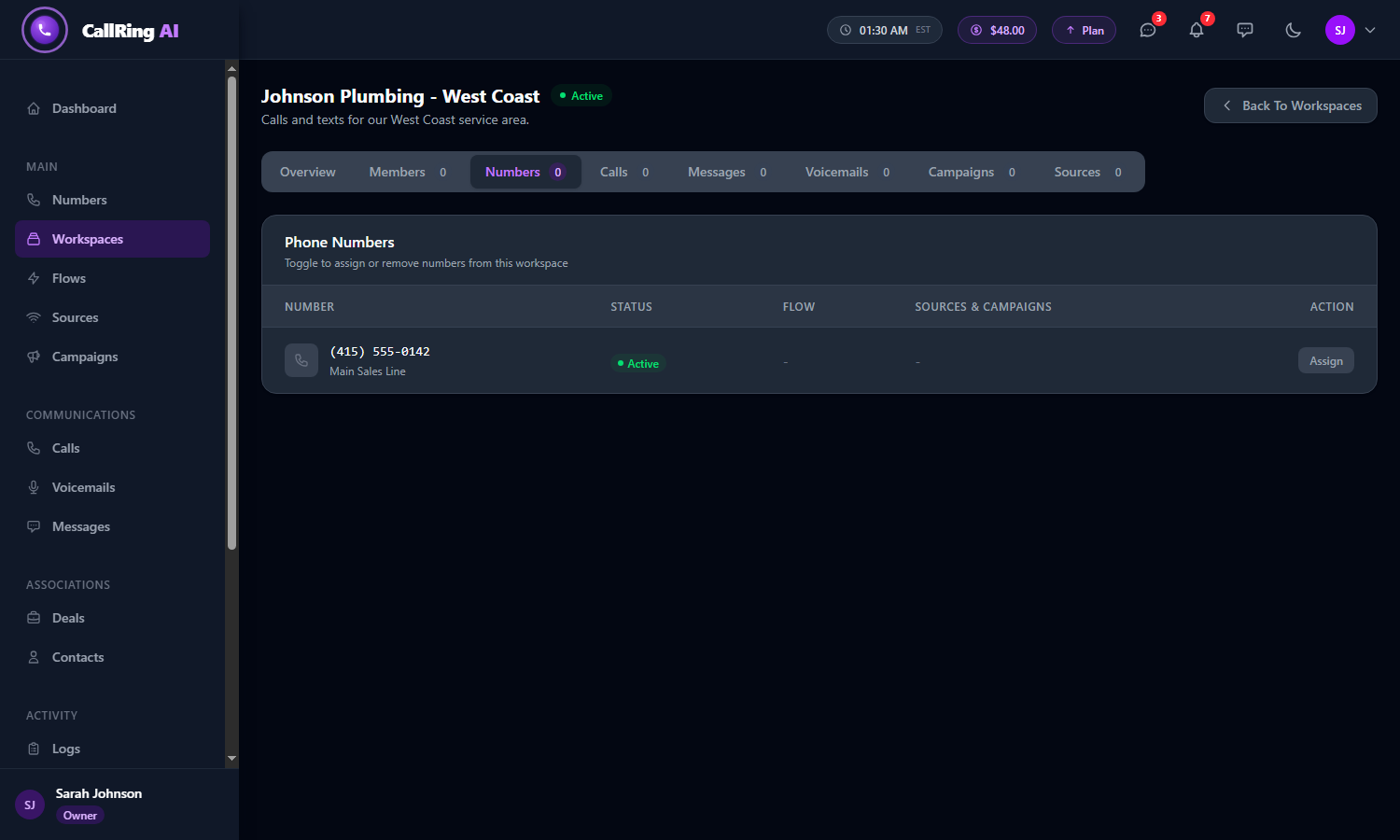
Open the Numbers tab and click Assign 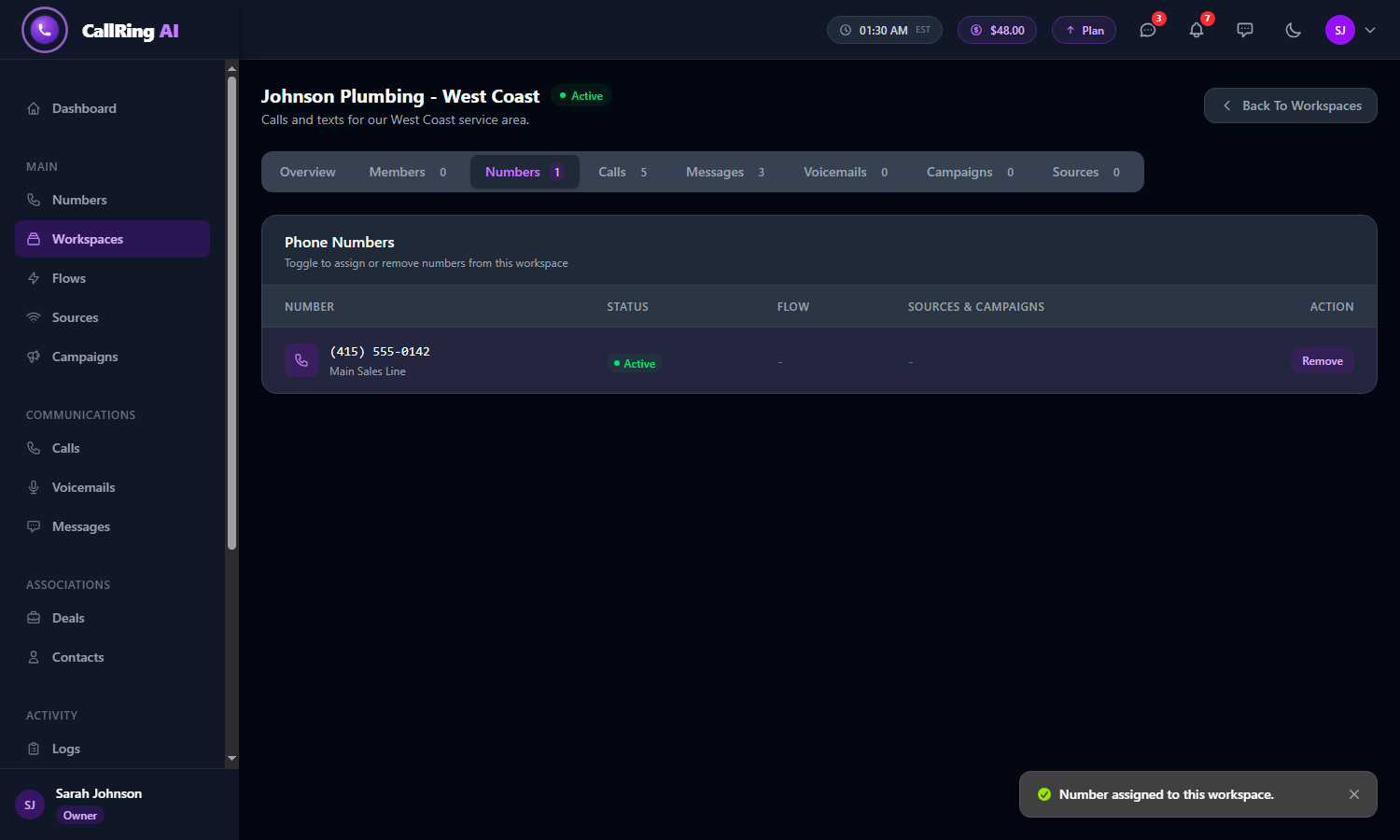
Your number is now connected Tip: You need a number first. See How to buy a phone number in CallRing AI. -
Step 5: See your workspace activity
After a number is connected, the workspace shows only that number’s activity. The tabs across the top each show a count. Open them to look around.
- Type a phone number to filter the Calls tab.
- Type a number or words to filter the Messages tab.
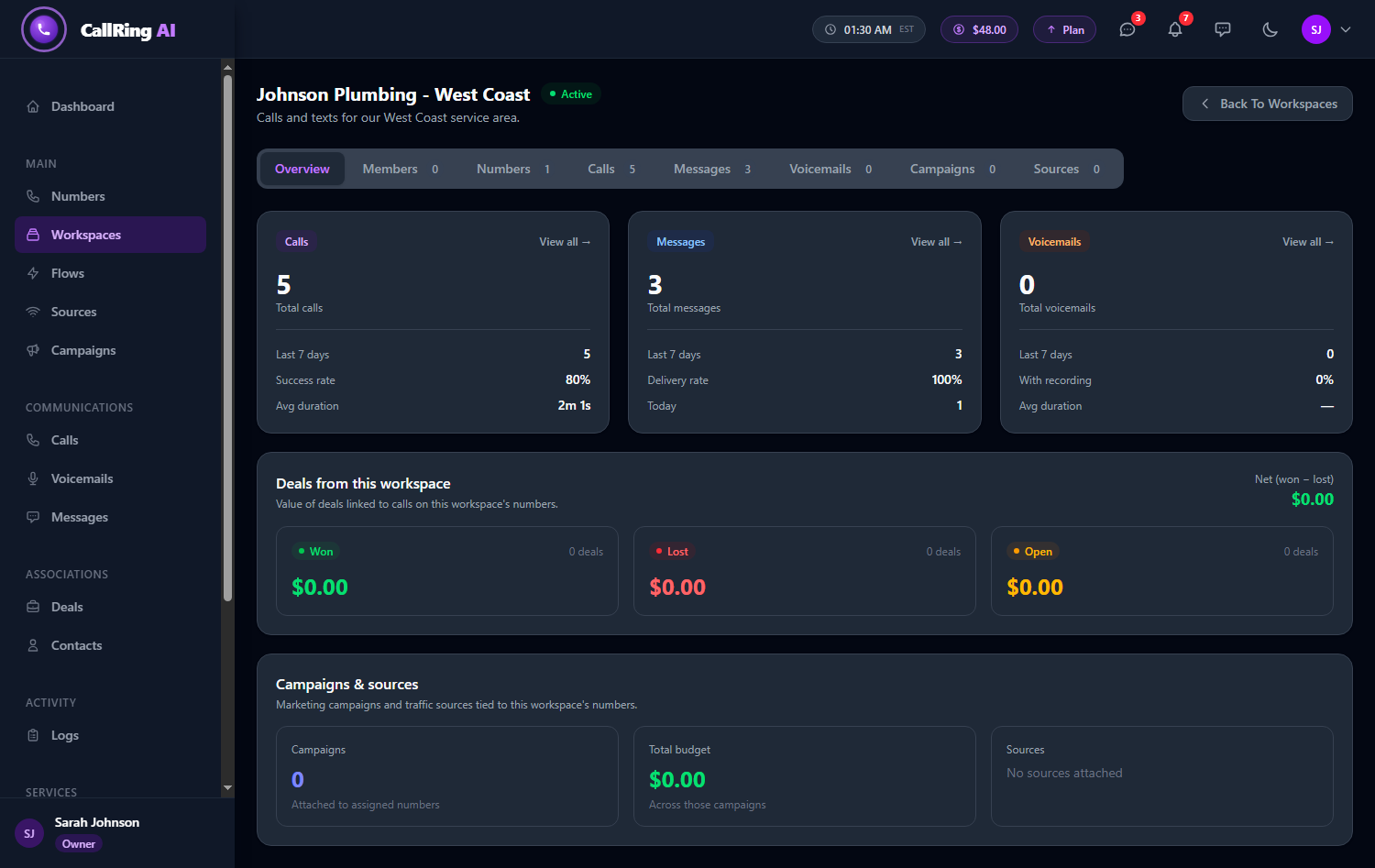
The Overview shows calls, messages and voicemails at a glance 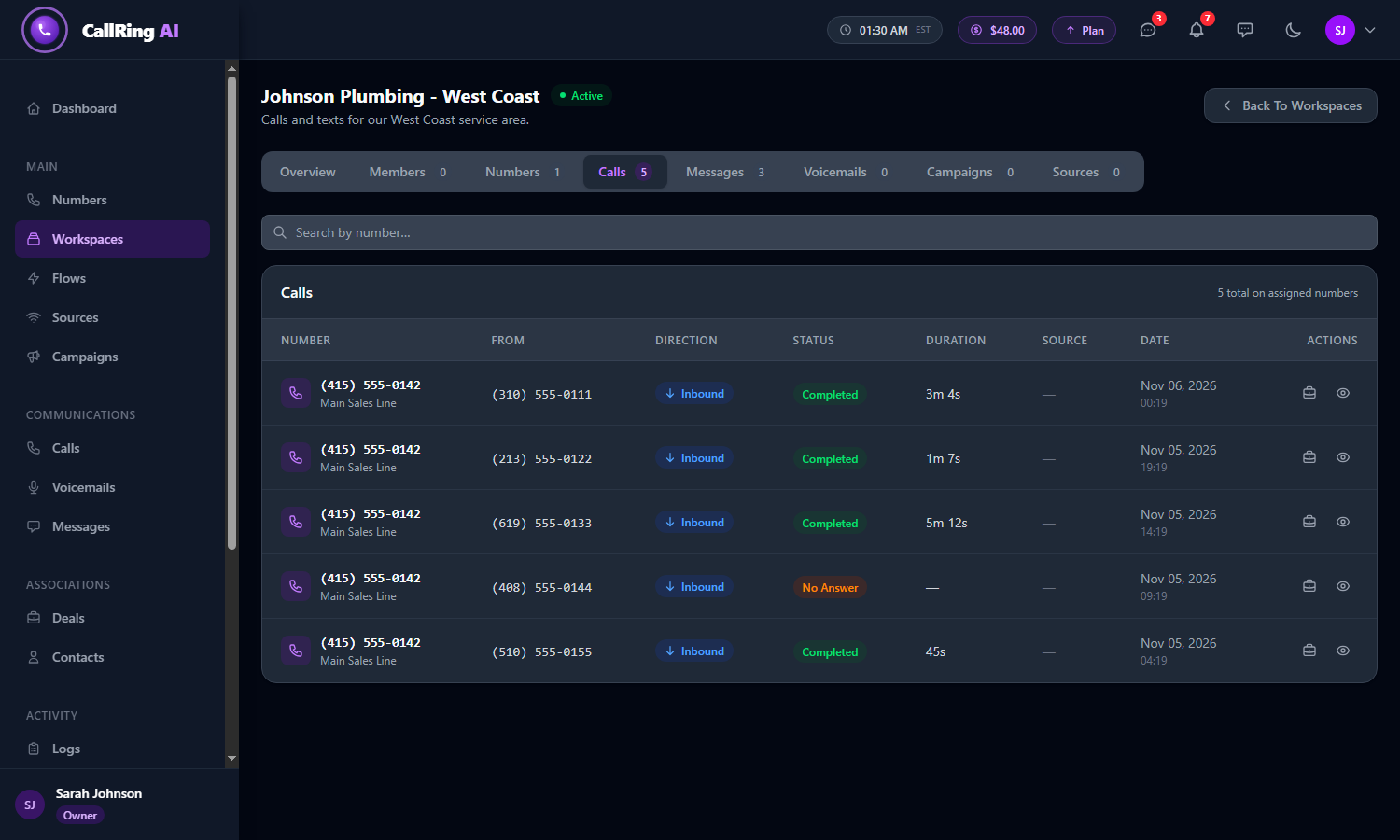
Calls tab: every call on your connected numbers 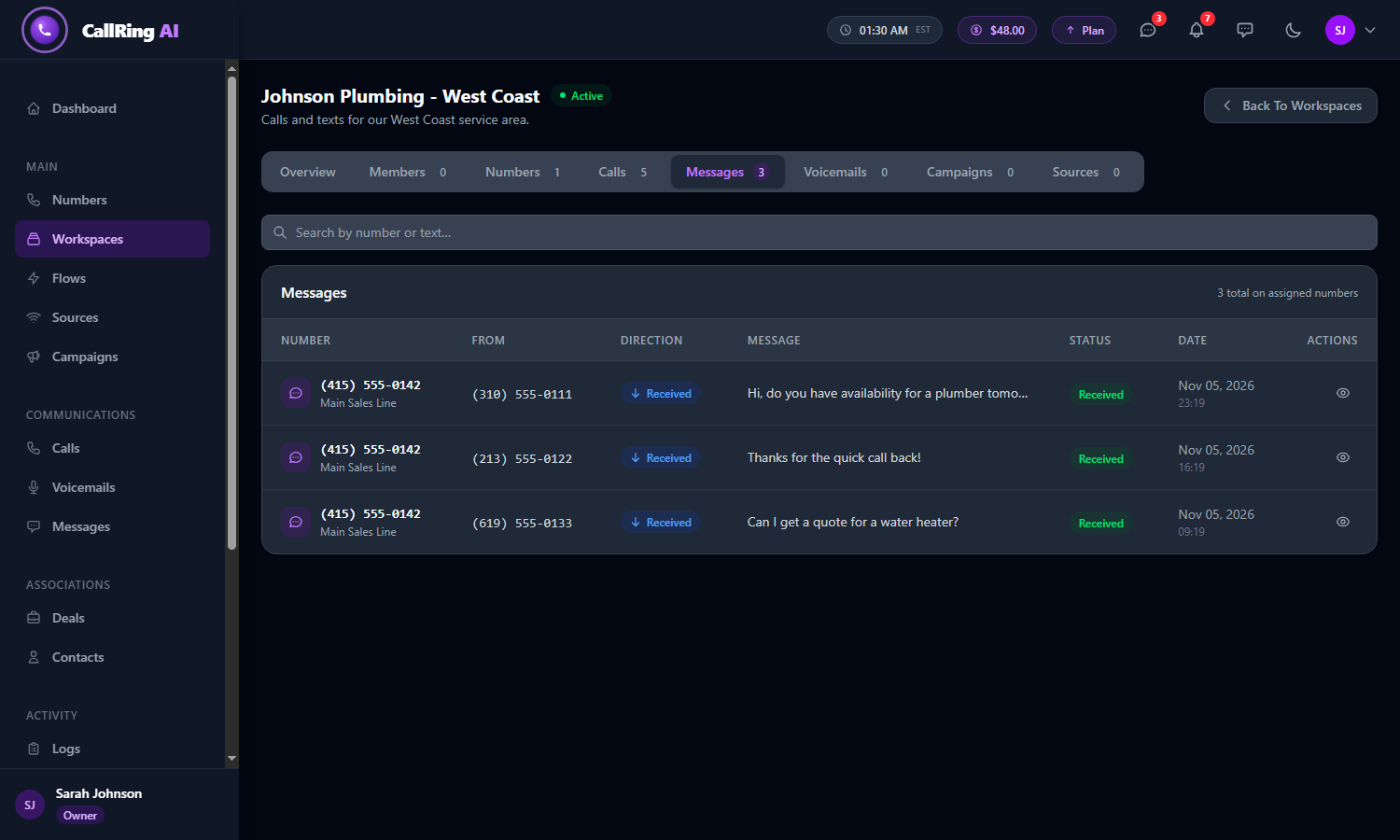
Messages tab: text messages on your connected numbers 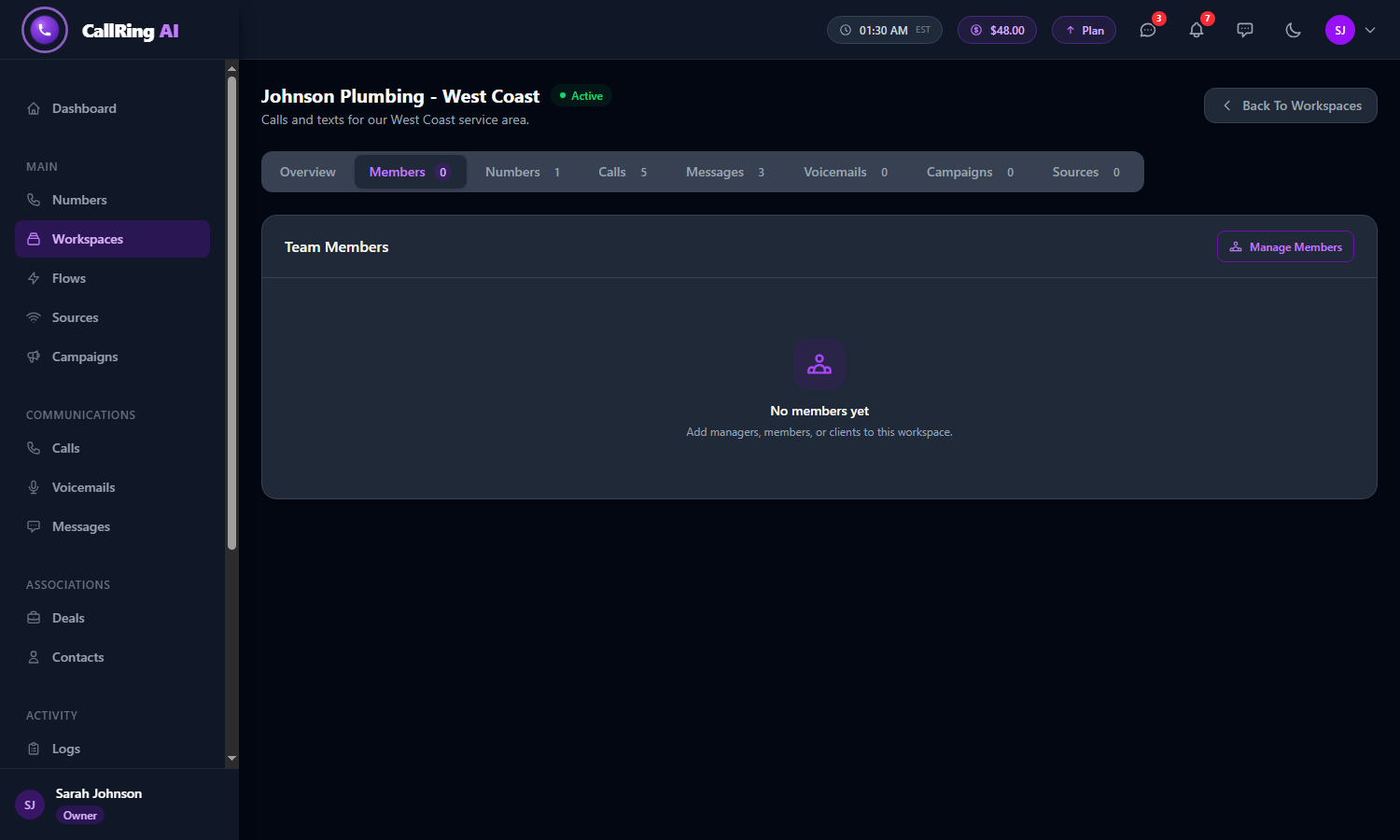
Members tab: your team in this workspace
What you can see in a workspace
| Tab | What it shows |
|---|---|
| Overview | Three summary cards. Calls: total calls, last 7 days, success rate and average duration. Messages: total messages, last 7 days, delivery rate and today. Voicemails: total, last 7 days, with recording and average duration. Click View all on a card to open its tab. Below the cards: Deals from this workspace (won, lost and open deal values) and Campaigns & sources (campaigns, total budget and sources). |
| Members | The team members in this workspace, with each person’s permission and assigned flows. Use the icons to assign flows or remove a member. |
| Numbers | Assign numbers to the workspace or remove them. |
| Calls | A searchable list with the number, who called, direction, status (for example Completed or No Answer), duration, source and date. Open a call with the eye icon, or link it to a deal with the briefcase icon. |
| Messages | A searchable list of text messages on the workspace’s numbers. |
| Voicemails | Voicemails left on the workspace’s numbers. |
| Campaigns and Sources | The marketing campaigns and traffic sources tied to the numbers. |
Good to know
- The workspace only shows calls and messages for numbers assigned to it. Until a number is assigned, the activity tabs stay at 0.
- Use workspaces to keep locations, clients or teams separate.
- Searching: type a phone number to filter the Calls tab, or a number or words to filter the Messages tab.
- Adding team members to a workspace: [TO CONFIRM: how to add team members to a workspace, and a link to a Members guide if one exists]
Frequently asked questions
Can a number be in two workspaces?
No. A number can belong to one workspace at a time. Click Remove to take it out, then assign it elsewhere.
What does Inactive do?
Inactive means the workspace is paused. Active means it is live.
Why are my numbers not showing in the list?
The Numbers tab lists only numbers that are not already in another workspace. If a number is missing, it may be in a different workspace.
How much does an extra workspace cost?
Your plan includes some free workspaces. When you have none left, the banner on the New Workspace form shows the price before you create it. The price is taken from your account balance.
Can I rename or delete a workspace?
[TO CONFIRM: whether and how a workspace can be renamed or deleted.]
Why are my workspace stats empty?
A workspace only shows activity for numbers assigned to it. Until you assign a number, the tabs stay at 0. [TO CONFIRM: any other reasons.]
Your workspace is set up and your number is connected. Calls and texts on that number now show up here. Next, create a source and a campaign to see which marketing brings in your calls.