Call Tracking
How to Create a Deal
A deal is one sales opportunity you want to track. Creating one takes about a minute. Your deal will look different from the sample in the screenshots.
2 min read · 4 steps
What is a deal?
- A deal is one sales opportunity you want to track, for example “Kitchen repipe - Lee” worth $1,800.
- Later you can link phone calls to a deal to see how much business your calls bring in.
- A deal has a status: Open (still in progress), Won (you got the job) or Lost (you did not).
- Only the main account owner can create deals. Team members can see the Deals page but do not get the New Deal button.
- Creating a deal is free. It does not use your balance.
-
Step 1: Open the Deals page
In the left menu, under Associations, click Deals. A new account shows “No deals yet. Create your first deal to start associating calls and messages.” Click the purple New Deal button, at the top right or in the middle of the page.
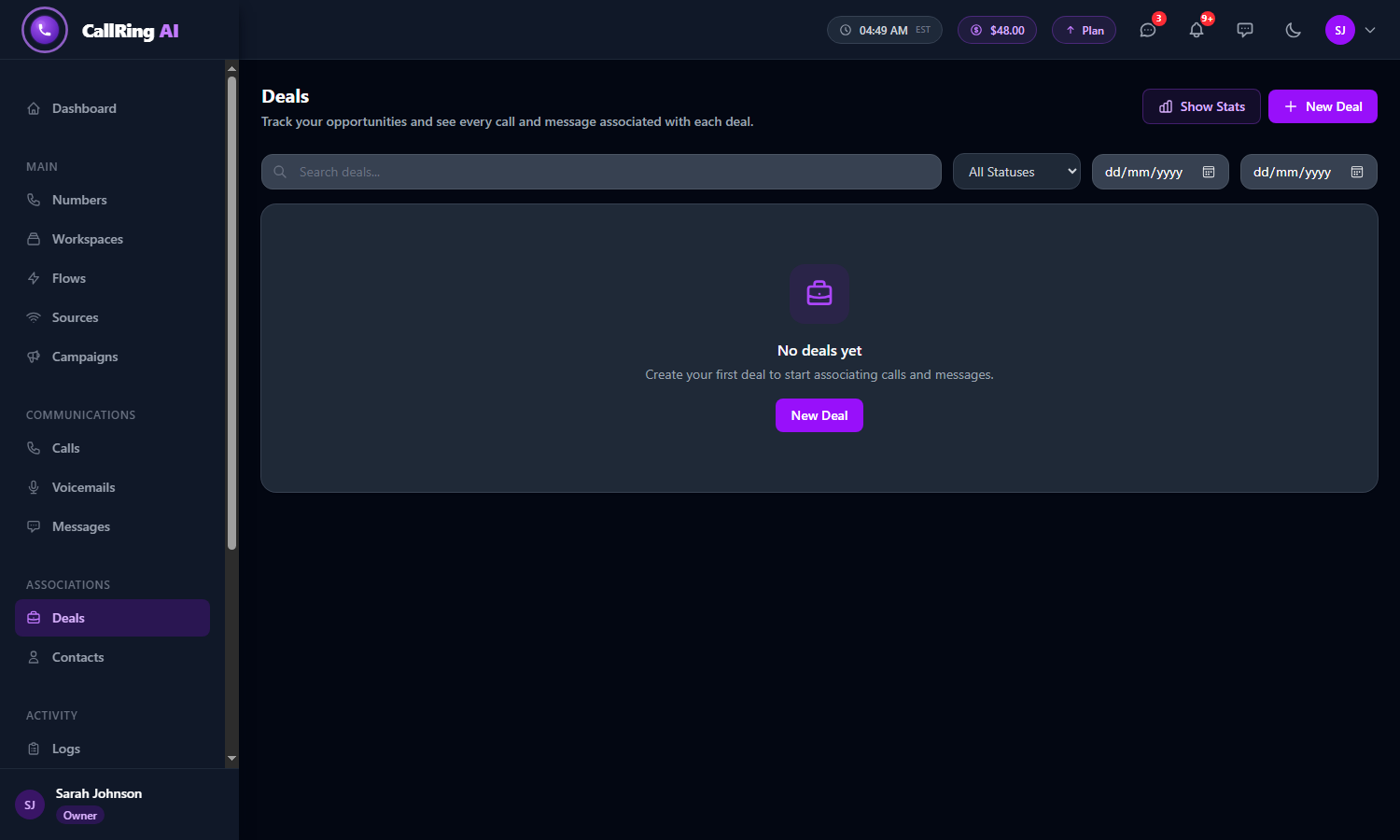
Open Deals and click New Deal -
Step 2: Look at the New Deal window
A New Deal window opens with four fields:
- Deal Name (required).
- Value ($): what the deal is worth (optional).
- Status: Open, Won or Lost. A new deal starts as Open.
- Description: optional notes.
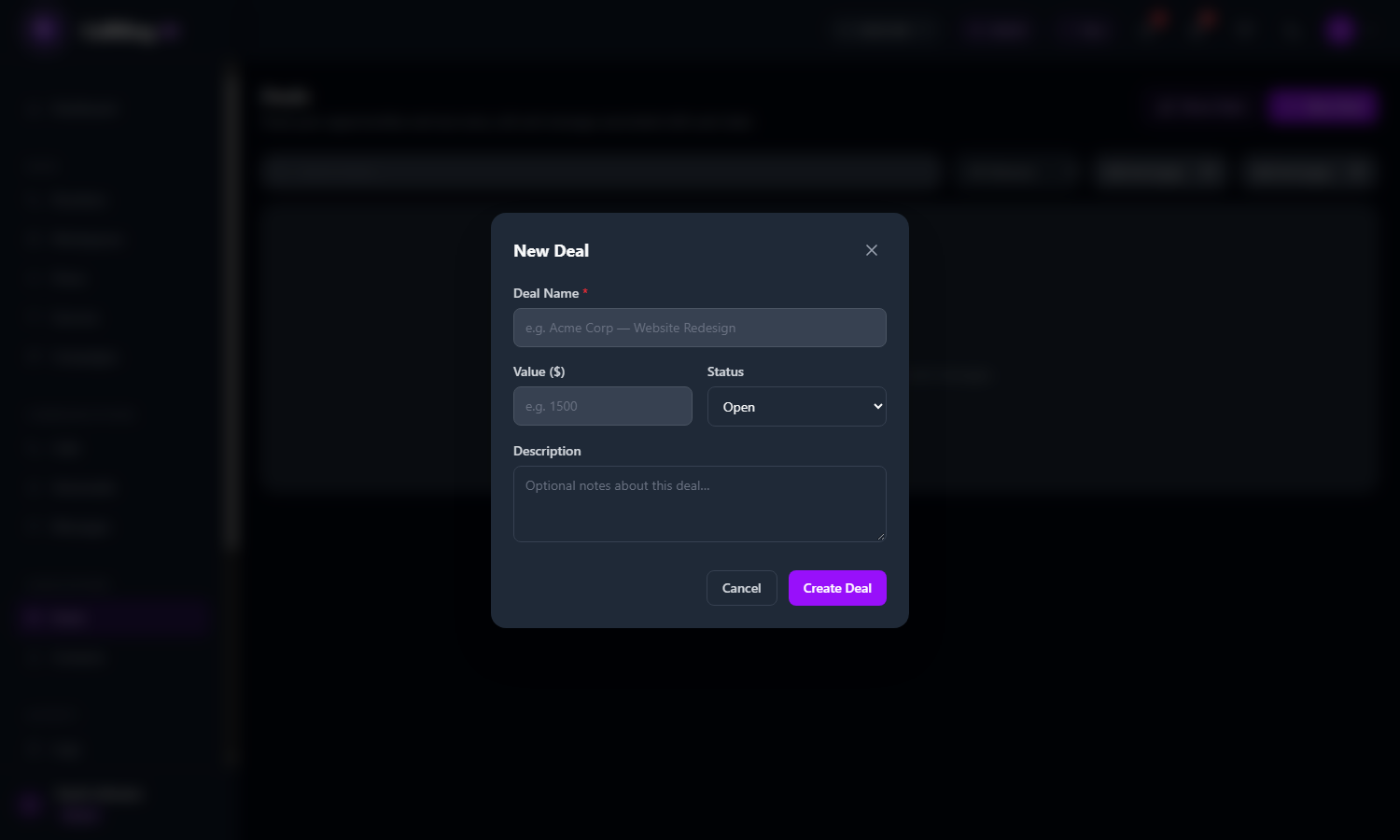
The New Deal window Note: You can close the window with the X or Cancel at any time. Nothing is saved. -
Step 3: Fill in the deal
Type a clear Deal Name, then fill in the other fields.
- Enter the Value in dollars, for example 1800. You can leave it empty if you do not know it yet. Use numbers only.
- Keep the Status on Open for a new opportunity.
- Add a short Description, for example “Full kitchen repipe for the Lee family. Quote sent after the first phone call.”
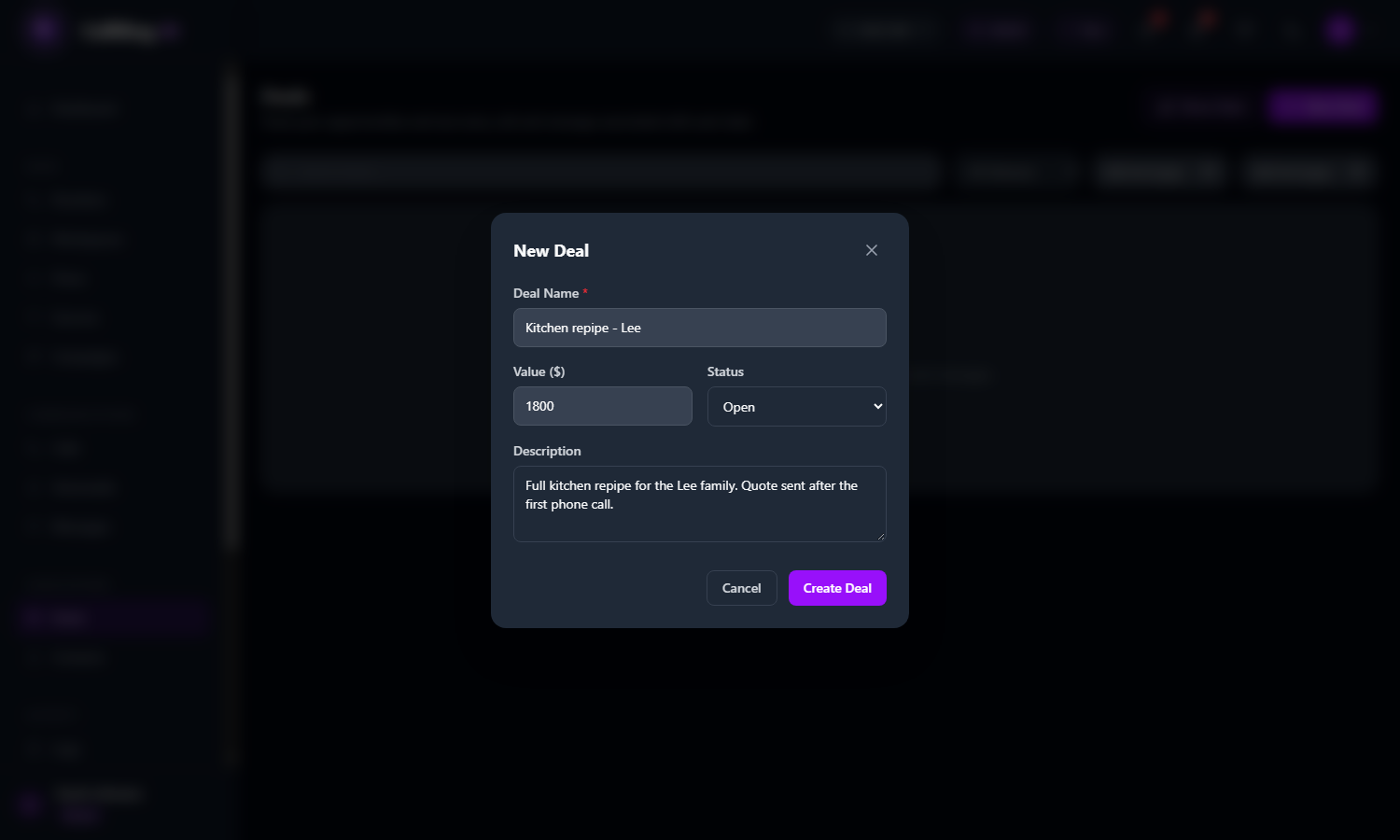
A filled-in deal: name, value, status and description Tip: Use “Customer - Job” for the name, for example “Kitchen repipe - Lee”. If you click Create Deal with the name empty, a red message “The name field is required.” appears under Deal Name. Type a name and try again. -
Step 4: Create the deal
Click the purple Create Deal button. The window closes, a green message “Deal created.” appears at the bottom right, and your deal shows in the list.
- The row shows the deal name and description, its Value and its Status (Open in blue).
- It also shows the number of Calls and Messages linked to it (0 for a new deal), and the date it was created.
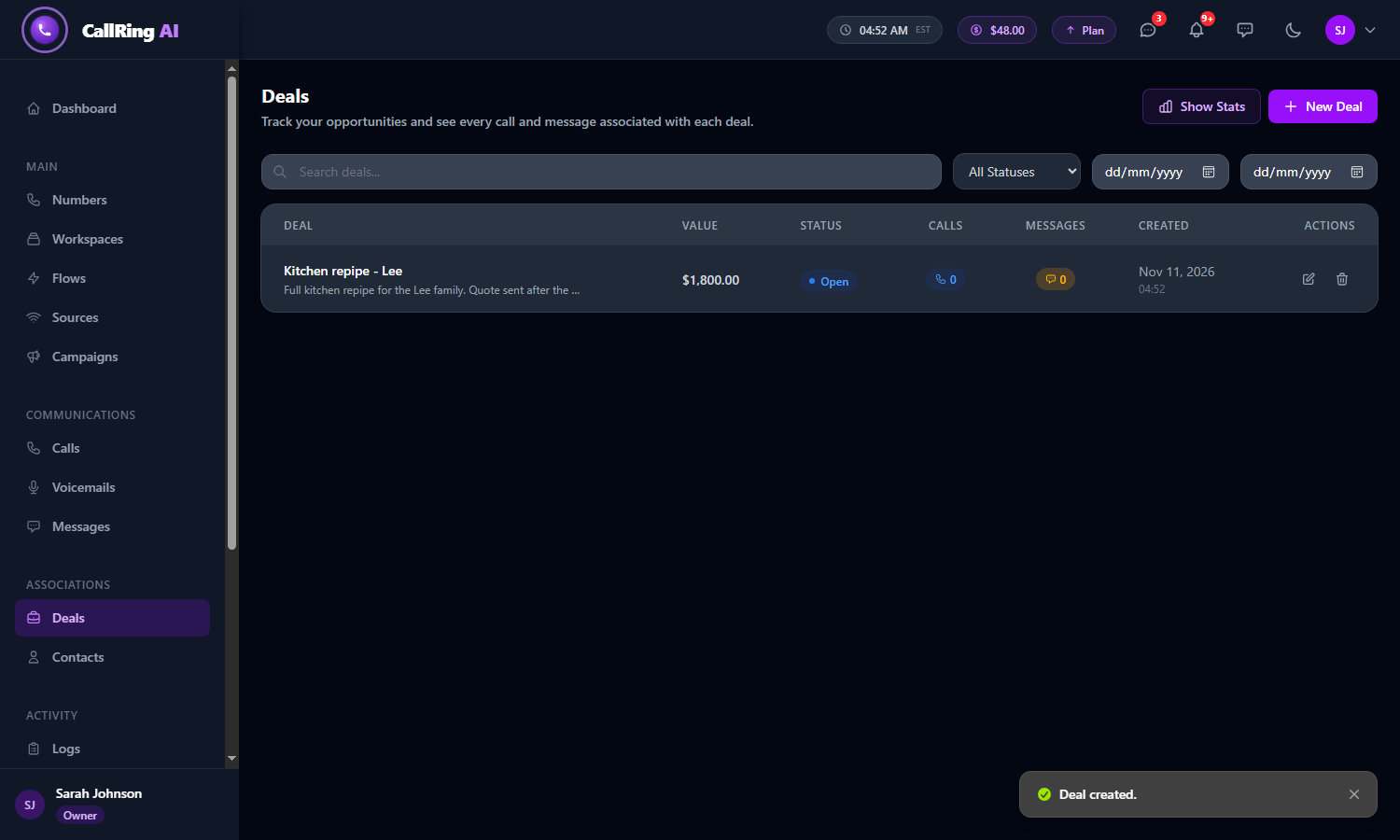
Your new deal in the list
Good to know
- To link calls to this deal, see How to Track Your Calls.
- To change or remove a deal, use the pencil and bin icons in the Actions column.
Need help? Open a support ticket from your account.