How to Upgrade or Downgrade Your Plan
You can move to a bigger or smaller plan whenever you like. It takes about a minute. The screenshots use sample data, and your plans and prices may look different.
4 min read · 5 steps
Before you start
- You must be the main account owner. Team members, managers and clients do not see the plan buttons.
- You can change plans at any time. The change takes effect immediately.
- Billing runs through Stripe on the card you already have on file.
-
Step 1: Open your Billing page
In the left menu, under Services, click Billing. You will see three cards: Status (Active), Plan (your current plan) and Renewal (your next billing date). Below them are your subscription details and your card on file. Then click the purple Upgrade or Downgrade Plan button at the top.
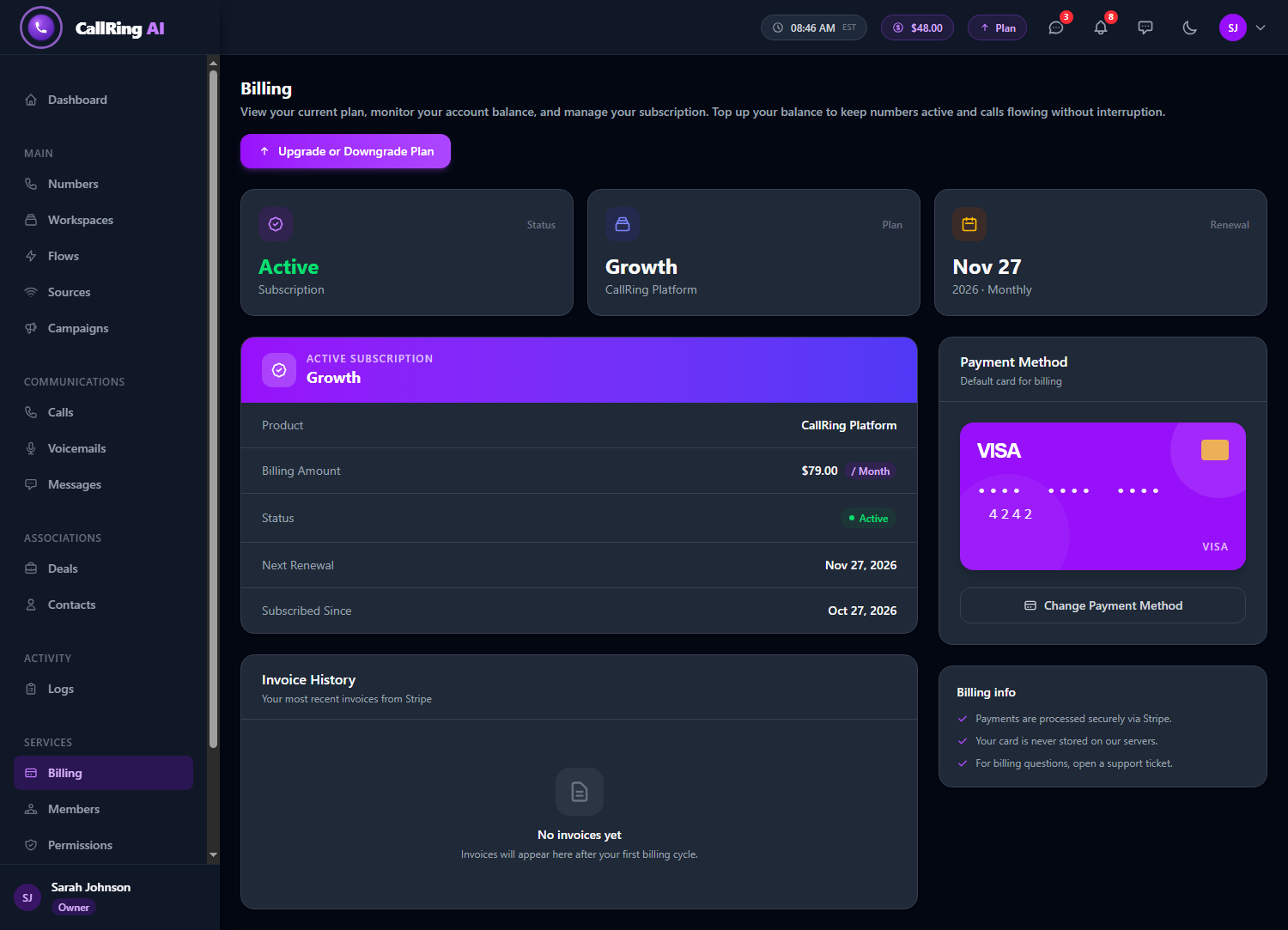
Open Billing, then click Upgrade or Downgrade Plan Tip: Shortcut: the small Plan button with an up arrow in the top bar, next to your balance, opens the same page from anywhere in the app. -
Step 2: Compare the plans
The Subscription Plans page shows every available plan as a card. Take your time and compare them.
- Each card shows the plan name, the monthly price, the starting balance, the plan limits, the number pricing, the usage rates and whether bulk number purchase is available.
- Plan limits cover workspaces, phone numbers, members, deals, contacts, campaigns and sources. The amount in brackets is how many are free. The infinity symbol means unlimited.
- Your current plan is marked Current Plan with a purple outline, and its button is greyed out.
- Plans that cost more show an Upgrade button. Plans that cost less show a Downgrade button.
- A plan that shows Not available yet cannot be chosen right now.
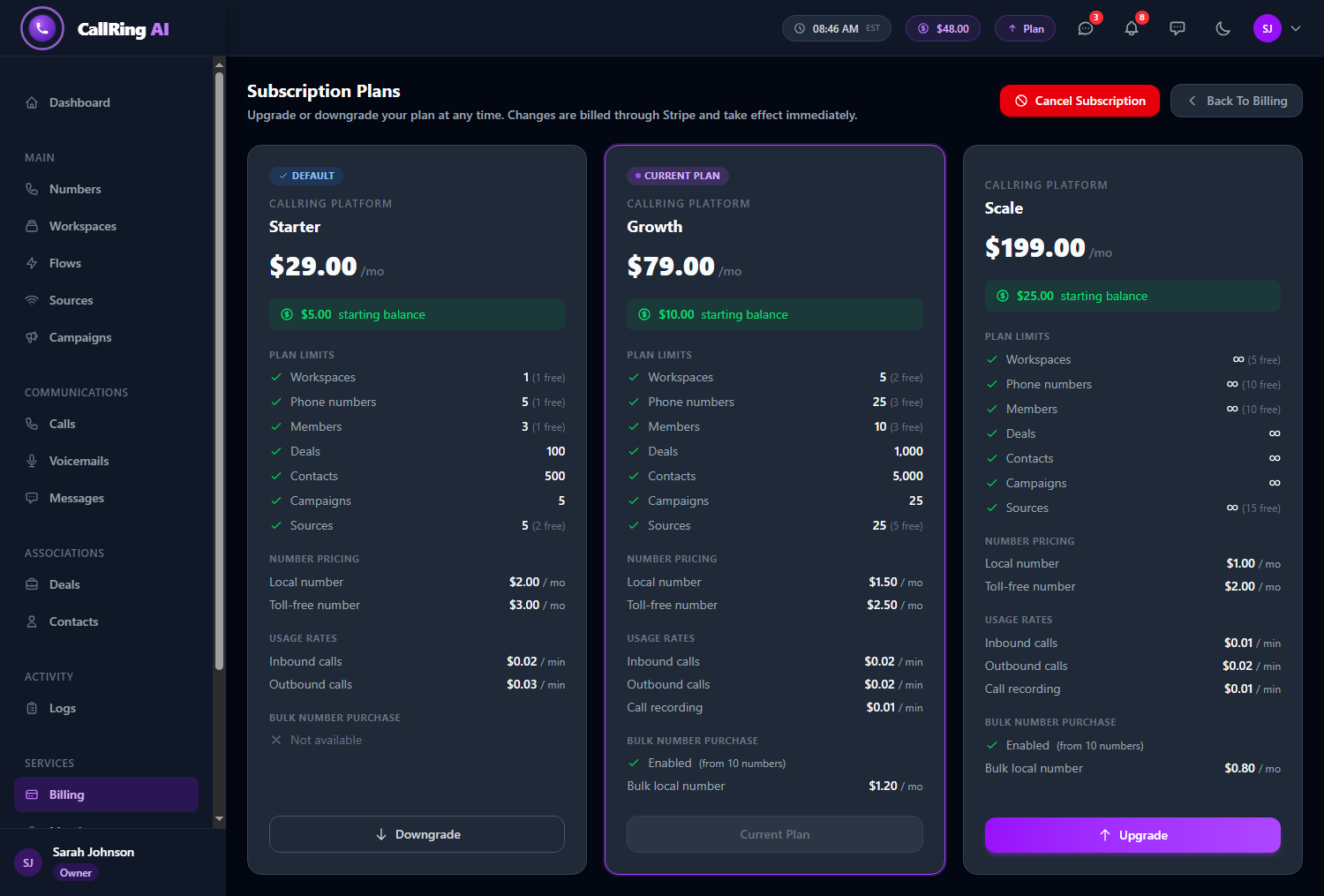
Compare the plans. Your current plan has a purple outline -
Step 3: Upgrade to a bigger plan
Click Upgrade on the plan you want. A window titled Confirm Upgrade opens and says which plan and price you are about to choose.
- It explains: “Your plan changes immediately and Stripe charges a prorated amount for the rest of this billing period.”
- Prorated means you only pay the price difference for the days left in the current month.
- Click Confirm Upgrade to continue, or Cancel to go back with no change.
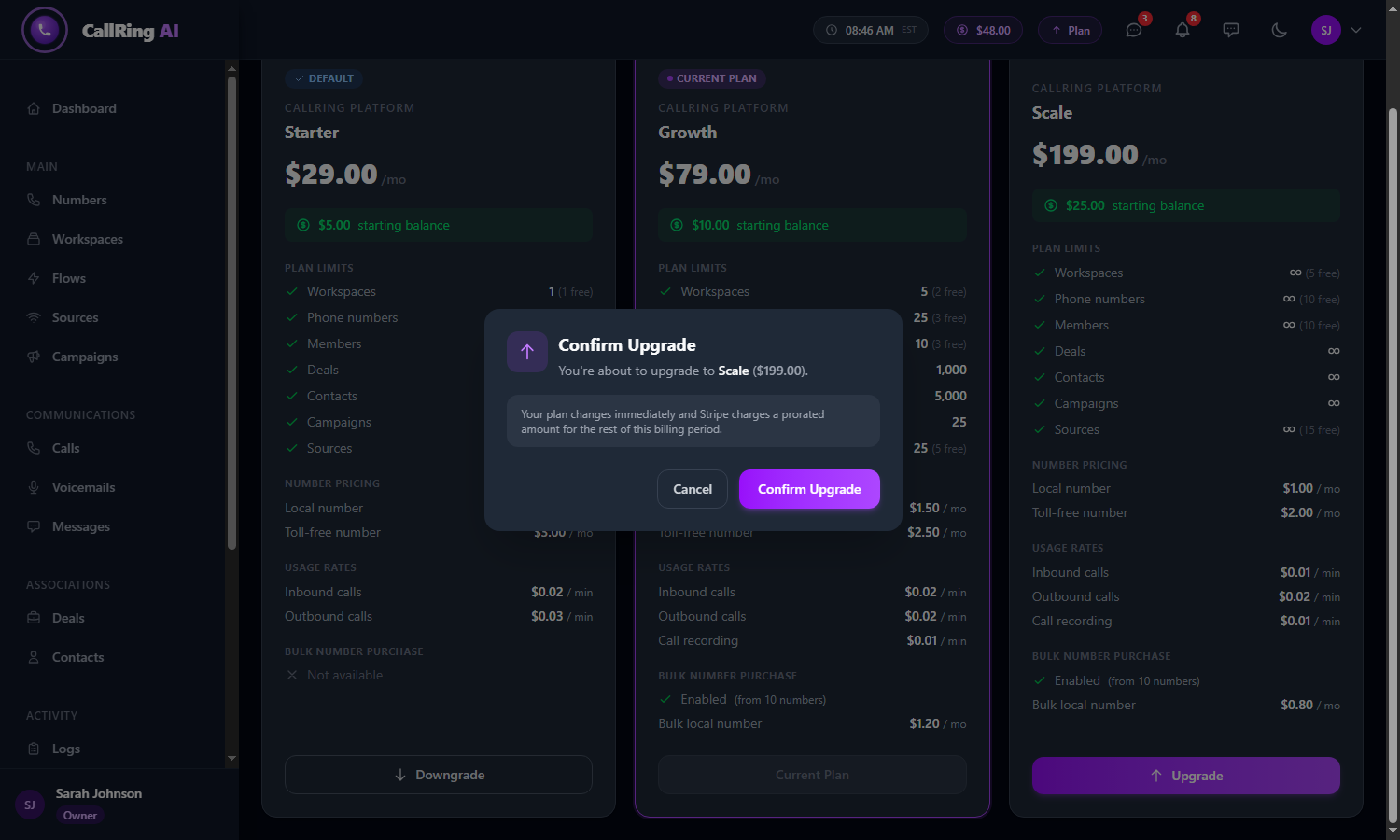
Confirm Upgrade: your plan changes immediately and you pay a prorated amount -
Step 4: Or downgrade to a smaller plan
Click Downgrade on the plan you want. A window titled Confirm Downgrade opens, with an amber arrow.
- It explains: “Your plan changes immediately and Stripe applies a prorated credit toward your next invoice.”
- The unused time on your old plan becomes credit on your next bill.
- Click Confirm Downgrade, or Cancel to stay on your current plan.
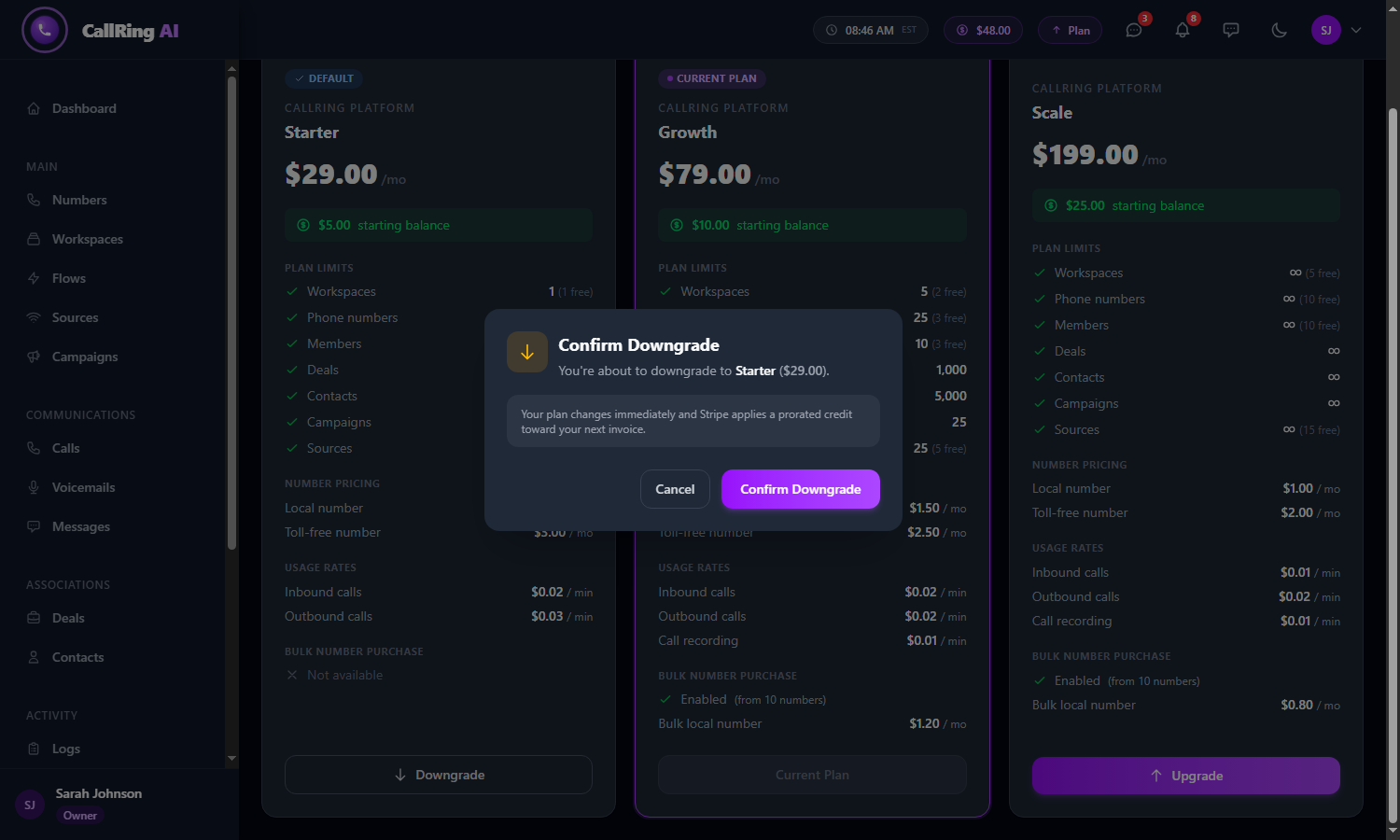
Confirm Downgrade: unused time becomes credit on your next invoice Warning: A smaller plan has lower limits. Before you confirm, check that your workspaces, phone numbers, members and so on fit within the new plan’s limits. -
Step 5: Check the result
After you confirm, you are taken back to the Billing page. A green message confirms the change, for example “Subscription upgraded to” and the name of your new plan. It also mentions any prorated credit that will be applied to your next invoice.
- The Plan card and the Active Subscription box now show your new plan and price.
- Billing Amount and Next Renewal update to the new plan.
- You also get a notification under the bell icon and an email about the change.
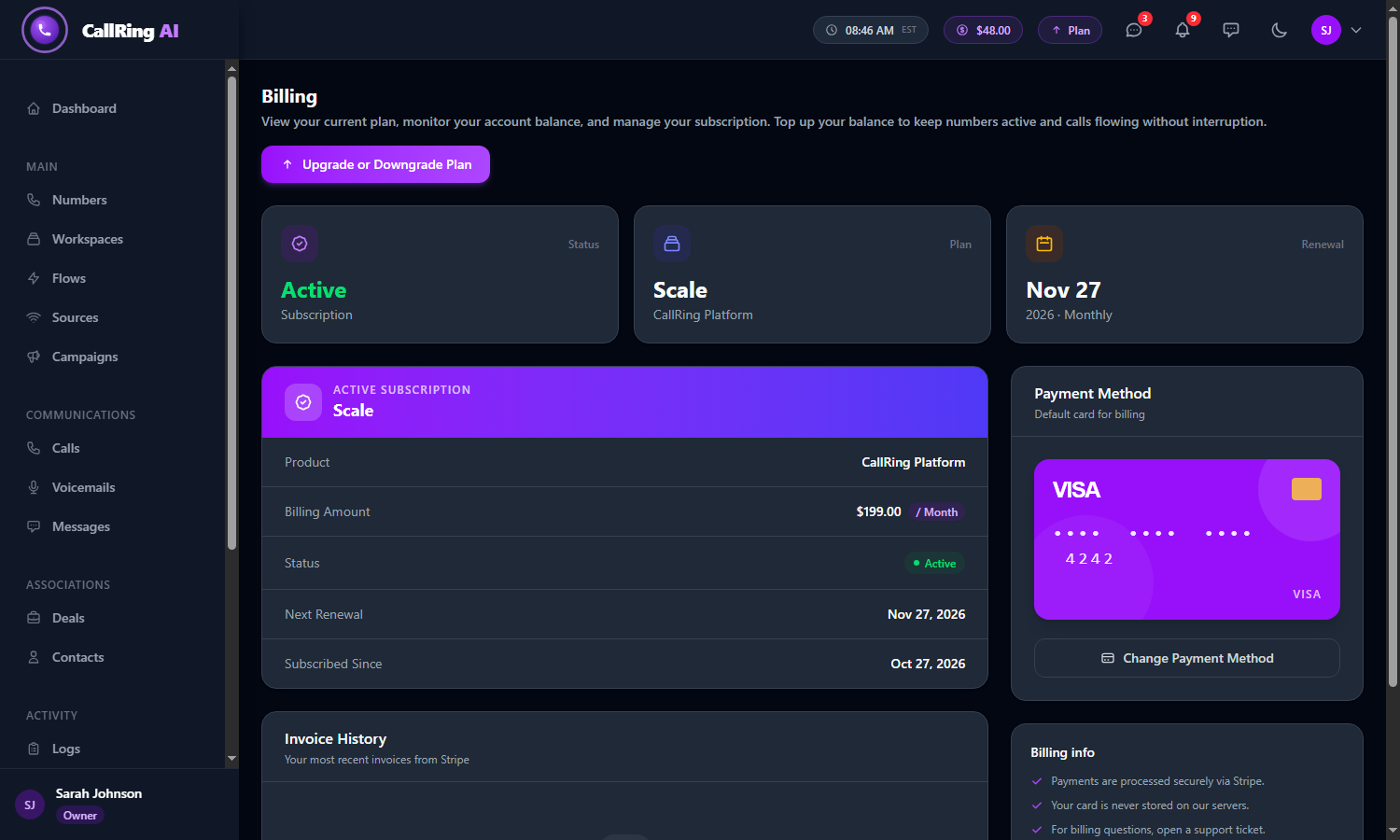
Your Billing page now shows the new plan
If something goes wrong
| What you see | What to do |
|---|---|
| “Your card was declined”, “has expired” or “has insufficient funds” | Click Change Payment Method on the Billing page to update your card, then try again. |
| “One more step - confirm the payment with your bank” | Your bank needs to approve the charge (3D Secure). Follow the bank page and you will return to the Plans page. |
| “Your subscription has an unpaid invoice” | Pay the open invoice or update your card before changing plans. |
| A “Complete Payment” banner on the Plans page | Your subscription payment is incomplete. Click Complete Payment to finish it. |
| “Requires an active subscription” | You need an active subscription before you can switch plans. |
Good to know
- On the Plans page, owners also see a red Cancel Subscription button. Use it with care: cancelling takes effect immediately and locks the account to the Plans page. If you do not subscribe again within one day, all your records are permanently removed.
- If a subscription has been cancelled, the plan buttons change to Subscribe. Clicking one starts a new subscription on the card on file.
Need help? Open a support ticket from your account.