How to Top Up Your Balance
Your balance pays for things like phone numbers, workspaces, sources, and calls and messages beyond your plan. Topping it up takes less than a minute. The screenshots use a sample account and sample amounts, so your own numbers will be different.
3 min read · 6 steps
Before you start
- A CallRing AI account with an active subscription
- A payment method on file with your subscription
- The amount you want to add, from $1 to $10,000
-
Step 1: Open the Balance page
In the left menu, click Balance. You can also click the balance amount in the top bar. The page shows your Account Balance, Add Balance, Auto-Recharge and a Balance History table.
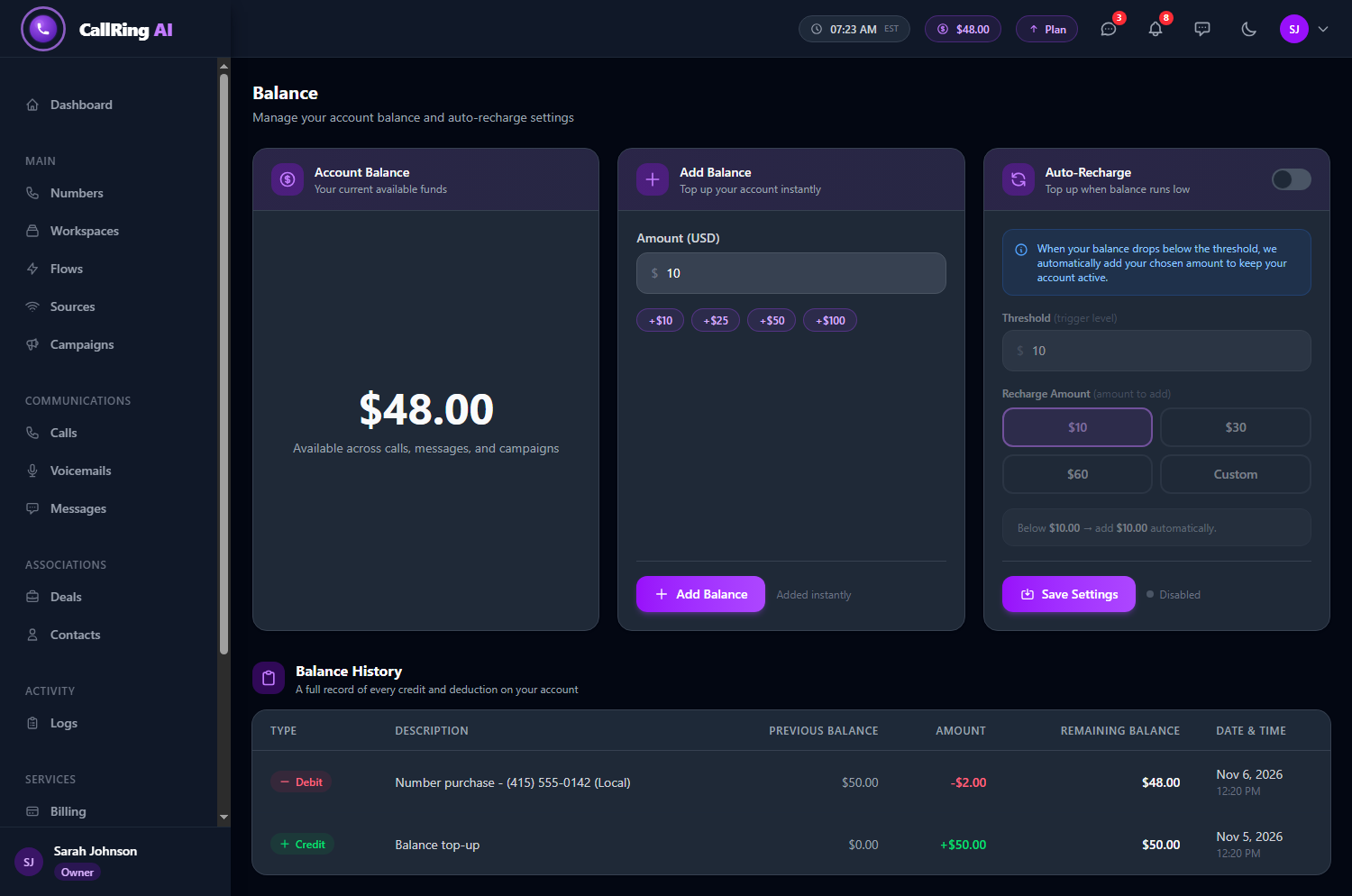
Open Balance from the left menu or the balance in the top bar -
Step 2: Choose an amount
Under Add Balance, type the Amount (USD) you want to add, from $1 to $10,000. Or click a quick button: +$10, +$25, +$50 or +$100. Then click Add Balance.
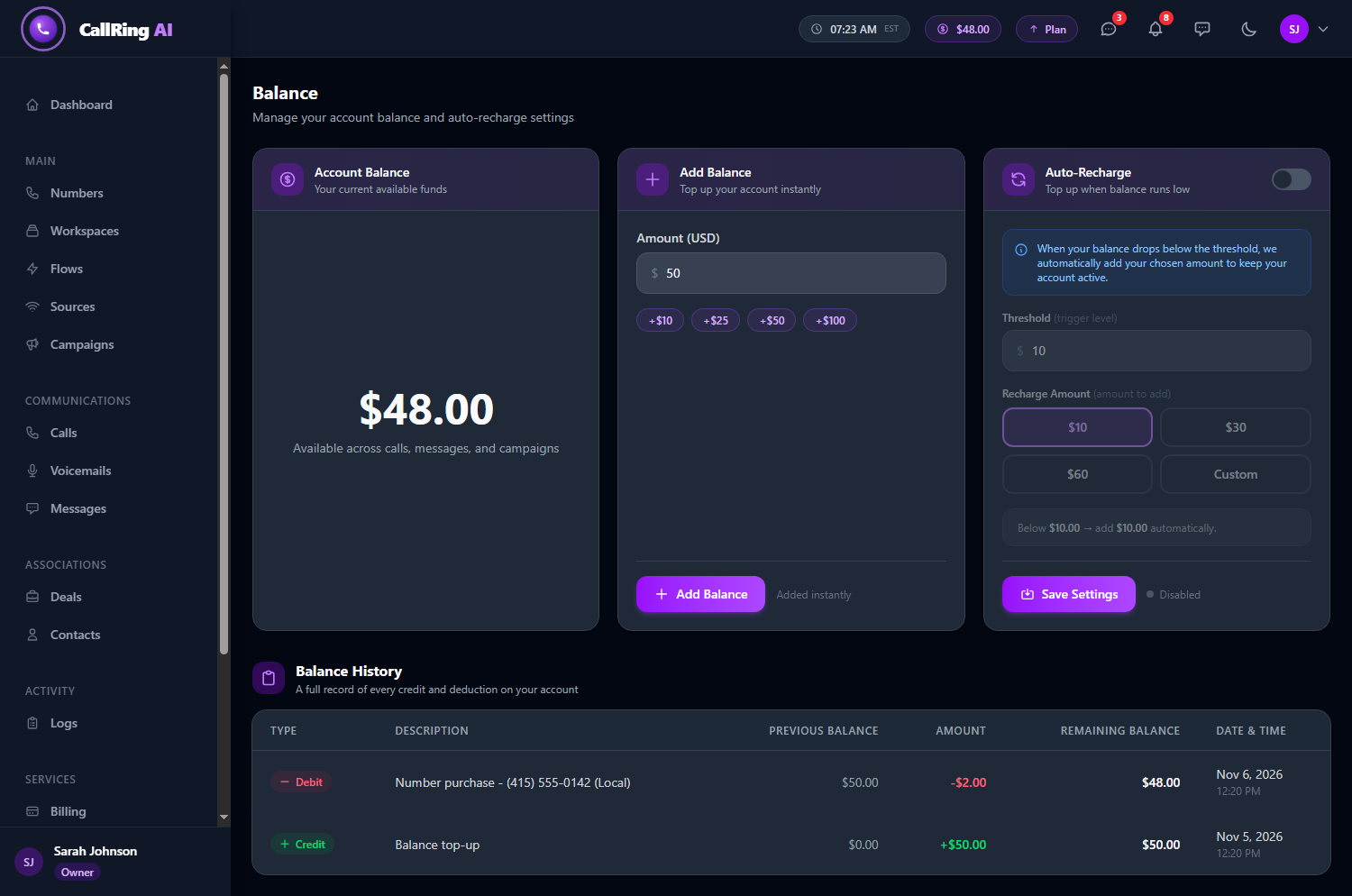
Type an amount or click a quick button, then click Add Balance -
Step 3: Confirm the top-up
A Confirm Top-Up window asks if you are sure you want to add that amount. Check the amount, then click Yes, Add Funds. To go back, click Cancel.
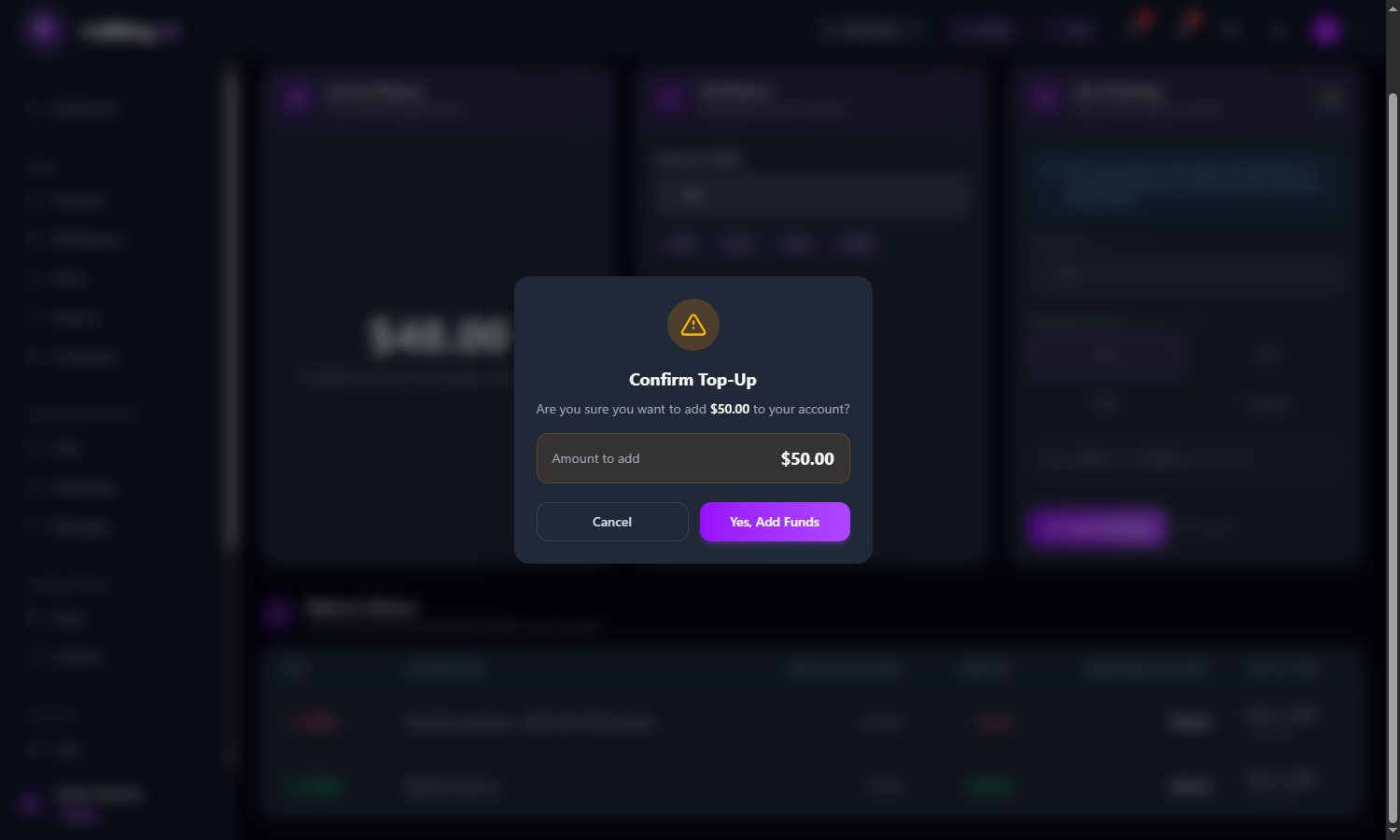
Confirm the amount and click Yes, Add Funds -
Step 4: Wait for the payment to be confirmed
The payment is charged to the payment method on your subscription, through Stripe. You will see “Payment submitted. Your balance updates as soon as Stripe confirms it.” Keep the page open for a few seconds.
-
Step 5: Check your new balance
When the payment is confirmed, a green message shows the amount added and your new balance. The top-up also appears in Balance History as a Credit, with the previous balance, the amount and the remaining balance.
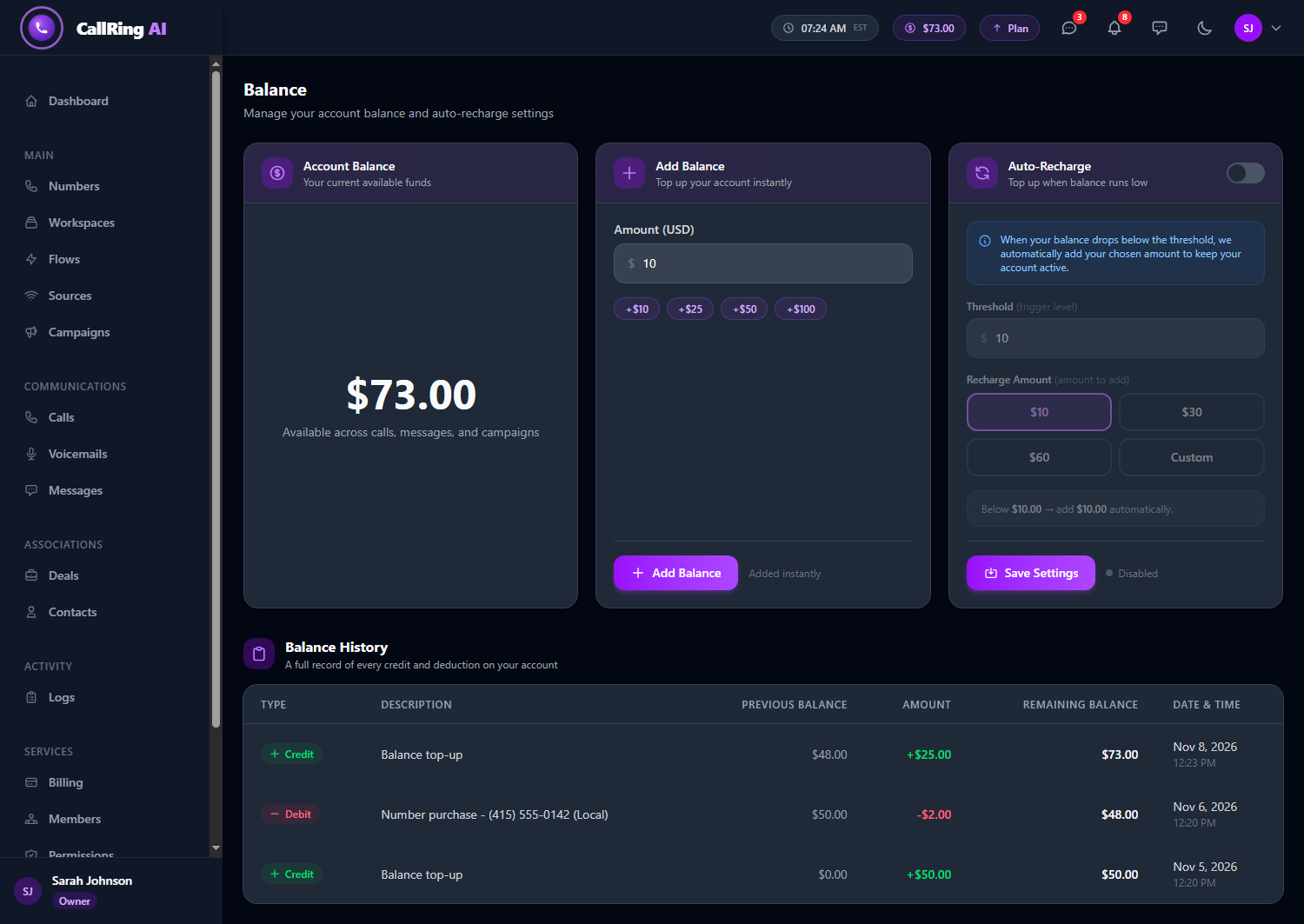
Your new balance and the Credit line in Balance History -
Step 6: Optional: turn on Auto-Recharge
Auto-Recharge tops up your balance for you when it runs low. On the Balance page, switch on Auto-Recharge and set:
- Threshold: when your balance falls below this amount, we top up automatically.
- Recharge Amount: choose $10, $30, $60 or Custom.
- Then click Save Settings. The panel shows a summary such as “Below $10.00, add $30.00 automatically”, and the status reads Enabled.
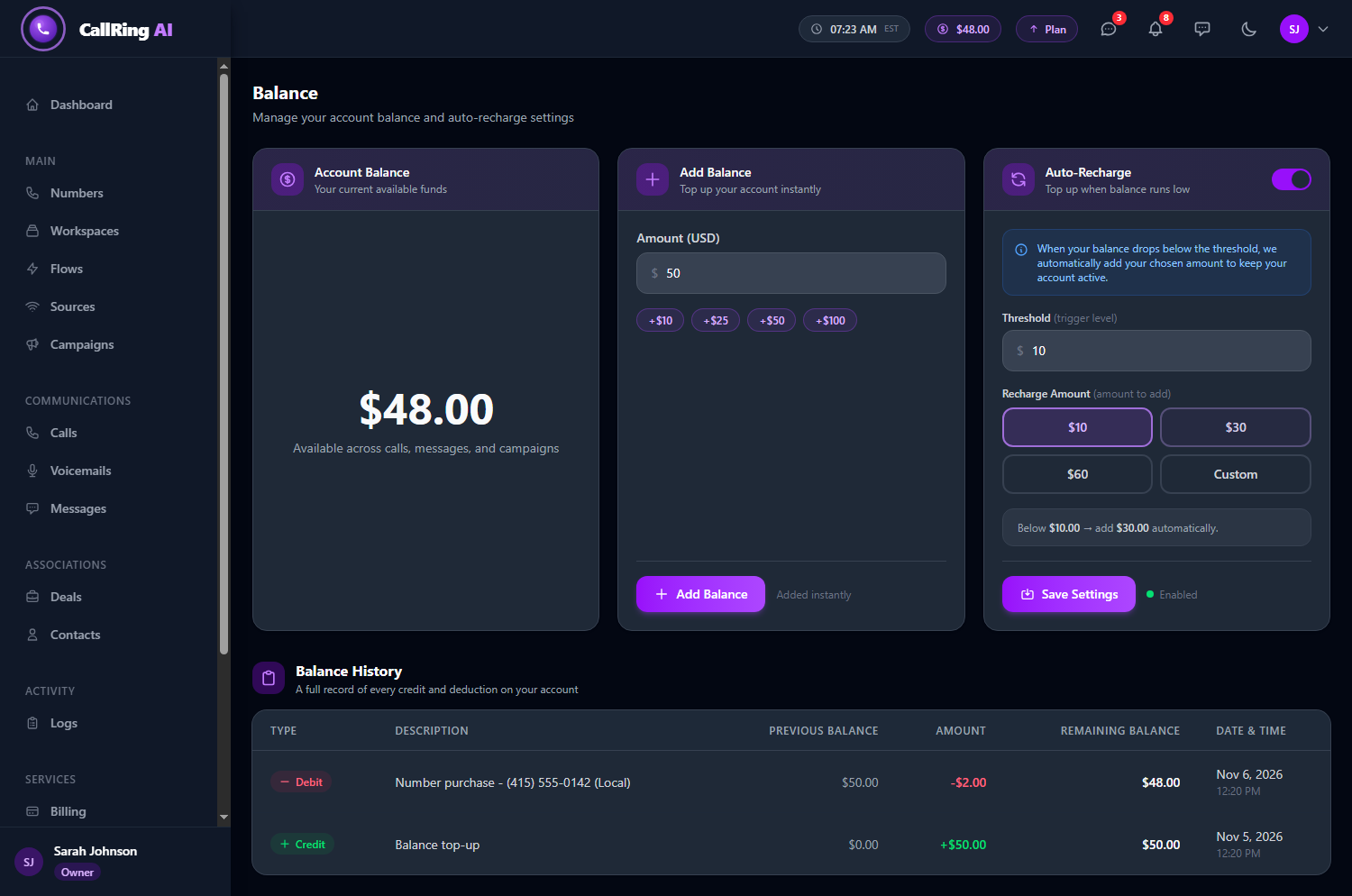
Turn on Auto-Recharge so you never run low
Good to know
- Balance History lists every credit and deduction on your account, with the date and time.
- If your balance gets very low (about $5, or your Auto-Recharge threshold if that is higher), your account is limited to the Balance page until you top up. Auto-Recharge helps you avoid this.
- Team members who cannot top up will see an “account paused” page. They need to ask the account owner to add funds.
- Top-ups need an active subscription with a payment method on file.
- If a payment fails, you will see “Your payment could not be processed. Please check your payment method or try again.”
- If you see “No active subscription with a payment method found. Please subscribe to a plan first.”, subscribe to a plan first, then try again.
- If you see “Balance top-ups are not configured yet. Please contact support.”, contact support. [TO CONFIRM: support contact details.]
Frequently asked questions
How long until my balance updates? What if it does not?
Your balance updates as soon as Stripe confirms the payment, so keep the page open for a few seconds. [TO CONFIRM: typical processing time, and what to do if the balance still has not updated.]
Is there a minimum or maximum top-up?
The Balance page accepts any amount from $1 to $10,000.
How do I change my payment method?
Top-ups are charged to the payment method on your subscription. [TO CONFIRM: how to change the payment method.]
Can I get a refund of unused balance?
[TO CONFIRM: refund policy for unused balance.]
What uses up my balance?
Your balance pays for things like phone numbers, workspaces, sources, and calls and messages beyond your plan.
Who can top up on a team account?
The account owner can top up. Team members who cannot top up will see an “account paused” page and need to ask the account owner to add funds. [TO CONFIRM: which roles can top up.]
Your balance is topped up. Turn on Auto-Recharge if you would like it to stay topped up on its own.