How to Update Your Payment Method
Got a new card, or the old one expired? You can swap it in about a minute. The screenshots use sample data, and your card details will look different.
3 min read · 4 steps
Before you start
- You must be the main account owner. Team members, managers and clients can see billing but do not get the Change Payment Method button.
- Have your new card in hand: the card number, the expiry date and the security code (CVC).
- This card is the default card used for your subscription and plan changes.
-
Step 1: Open your Billing page
In the left menu, under Services, click Billing. On the right side you will see the Payment Method box (“Default card for billing”). It shows your current card: the brand and the last 4 digits. Then click the Change Payment Method button under the card picture.
- If no card is on file, the box says “No payment method on file”.
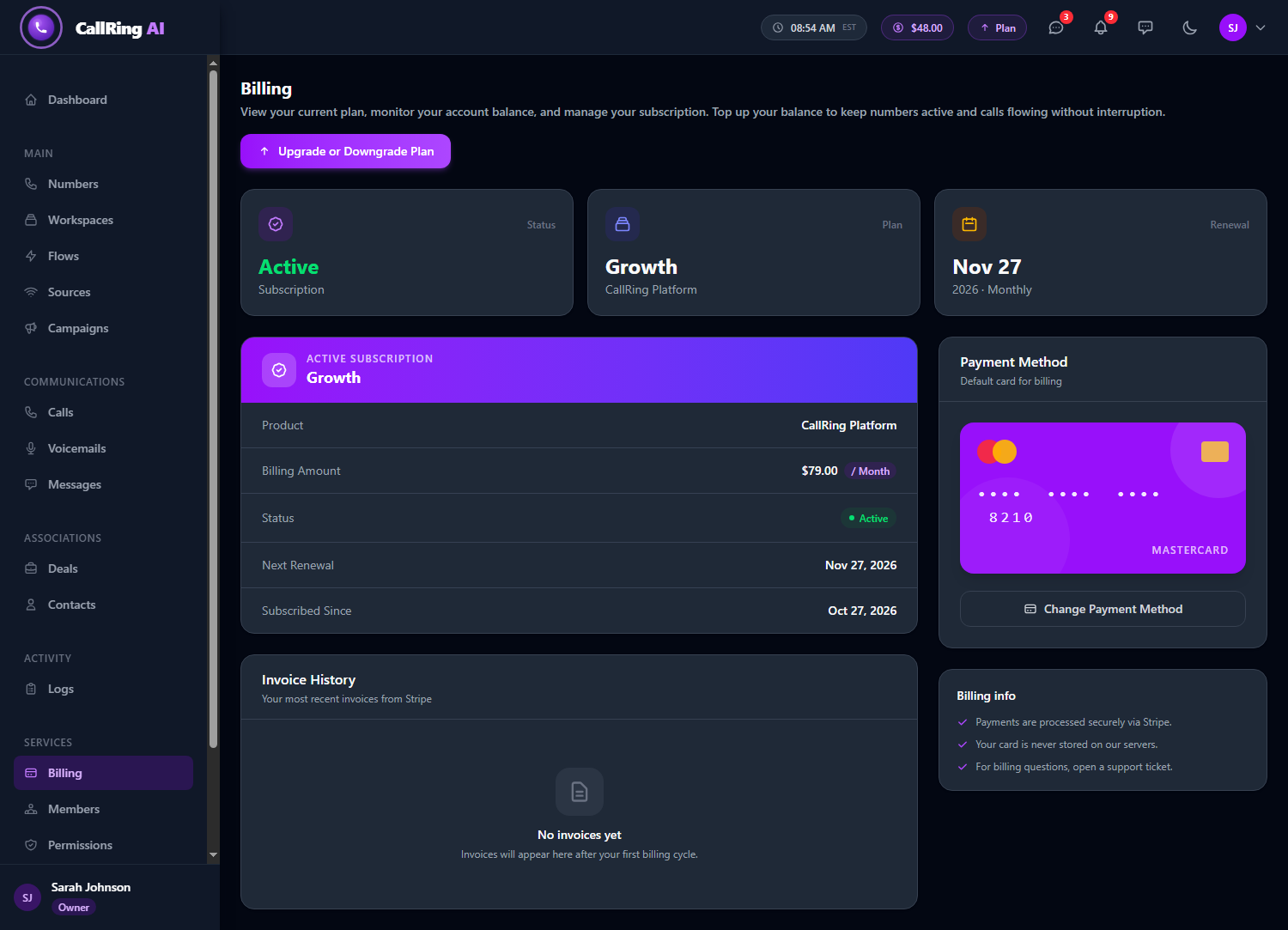
Open Billing, then click Change Payment Method under your card -
Step 2: Open the card window
A window titled Change Payment Method opens with “Enter your new card details below”.
- A secure card box (Secure card details) shows the cards we accept: Visa, Mastercard and American Express.
- Under the box you will see three trust labels: 256-bit SSL, Secured by Stripe and PCI compliant.
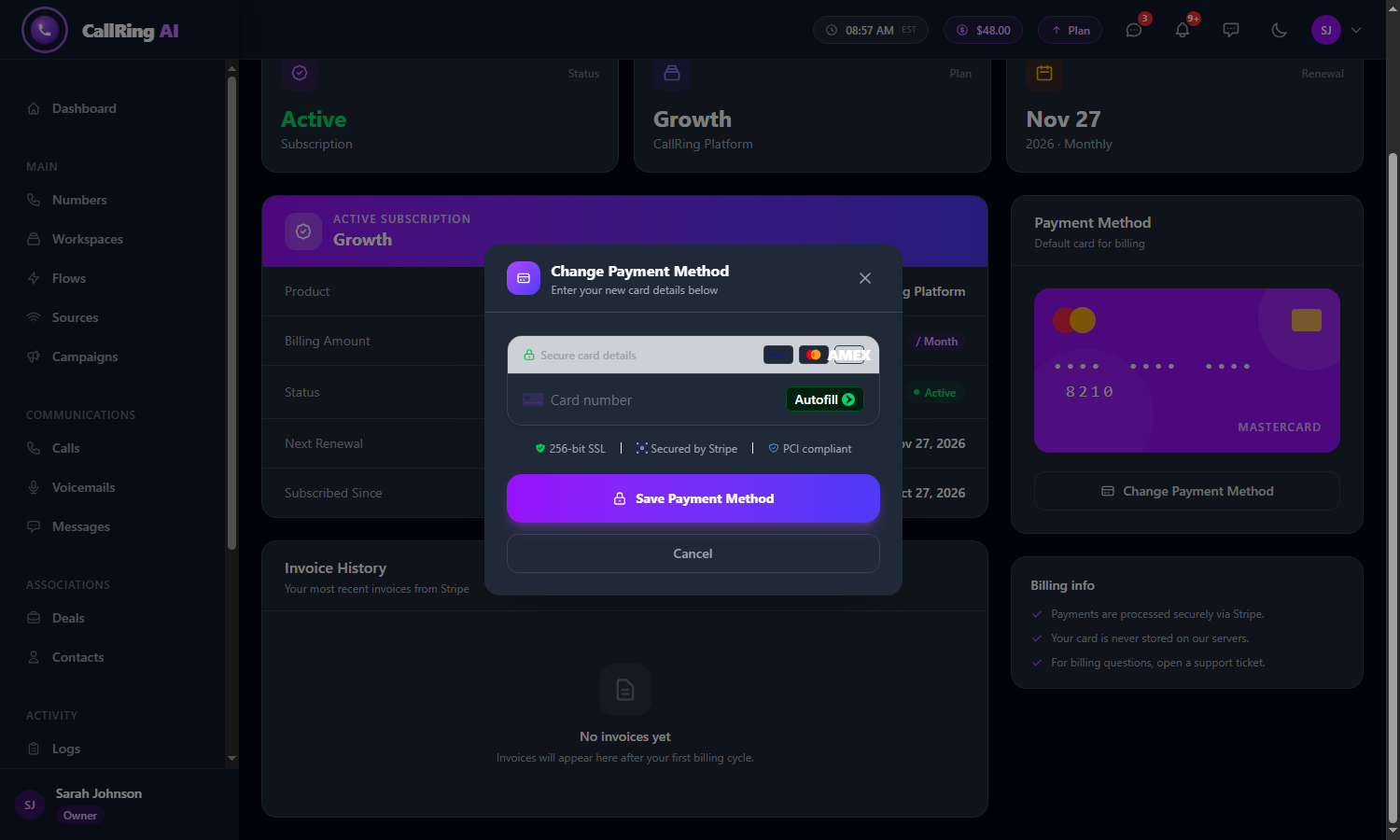
The Change Payment Method window Note: The card box is loaded from Stripe, so wait a second or two for it to appear. -
Step 3: Enter your new card details
Click the card box and type your card number, the expiry date (MM / YY) and the 3-digit security code (CVC). On American Express the code has 4 digits.
- The fields fill in one after another in a single line.
- We do not ask for a postal code.
- Stripe may offer “Save with Link” for faster checkout later. You can ignore it.
- Then click the purple Save Payment Method button.
- To close the window without changing anything, click Cancel or the X. Pressing Esc also closes it.
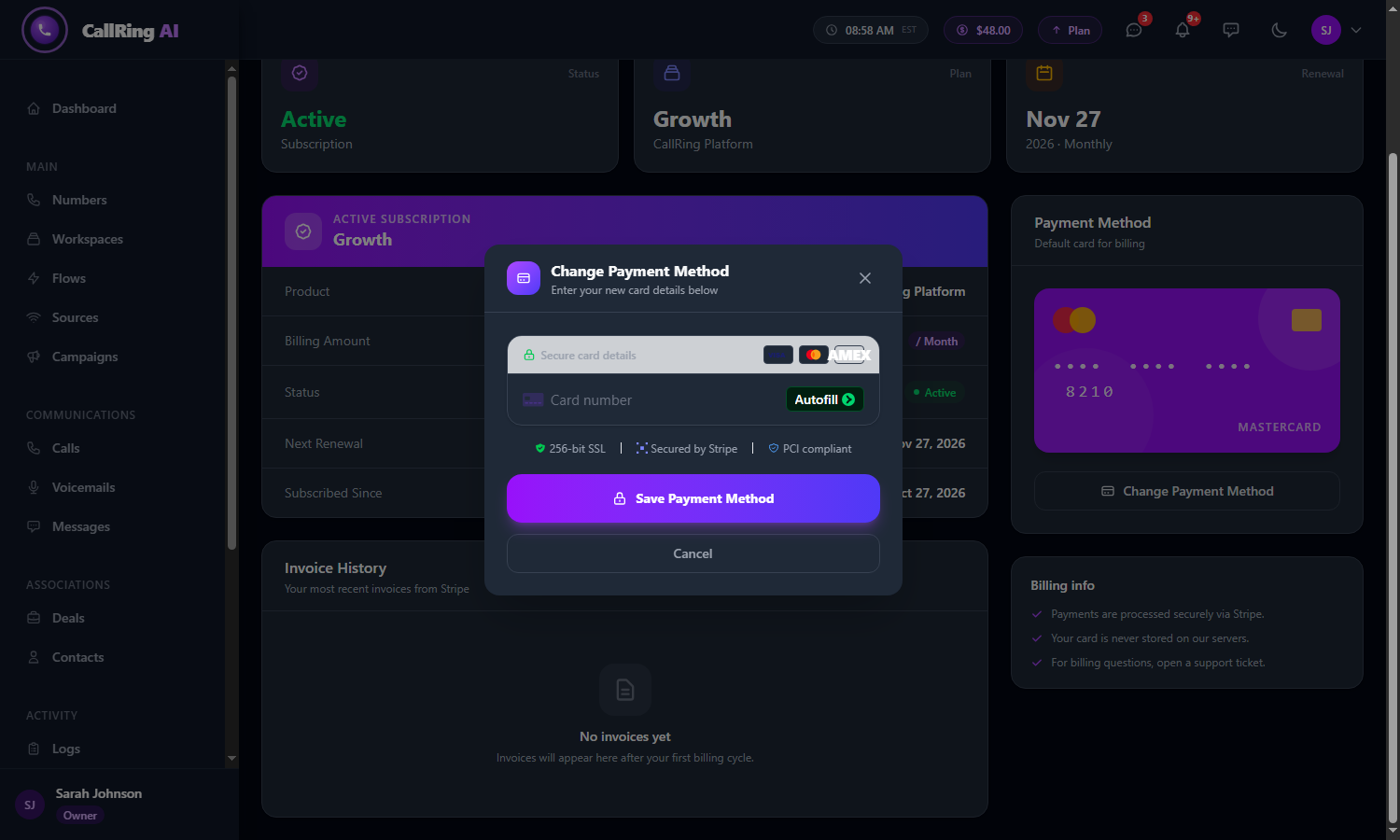
Click the card box, enter your details, then click Save Payment Method -
Step 4: Check your new card
The window closes and a green message appears: “Payment method updated successfully.” The Payment Method box now shows your new card.
- You also get a notification under the bell icon, and the change is added to your activity logs.
- Your next invoices will be charged to this new card.
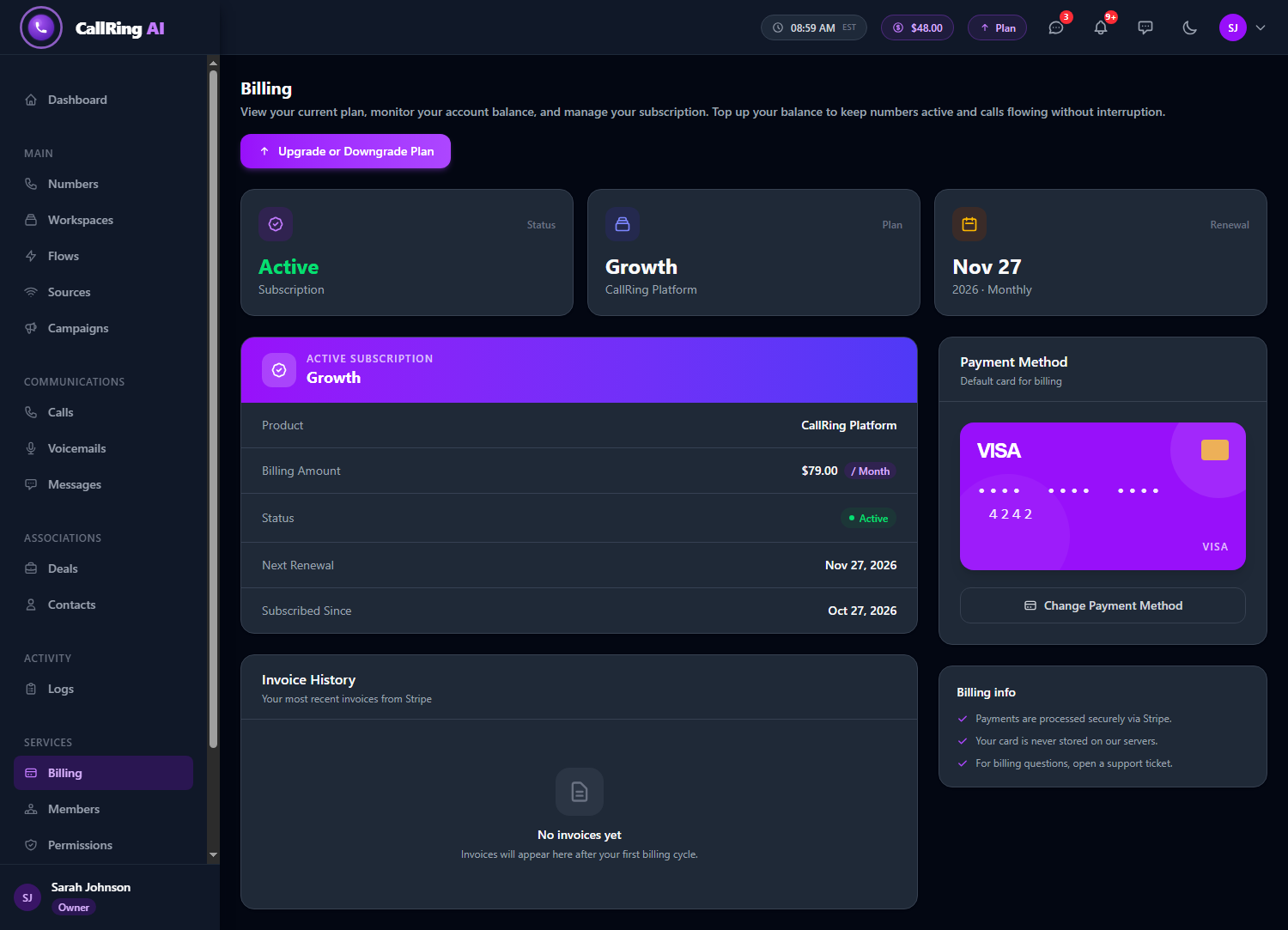
Your Payment Method box now shows the new card
If something goes wrong
| What you see | What to do |
|---|---|
| A red message under the card box, such as “Your card number is incomplete” or “Your card’s expiration date is in the past” | Fix that field and try again. |
| “Payment failed”: “Your card was declined. Please try a different card.” | Use another card, or contact your bank. |
| “Your card has expired. Please use a different card.” | Use a card that has not expired. |
| “The CVC you entered is incorrect. Please check and try again.” | Re-enter the 3 or 4 digit security code. |
| “Your card has insufficient funds.” | Use another card, or add funds to this one. |
| “An unexpected error occurred. Please try again.” | Wait a moment and try again, or open a support ticket. |
| The card box does not appear | Reload the page and check your internet connection. |
Good to know
- Your card details are entered into Stripe’s secure form and are never stored on CallRing’s servers. CallRing only keeps the card brand and the last 4 digits, so it can show them on your Billing page.
Need help? Open a support ticket from your account.