How to Check Your Invoice History
Your invoices live on the Billing page, so you can find them whenever you need them. The screenshots use sample data, and your invoices will look different.
3 min read · 5 steps
Who can see this
- The account owner always can.
- Team members only see the Billing page if the owner gave them the billing permission.
- Members see the owner’s invoices, but they cannot change the plan or the card.
-
Step 1: Open your Billing page
In the left menu, under Services, click Billing. At the top you see three cards: Status (Active), Plan (your plan) and Renewal (your next billing date).
- Below them is the Active Subscription box and, on the right, your Payment Method card.
- Scroll down to the Invoice History box (“Your most recent invoices from Stripe”).
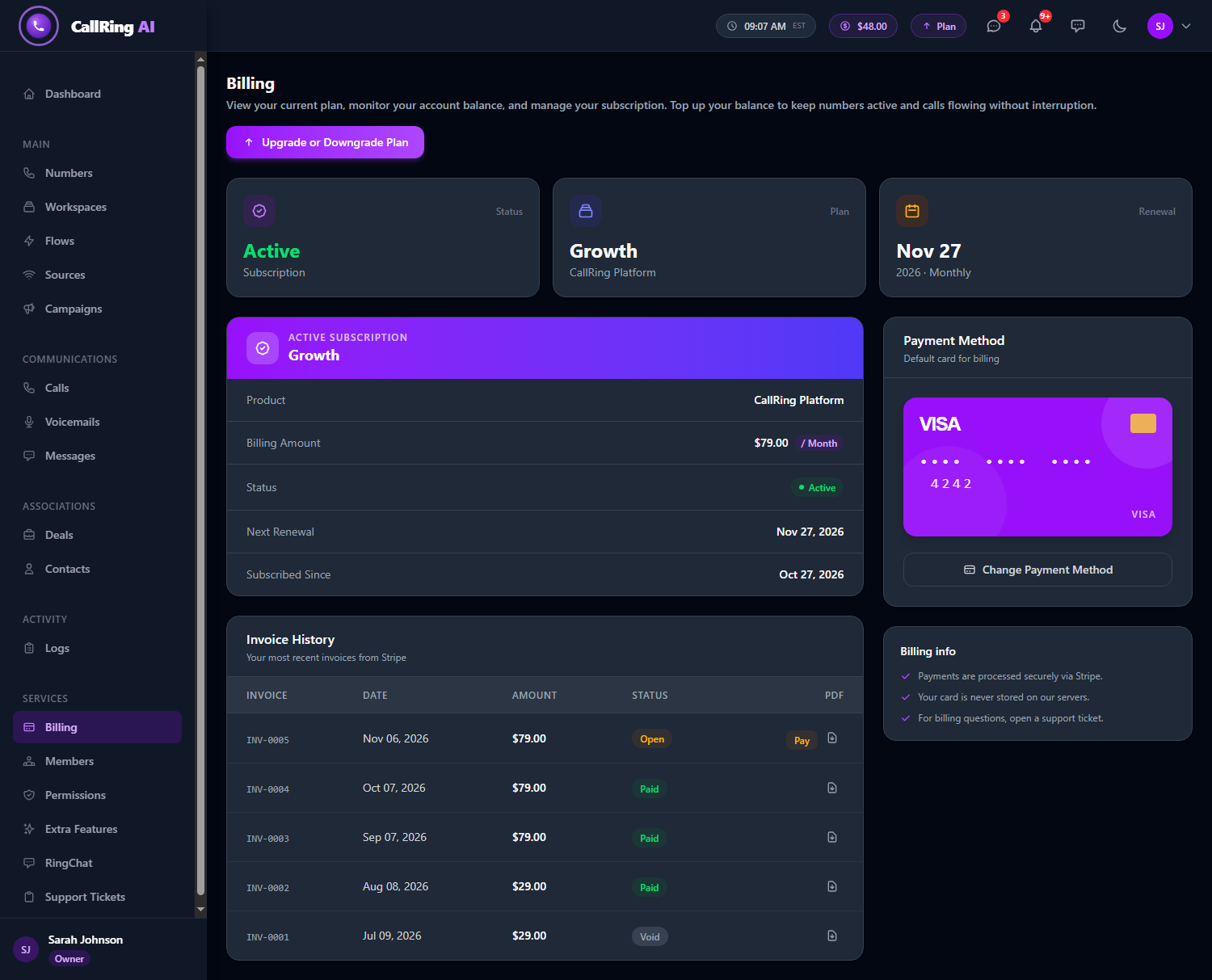
Open Billing and scroll down to Invoice History -
Step 2: Read your invoice list
The table shows your most recent invoices, newest first (up to 12). Here is what each column means.
- Invoice: the invoice number, for example INV-0004.
- Date: the day the invoice was created.
- Amount: the total charged.
- Status: a colour tag. Paid (green) means it was paid. Open (amber) means it is waiting for payment. Void (grey) means it was cancelled and you owe nothing.
- PDF: the download icon and, for unpaid invoices, a Pay button.
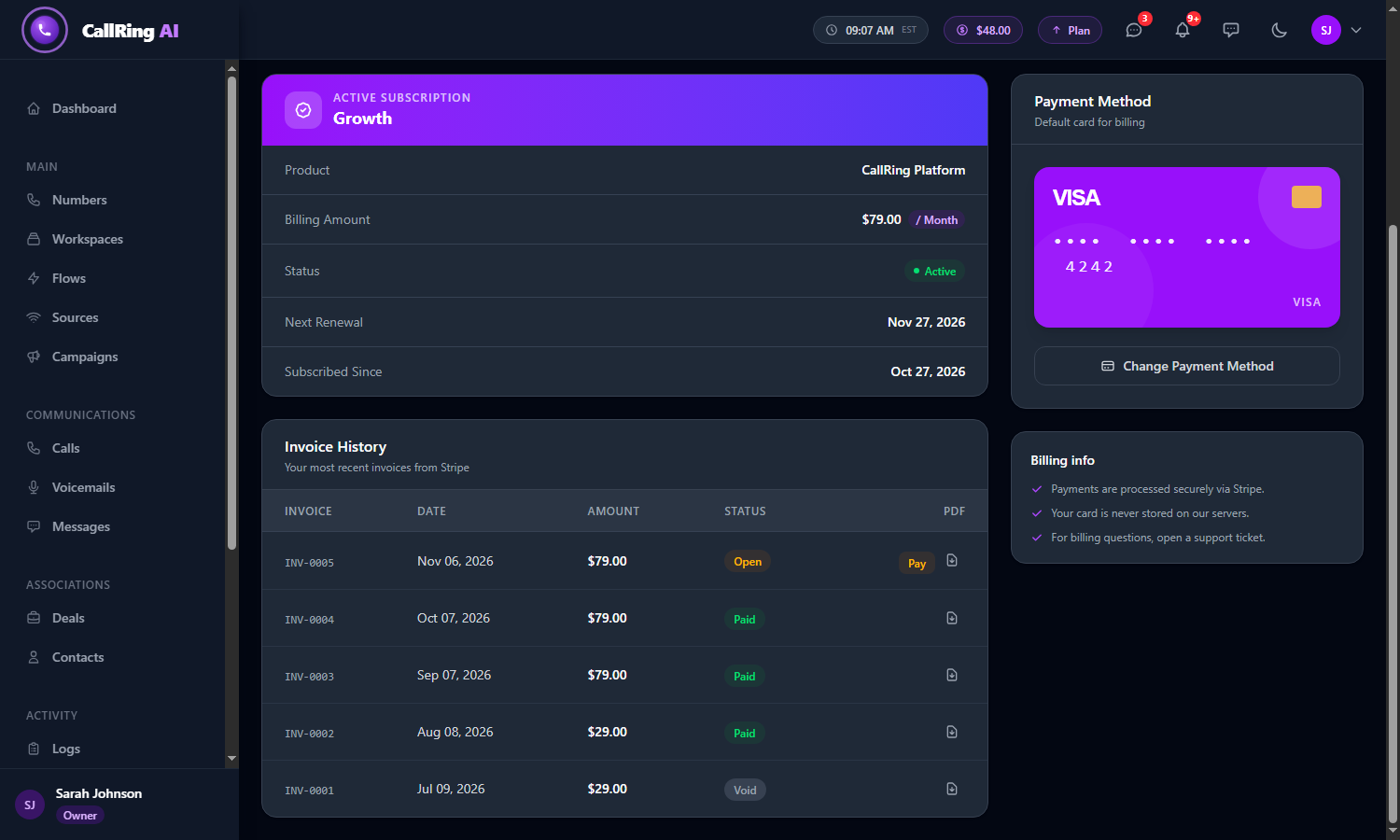
Your invoices, newest first, with a Status tag on each -
Step 3: Download an invoice
Click the small document icon in the PDF column on the invoice row. The PDF opens in a new tab. Save or print it for your records or your accountant.
- If a row shows a dash instead of the icon, no PDF is available for that invoice.
Click the document icon in the PDF column to open the invoice -
Step 4: Pay an open invoice
If an invoice has the amber Open tag, click Pay in its row. Stripe’s secure payment page opens in a new tab. Complete the payment there.
Click Pay on an Open invoice to finish the payment on Stripe Tip: If a payment keeps failing, update your card first. See How to Update Your Payment Method. -
Step 5: If you have no invoices yet
A new account shows No invoices yet with “Invoices will appear here after your first billing cycle.” This is normal. Your first invoice appears after the first billing cycle.
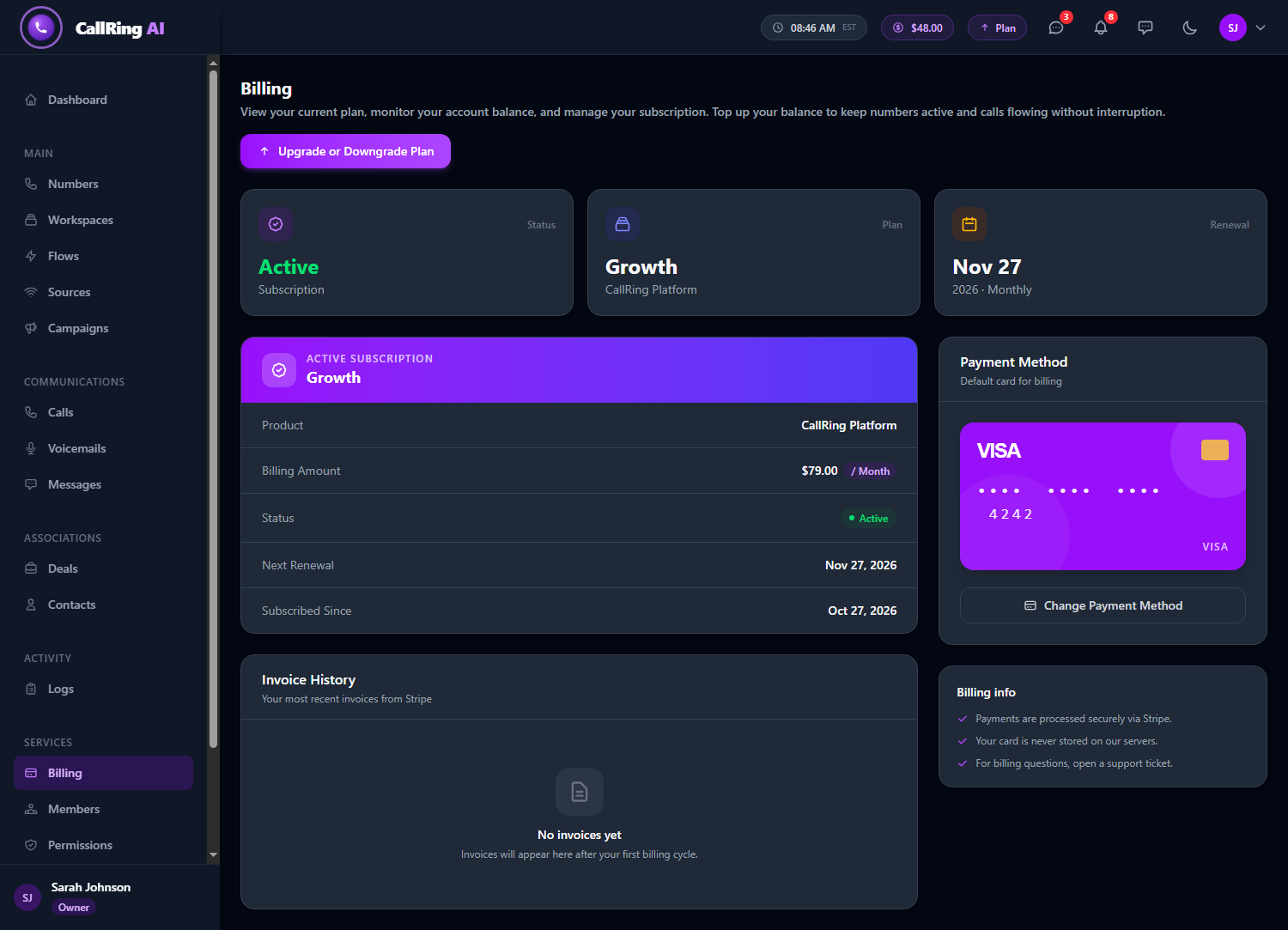
A new account shows “No invoices yet”
Good to know
- Plan upgrades and downgrades can create extra invoices for the prorated difference. They appear in the same list.
- Invoices come straight from Stripe, so a brand-new charge can take a moment to show up.
- Only the 12 most recent invoices are listed. For older ones, open a support ticket.
- To see usage charges, balance top-ups and other balance activity, use the Balance page. That is separate from subscription invoices.
Need help? Open a support ticket from your account.