How to Set Up Google Analytics
This integration sends your call activity, such as “a call was completed” or “a voicemail was left”, to your own Google Analytics 4 (GA4) property. You can then see it next to your other marketing data. You choose which numbers it covers and which details are sent. Only the main account owner can set it up. Your records and IDs will look different from the sample data in the screenshots.
7 min read · 10 steps
Before you start
- You need a Google Analytics 4 property.
- You will need two things from it: the Measurement ID and an API secret. Steps 1 and 2 show where to find them.
-
Step 1: Find your Measurement ID in Google Analytics
In Google Analytics, click Admin (gear icon, bottom left). Under Data collection and modification, open Data streams.
- Click your website stream. The Measurement ID is at the top right and starts with “G-”, for example G-ABCD123456.
- Copy it.
Note: Google sometimes renames menus, so the labels may look slightly different. If you cannot find it, check Google’s help pages. -
Step 2: Create an API secret
On the same stream page, scroll to Measurement Protocol API secrets. Click Create, give it a name (for example “CallRing”) and click Create again. Copy the secret value.
Warning: Treat the API secret like a password. Do not share it publicly. -
Step 3: Enable Google Analytics in CallRing
In the left menu, under Services, click Extra Features. Scroll down to Integrations. Find the card Google Analytics and switch it on. A window, Enable Integration, shows the cost (in the example, $0.00 / mo). Click Enable Integration. When the card shows Enabled, click Manage Google Analytics.
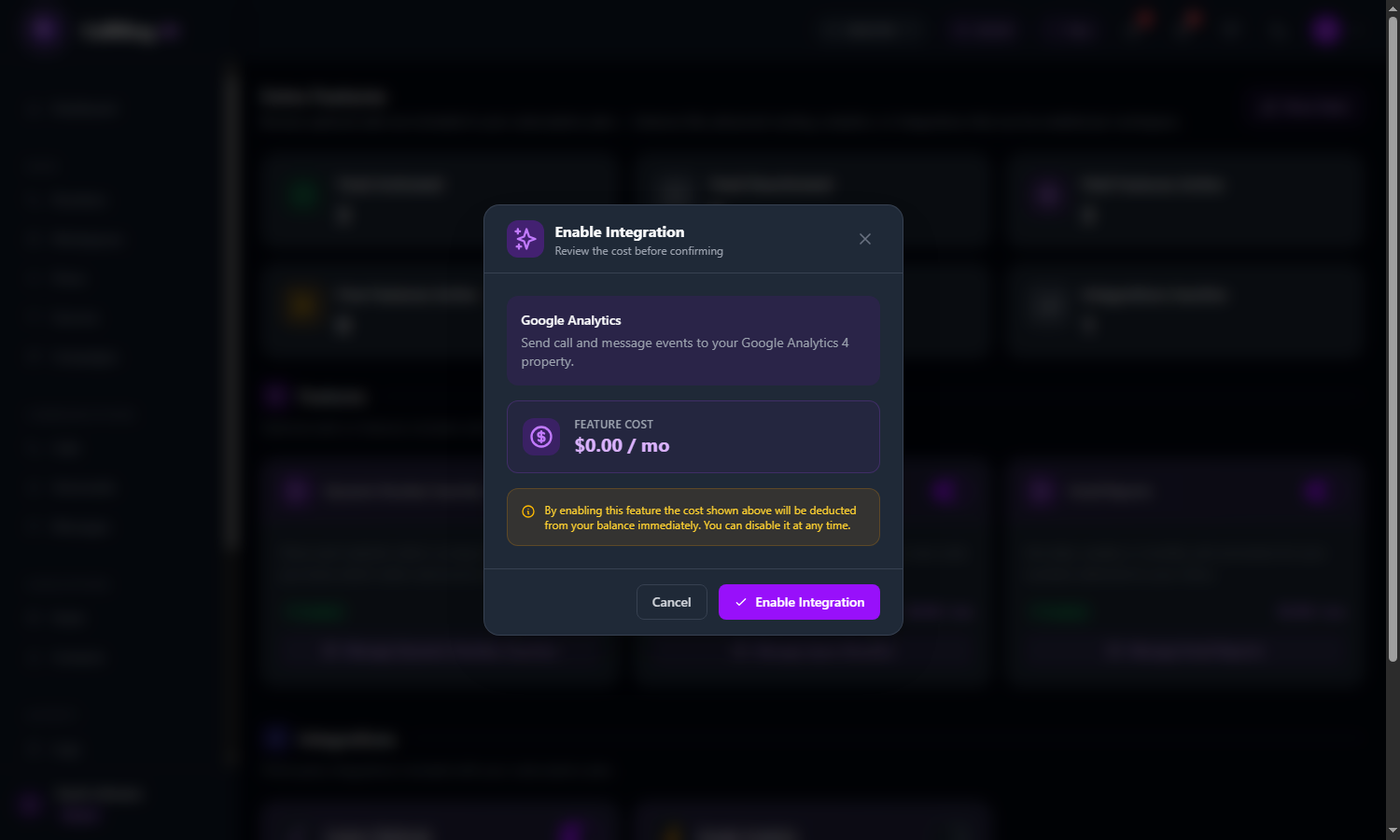
The Enable Integration window shows the cost before you confirm 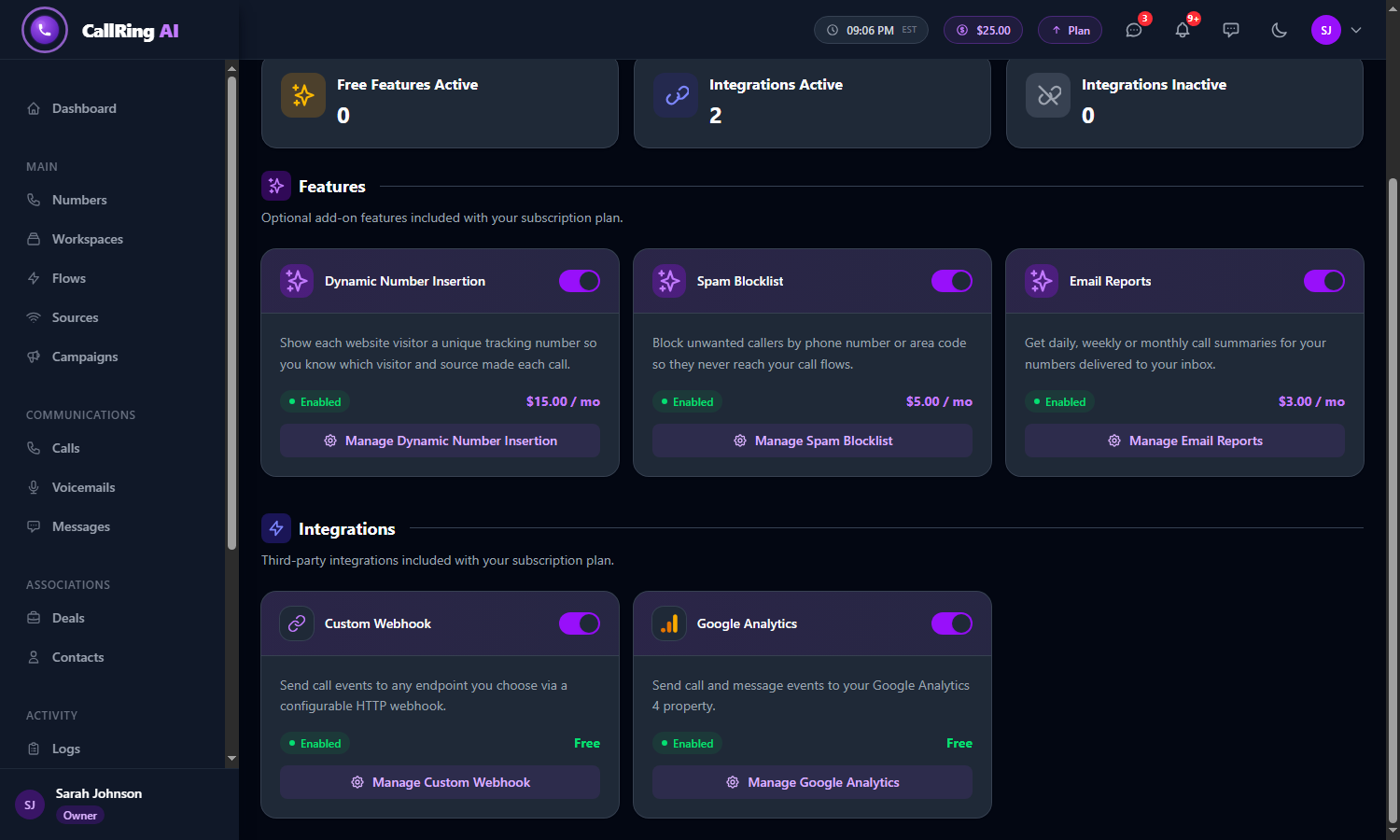
The Google Analytics card shows Enabled: click Manage Google Analytics -
Step 4: Turn tracking on
On the Google Analytics page, the card at first says Tracking paused. Click it so it says Tracking on.
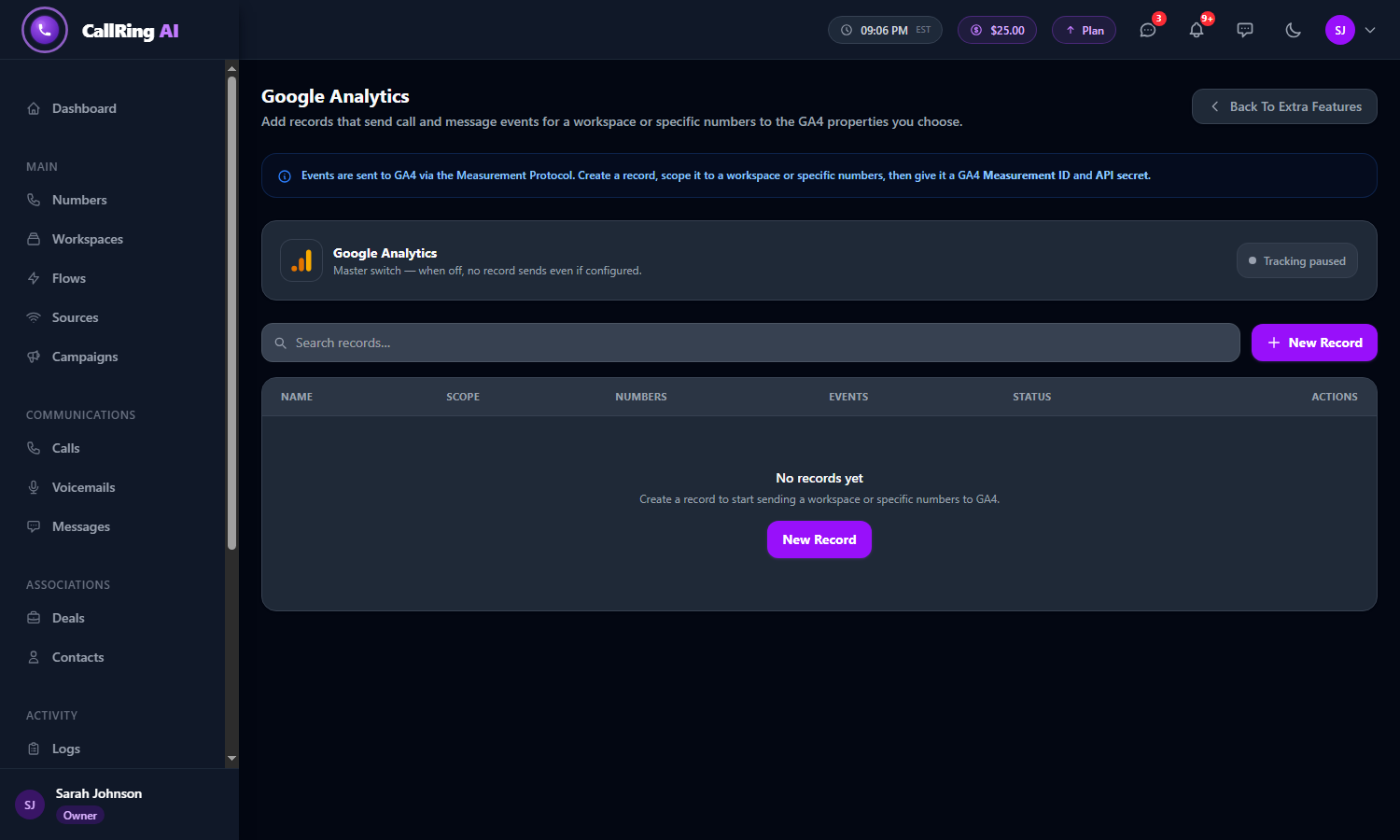
At first, the card says Tracking paused 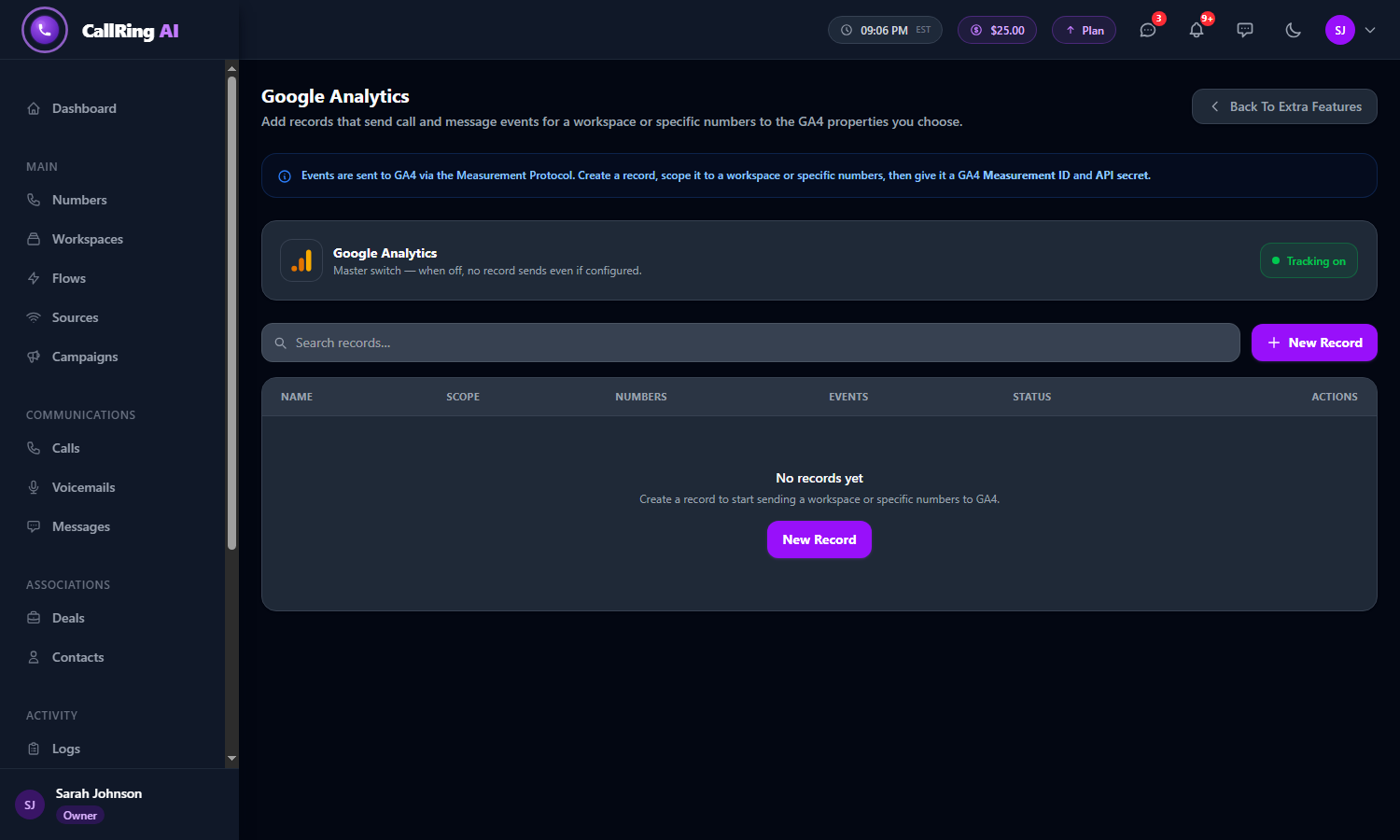
Click it so it says Tracking on Warning: This is a master switch. While tracking is paused, nothing is sent, even if you have set up records. -
Step 5: Create a record
Click the purple New Record button. A “record” is one tracking rule: which numbers, and which Google Analytics property they report to.
- Record name: a name you will recognize, for example “Sales Team - East Coast”.
- What should this record cover? Choose By workspace (pick a workspace; all its numbers are included, and you can untick some) or By specific numbers (tick any of your numbers from all workspaces).
- The line Numbers (2 of 2 selected) shows how many numbers are included. Use All or None and the search box to change the selection.
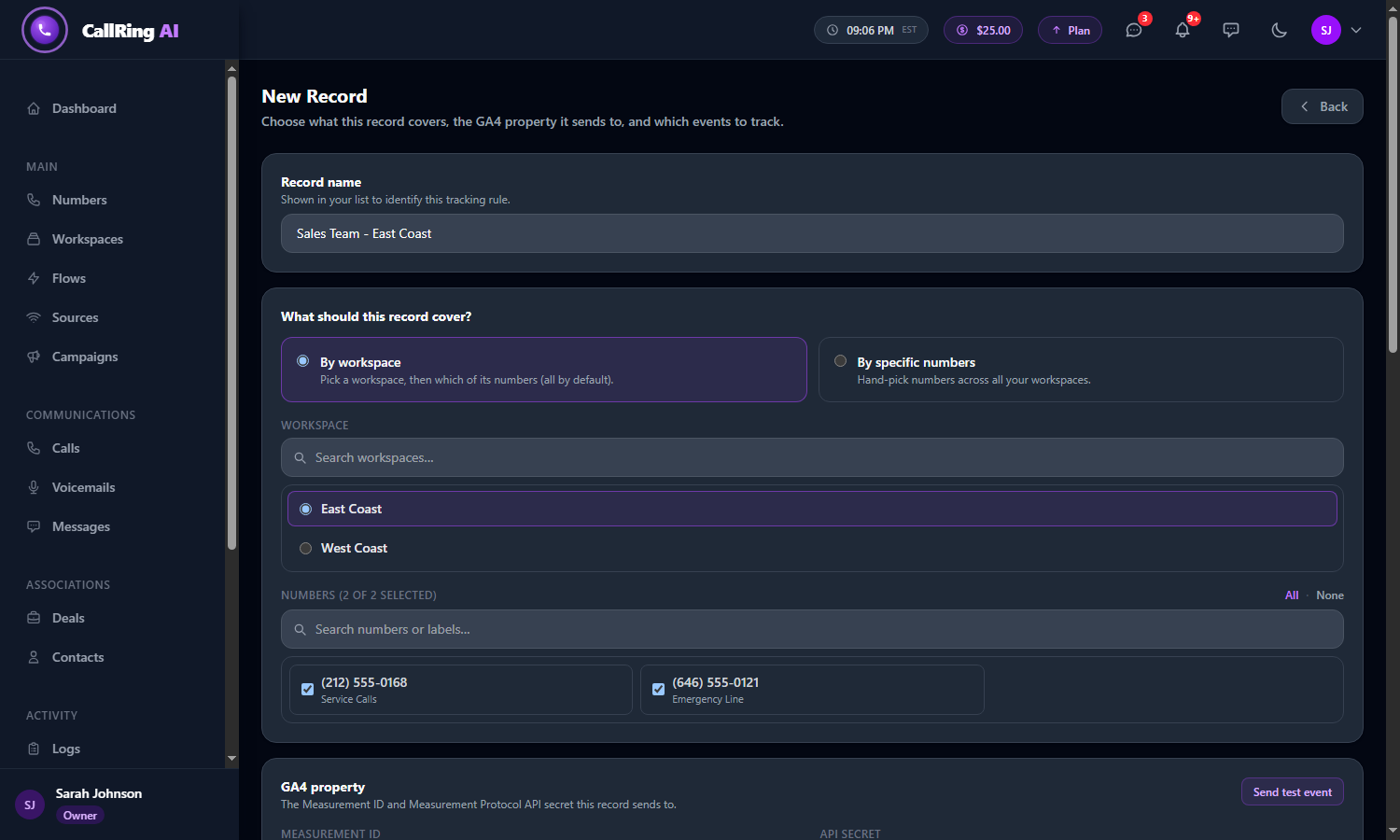
New Record: name it and choose what it covers Note: At least one number must be selected. -
Step 6: Connect your Google Analytics property
In GA4 property, paste your Measurement ID (starts with “G-”) and your API secret from Steps 1 and 2. The secret is hidden as dots after you paste it.
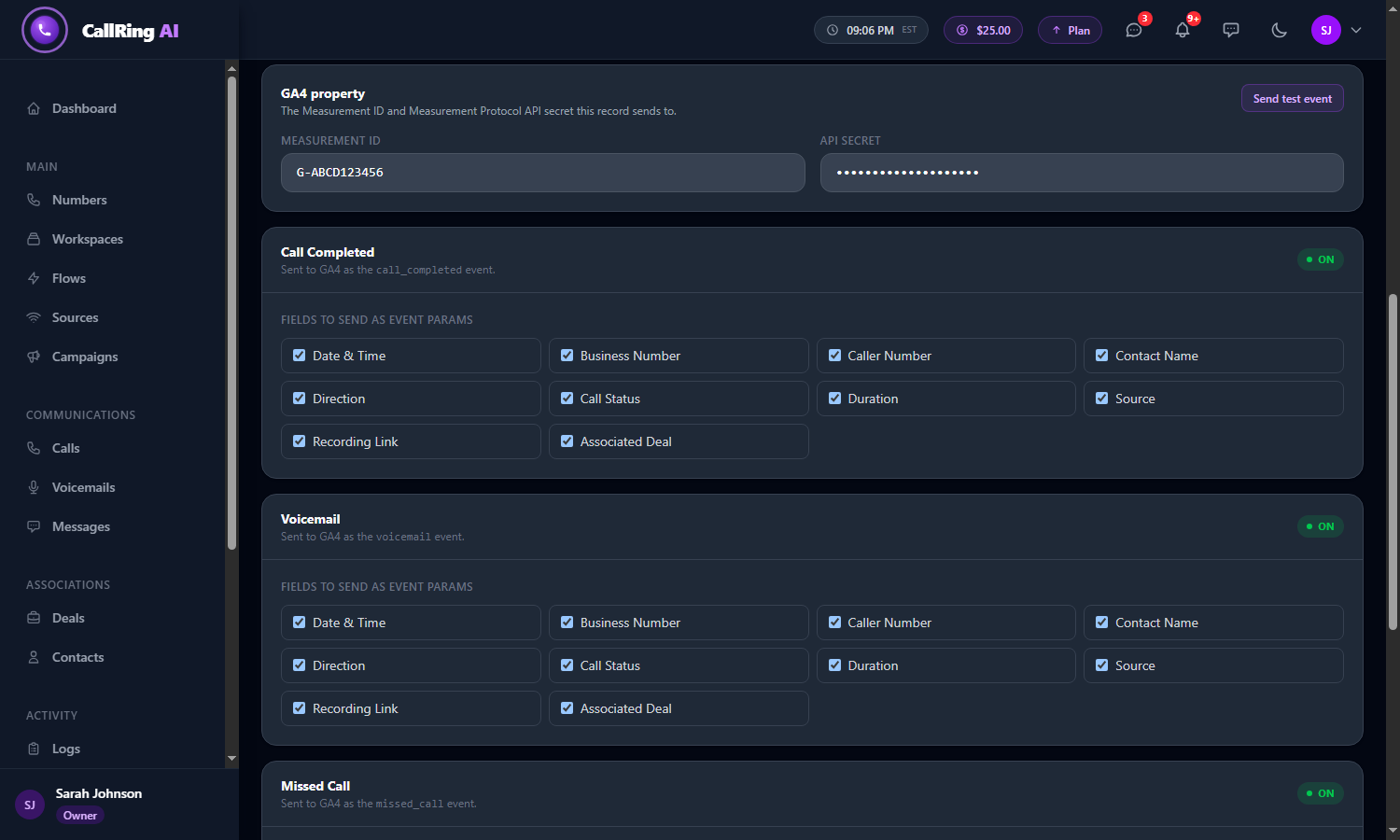
Paste your Measurement ID and API secret Note: If the Measurement ID is not in the form G-XXXXXXXXXX, CallRing asks you to correct it. -
Step 7: Send a test event
Click Send test event. CallRing checks your Measurement ID and API secret with Google.
- A green message, “Test event accepted by Google Analytics.”, means they are correct.
- A red message shows the reason Google gave, for example a wrong ID or secret.
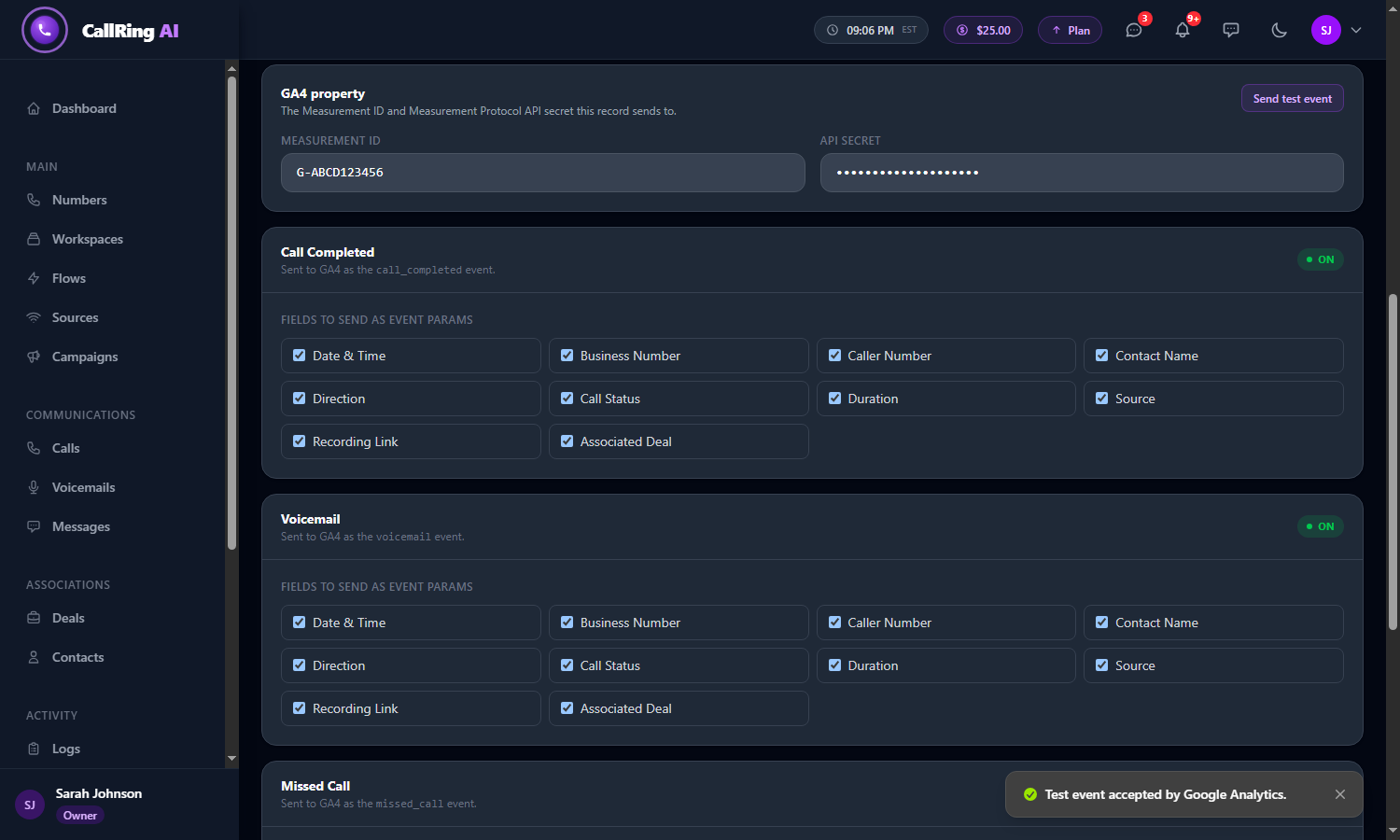
A green message confirms Google accepted the test event Note: This is only a check. It confirms the details but does not add anything to your reports. -
Step 8: Choose what is sent
Below, the cards Call Completed, Voicemail and Missed Call are always on for the record. Each is sent to Google Analytics as an event with that name (call_completed, voicemail, missed_call).
- Call Completed: a call has finished.
- Voicemail: a caller left a voicemail.
- Missed Call: a forwarded call was not answered.
- For each event, Fields to send as event params lets you tick the details that go with it: Date & Time, Business Number, Caller Number, Contact Name, Direction, Call Status, Duration, Source, Recording Link and Associated Deal.
- Click the purple Create Record button at the bottom. A green message, “Record saved.”, appears.
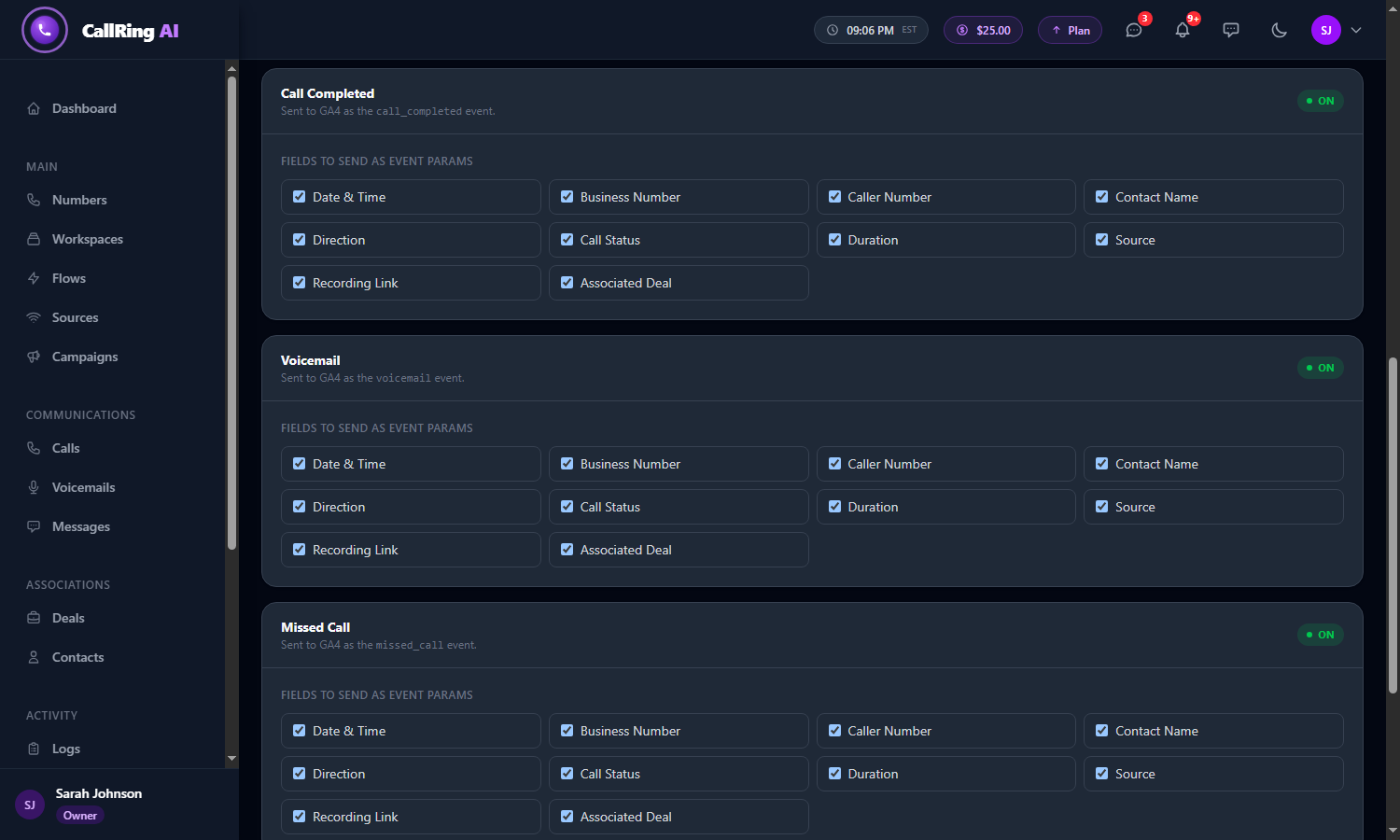
Each event has its own list of fields to send Warning: Do not send personal details unless your privacy policy allows it and you follow Google’s rules about personal data in Analytics. Send only what you will use, and leave out details such as caller number or contact name if you do not want them in Google Analytics. -
Step 9: Your records list
The list shows each record’s name and Measurement ID, Scope (workspace or specific numbers), how many Numbers, the Events, and the Status (Active or Paused).
- Click the pause icon to pause a record.
- The pencil edits it. Click Save Changes to update it.
- The bin deletes it.
- Use the search box to find a record by name or workspace.
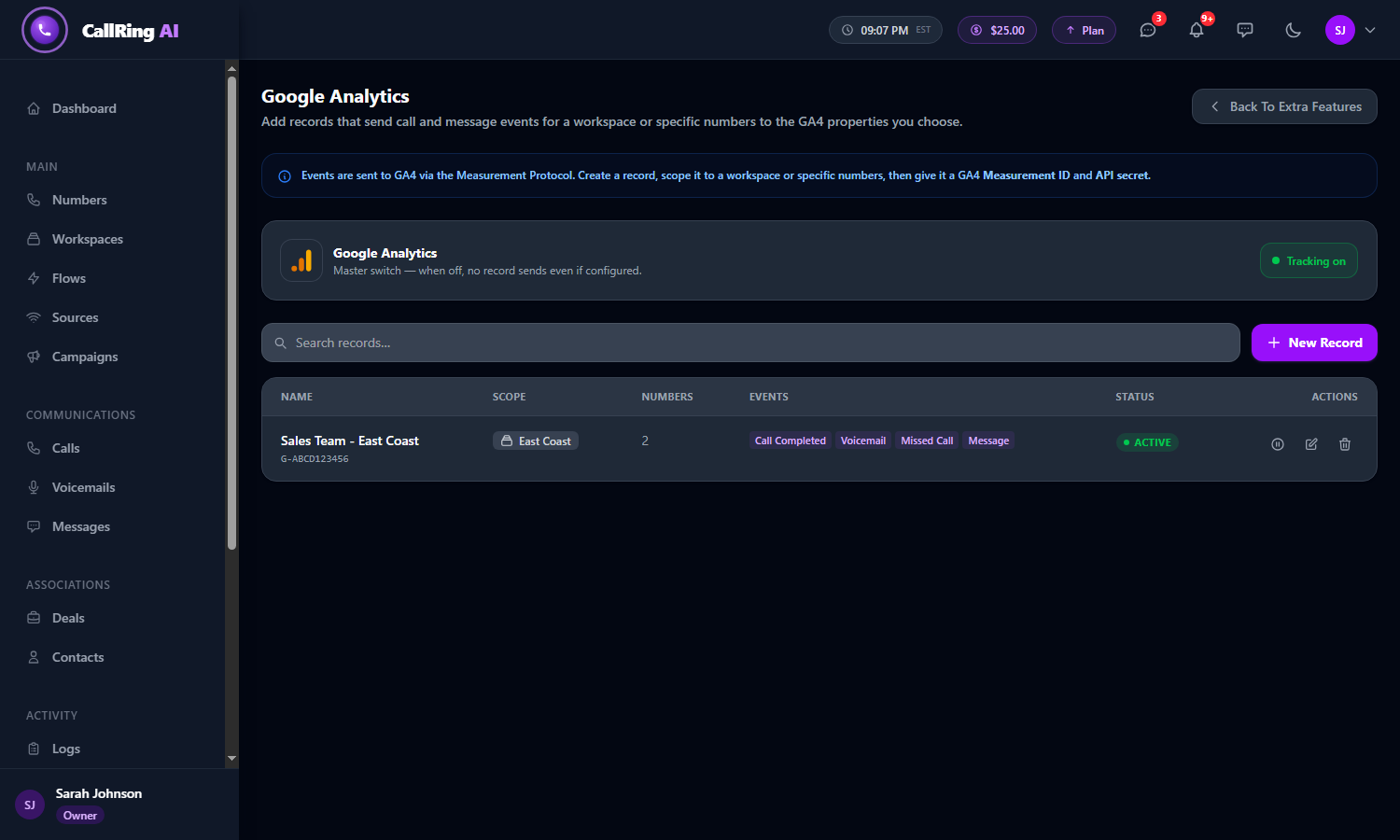
Your records list -
Step 10: See the data in Google Analytics
After real calls happen on your tracked numbers, the events appear in your GA4 property under the event names above: call_completed, voicemail and missed_call.
Note: Google can take time to show new events in its reports.
Good to know
- You can create several records, for example one per workspace, each reporting to a different GA4 property.
- To stop everything, switch tracking to Tracking paused. To stop one record, pause it.
- Events are sent right after the call is saved, and they are not tied to a visitor on your website. In Google Analytics each event appears on its own, not as part of a website visit.
- CallRing does not send events if the Measurement ID or API secret is missing or wrong.
Need help? Open a support ticket from your account.