How to Set Up Email Reports
Email Reports send you a summary of your calls, voicemails and messages by email on a schedule, so you do not have to log in to check. You choose how often (daily, weekly or monthly), which phone numbers to include, and who receives it. Only the main account owner can set them up. Your reports and figures will look different from the sample data in the screenshots.
6 min read · 8 steps
When reports are sent
- Reports go out once a day, in the morning, for every report that is due.
- A new report is first sent one full period after you create it. A daily report created today arrives tomorrow.
- Each report covers whole days that have already finished, up to and including yesterday: Daily = yesterday, Weekly = the last 7 days, Monthly = the last month.
- Changing the Frequency restarts the schedule from the last send.
-
Step 1: Turn on the feature
In the left menu, under Services, click Extra Features. Find the card Email Reports and switch its toggle on. A window, Enable Feature, shows the cost (in the example, $3.00 / mo). Click Enable Feature to confirm. When the card shows Enabled, click Manage Email Reports.
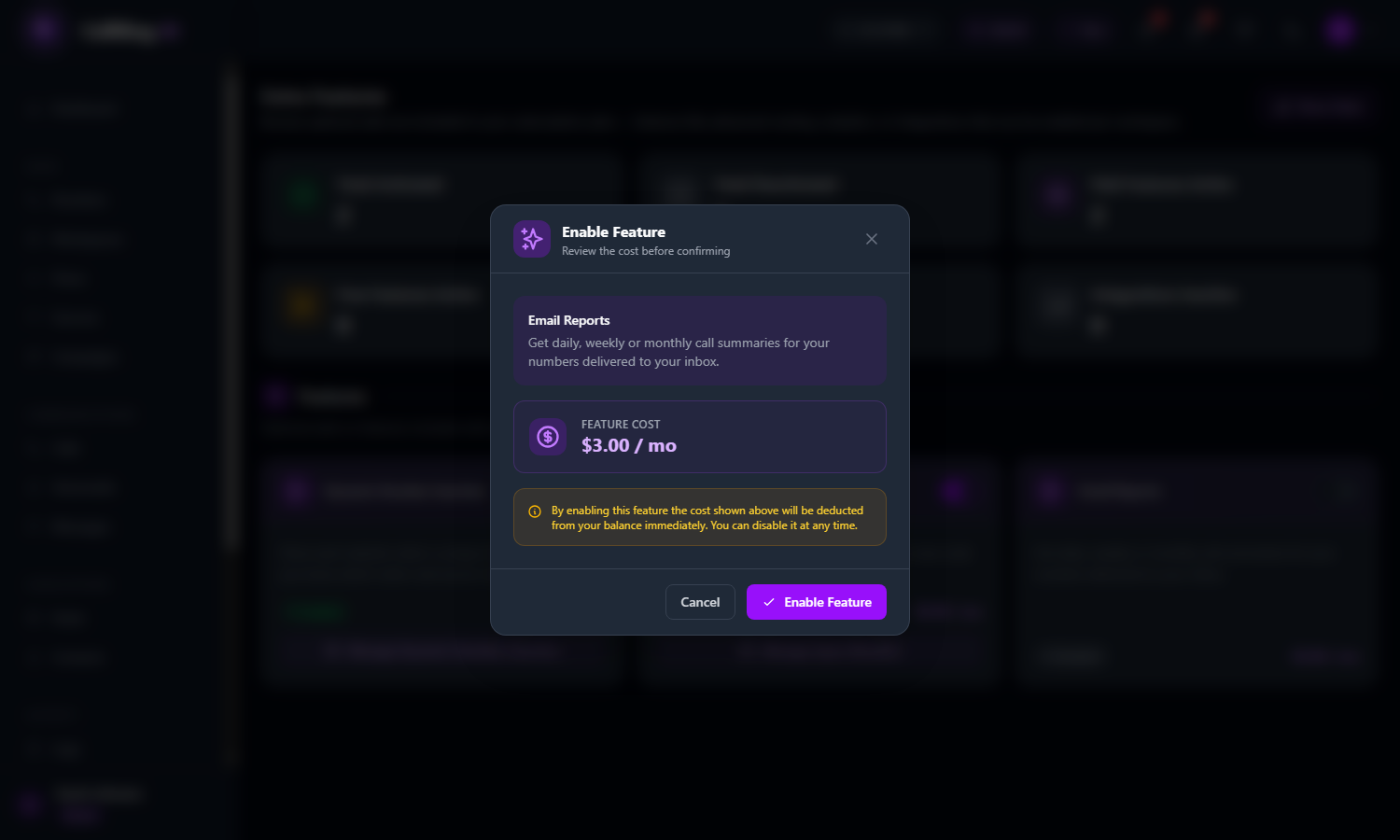
The Enable Feature window shows the cost before you confirm 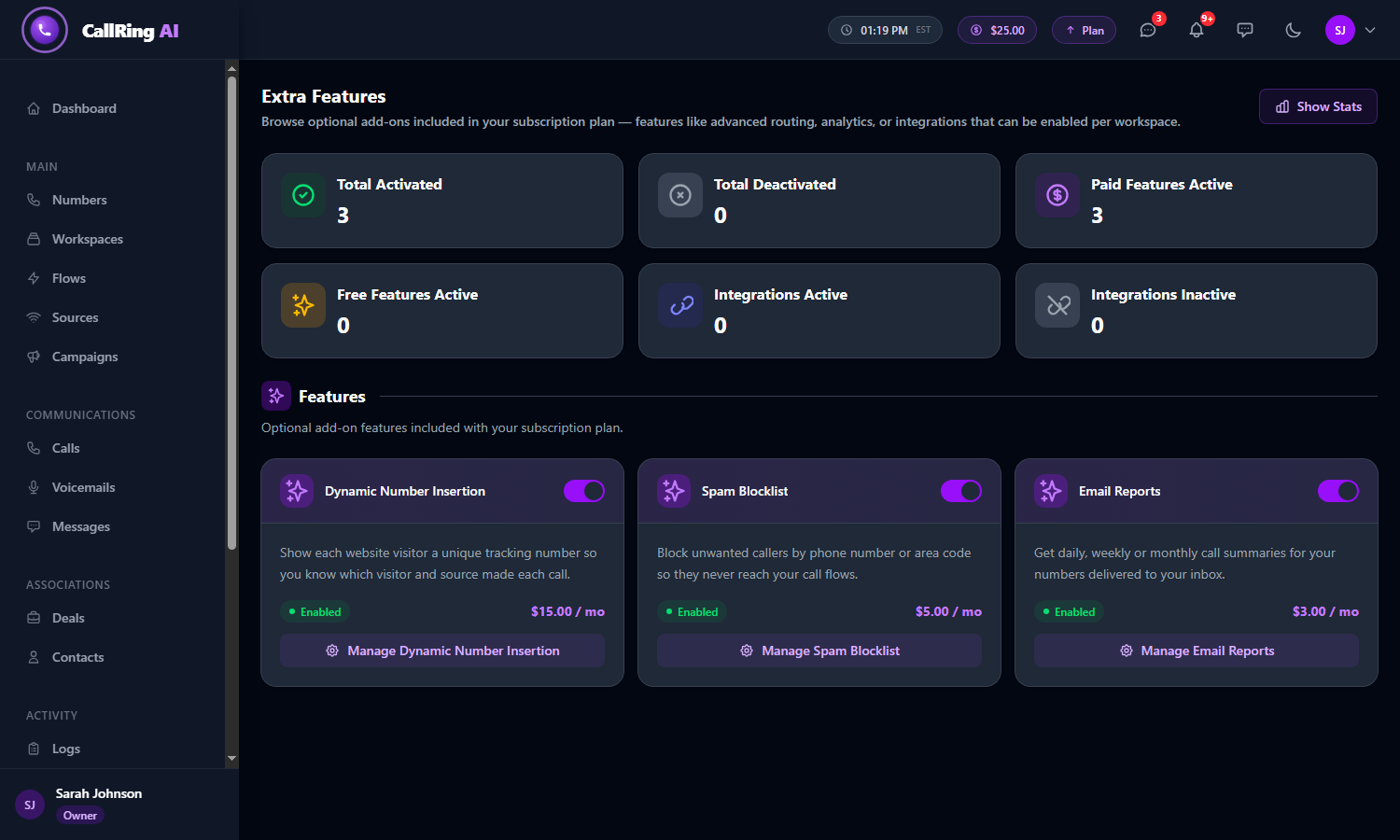
The Email Reports card shows Enabled: click Manage Email Reports Warning: The cost is taken from your balance immediately. You can switch the feature off at any time. Your price depends on your plan. -
Step 2: Create your first report
The first time, the page says “No email reports yet”. Click the purple New Report button. The New Report page opens.
- Ignore the blue note at the top about reports “evolving”. It is only an announcement.
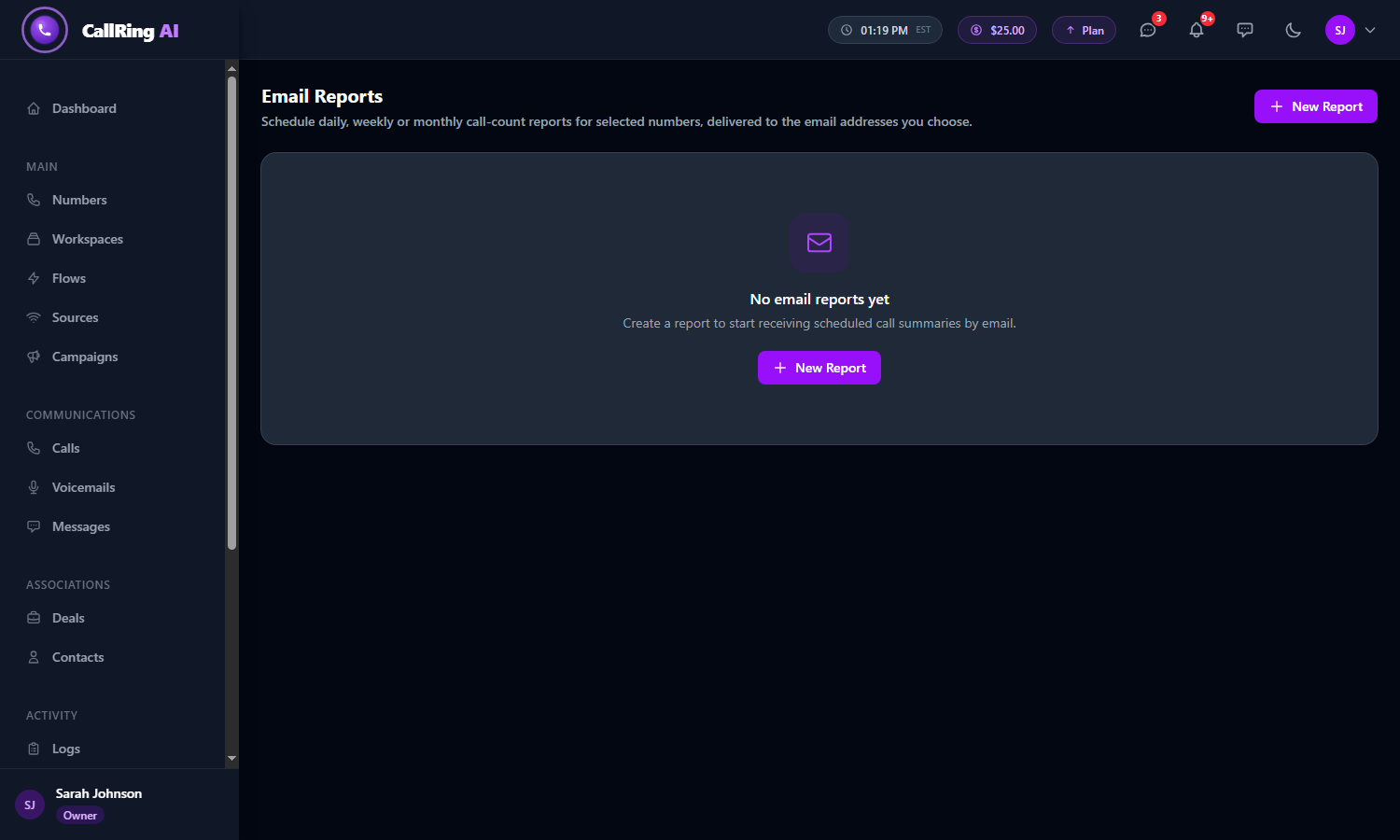
The first time, click New Report 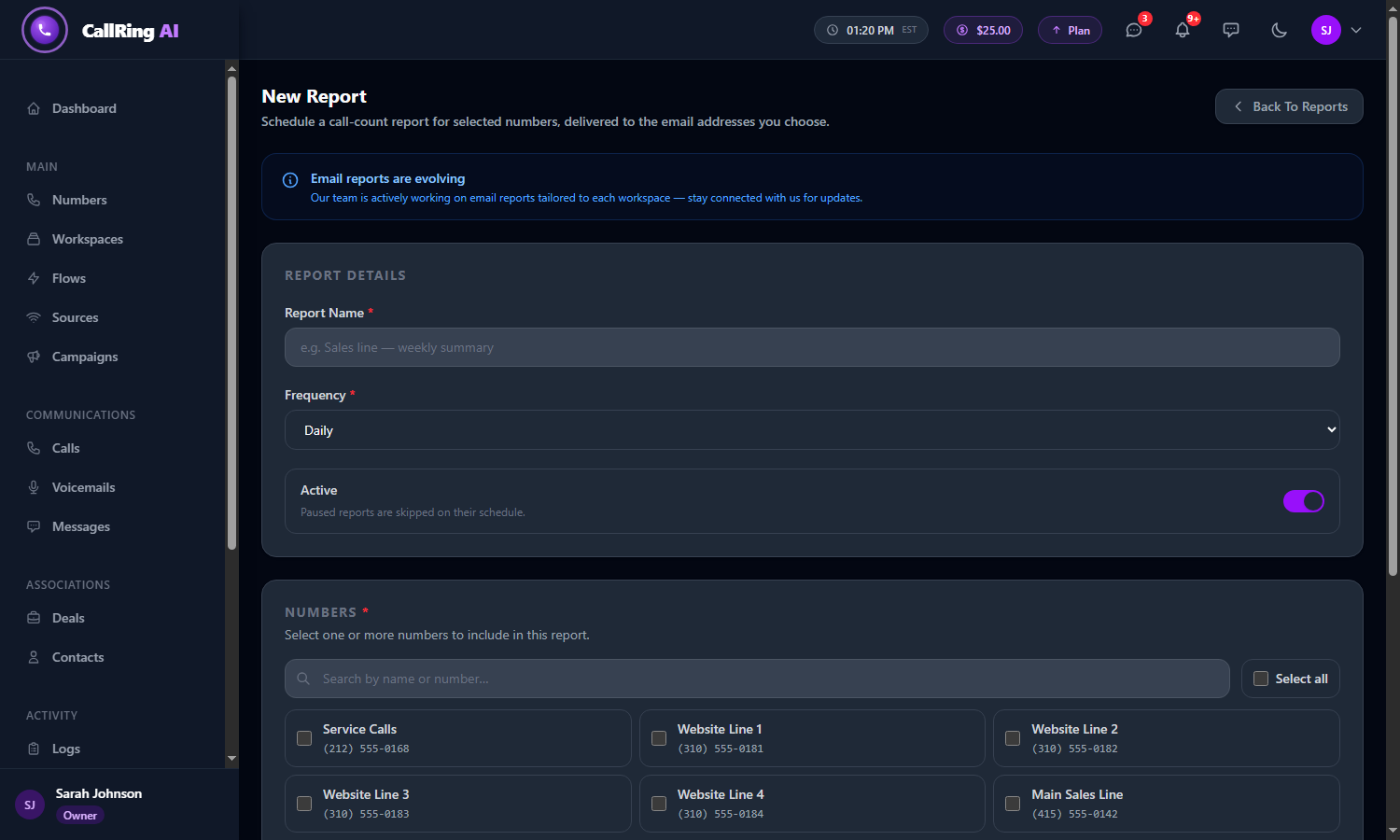
The New Report page: give the report a name and a frequency -
Step 3: Name it and choose how often
Fill in the report details:
- Report Name (required): a name you will recognize, for example “Sales line - weekly summary”.
- Frequency (required): Daily, Weekly or Monthly.
- Active: leave this switched on. Switch it off to pause the report. Paused reports are skipped on their schedule.
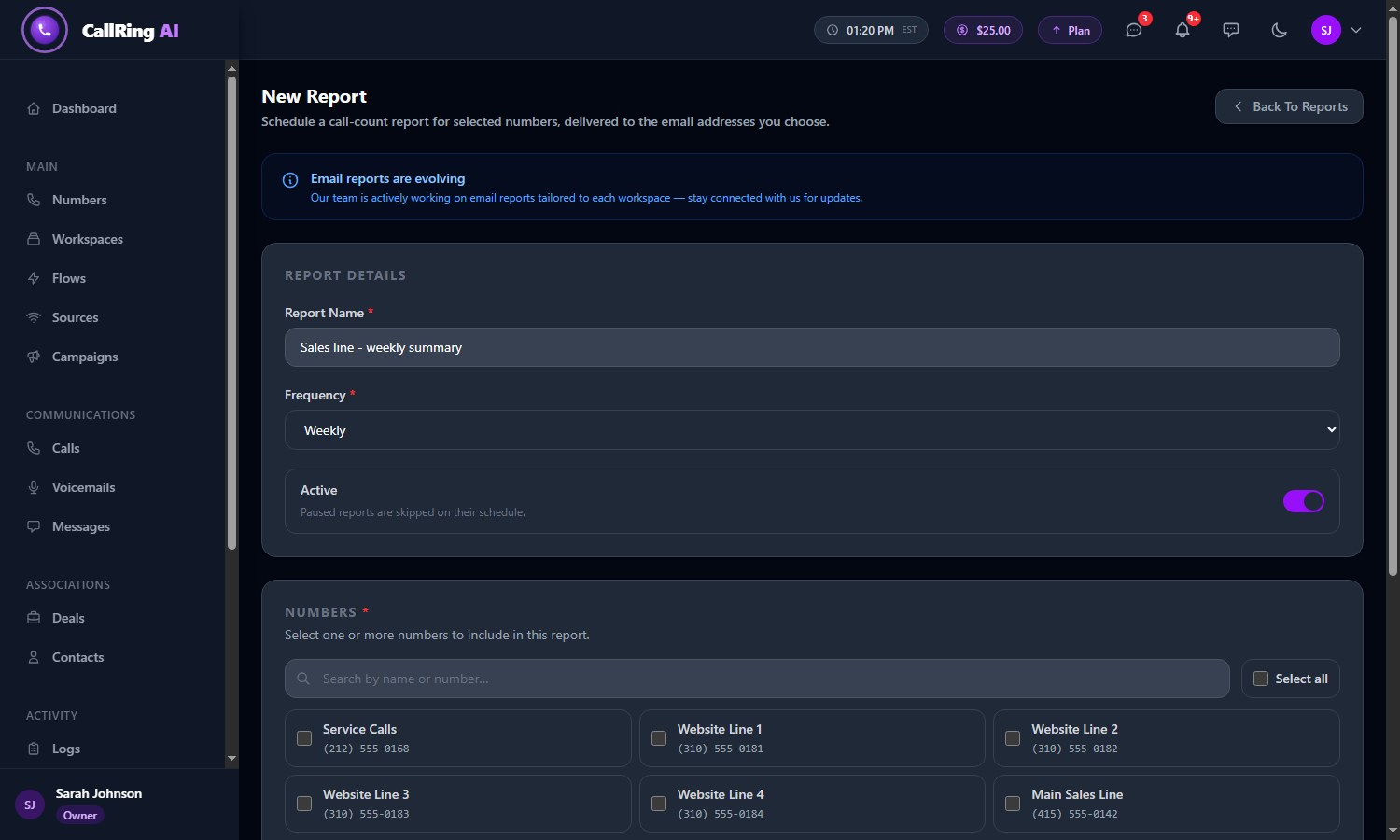
A report name and the Weekly frequency filled in -
Step 4: Choose the numbers
In Numbers (required), tick one or more phone numbers to include. Use Search by name or number... to find one, or tick Select all.
- The report adds up the activity of all the numbers you tick.
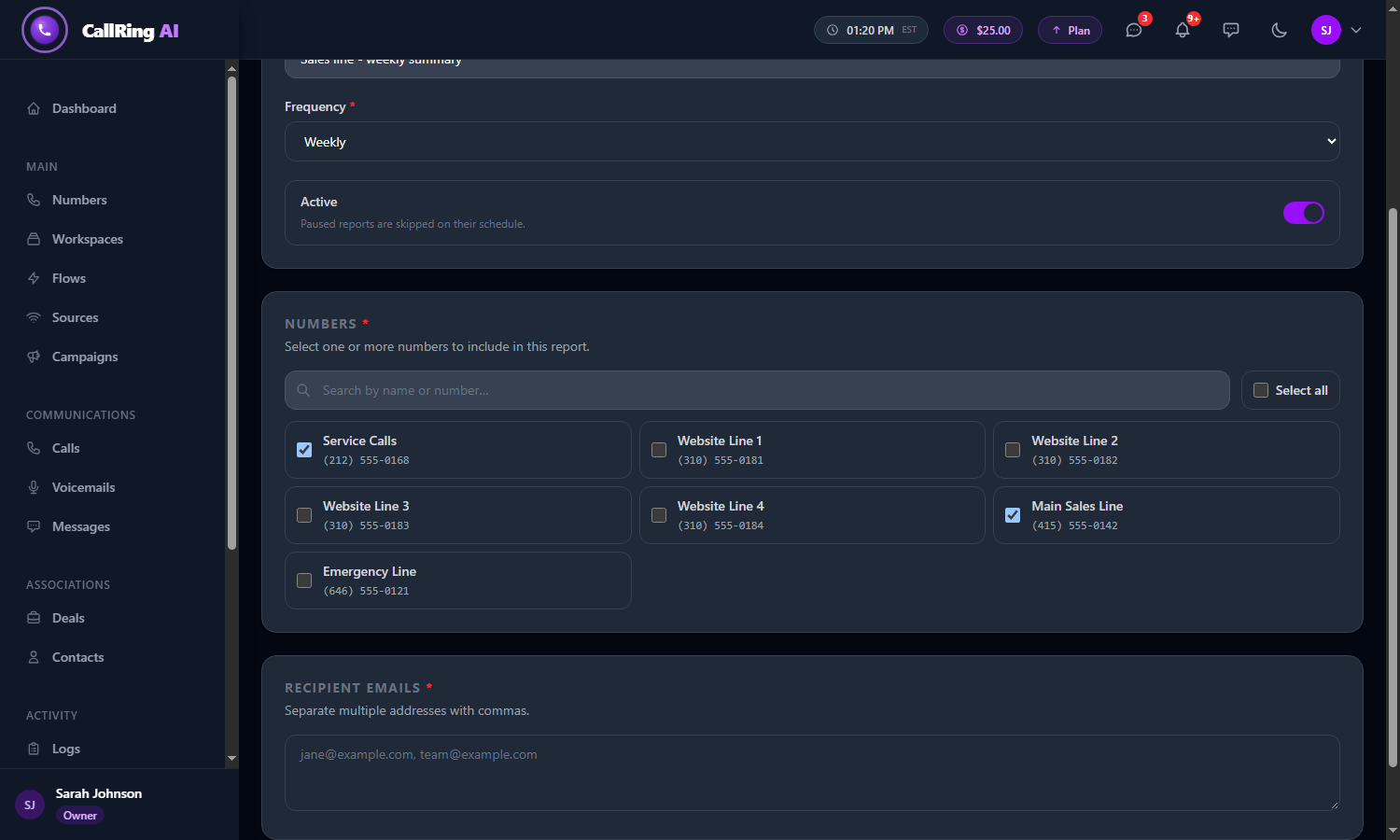
Tick the numbers to include in the report -
Step 5: Add who receives it
In Recipient Emails (required), type one or more email addresses, separated by commas, for example “jane@example.com, team@example.com”. Click the purple Create Report button at the bottom of the page. A green message says “Email report created.”
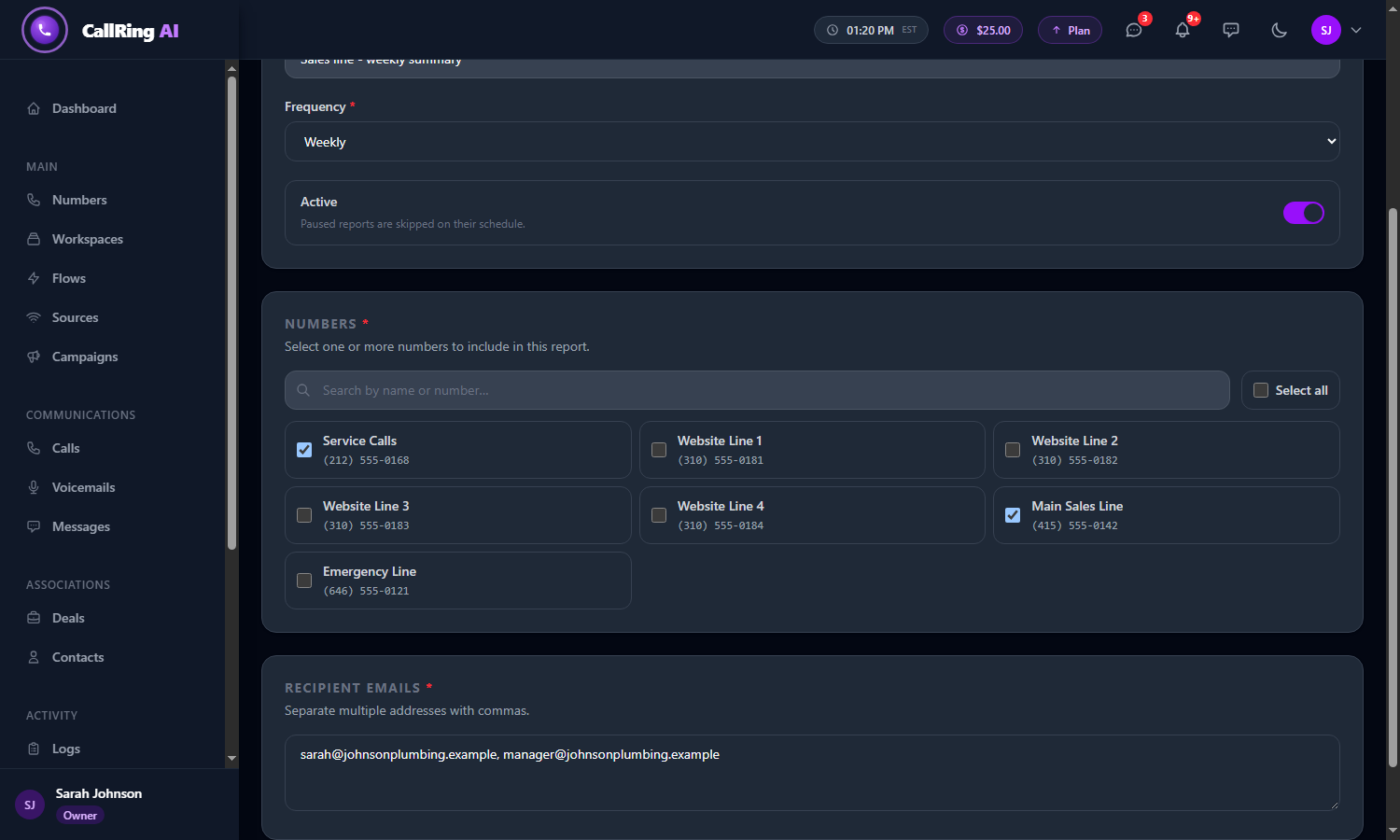
Type the email addresses that should receive the report Note: Each address must be valid. If one is not, the page tells you which one to fix. -
Step 6: Check your reports list
The list shows each report’s name, Frequency, how many Numbers, the Recipients and its Status switch.
- Click the Status switch to pause or restart a report without opening it.
- Use the pencil icon to edit a report and the bin icon to delete it.
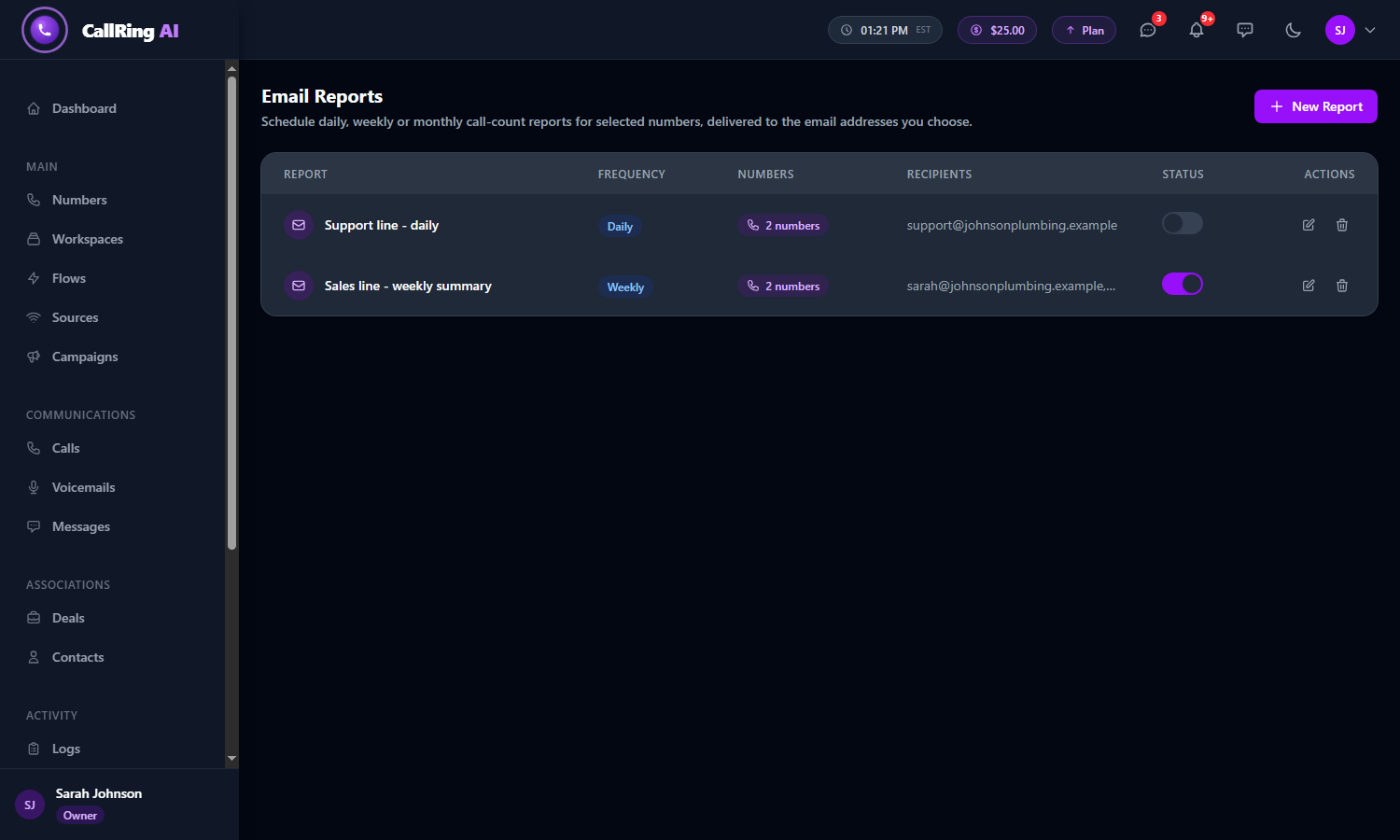
Your reports list, with a Status switch for each report -
Step 7: See what the email looks like
The email has the report name, the period it covers, and three totals: Calls, Voicemails and Messages.
- Below the totals, an Account Summary shows your account balance, next billing date, current plan, number of workspaces and team members, unread notifications and referred users.
- At the bottom is a View full dashboard button and a link to manage or pause the report.
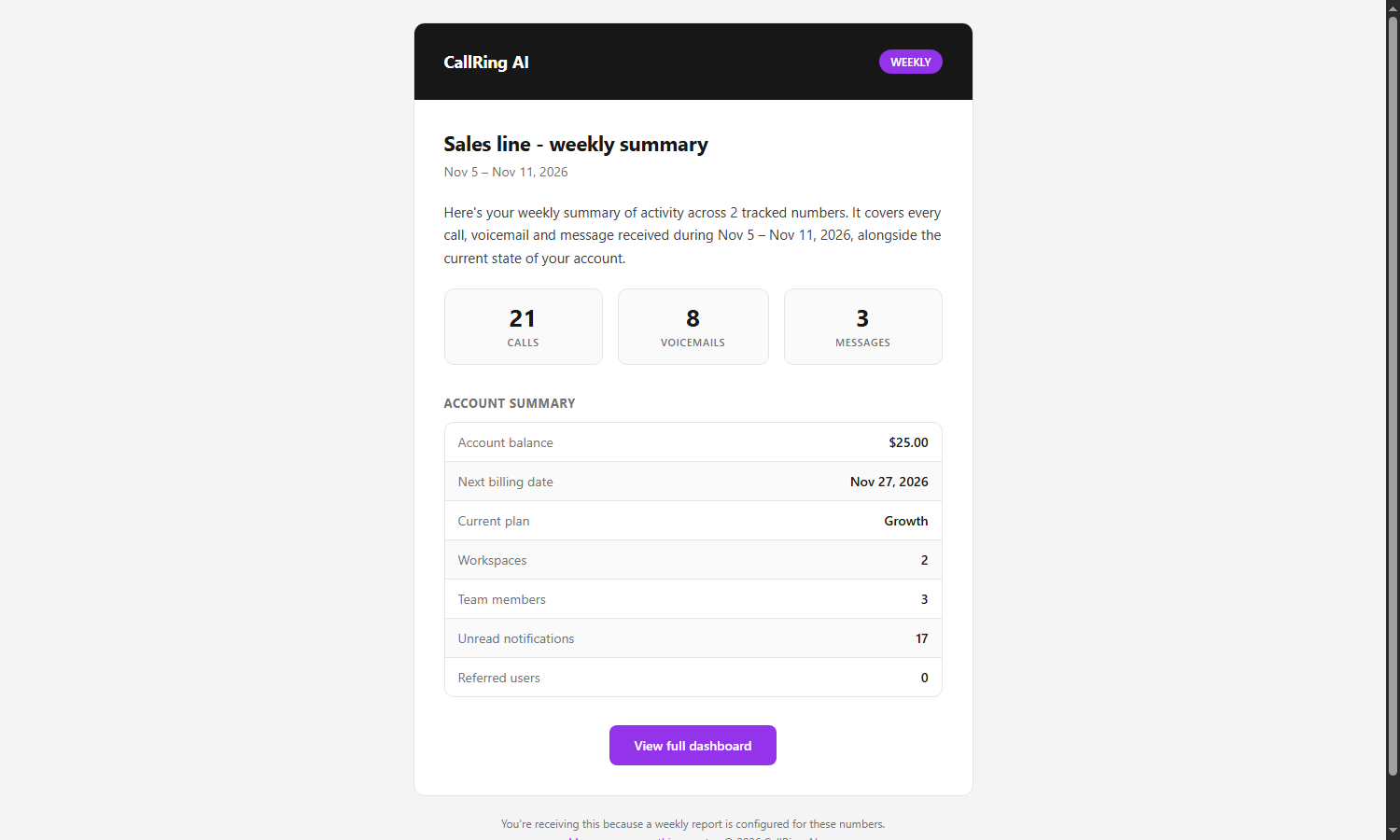
A sample report email -
Step 8: Delete a report
Click the bin icon. A window, Delete Report, names the report and asks you to confirm. Click Delete to remove it, or Cancel to keep it.
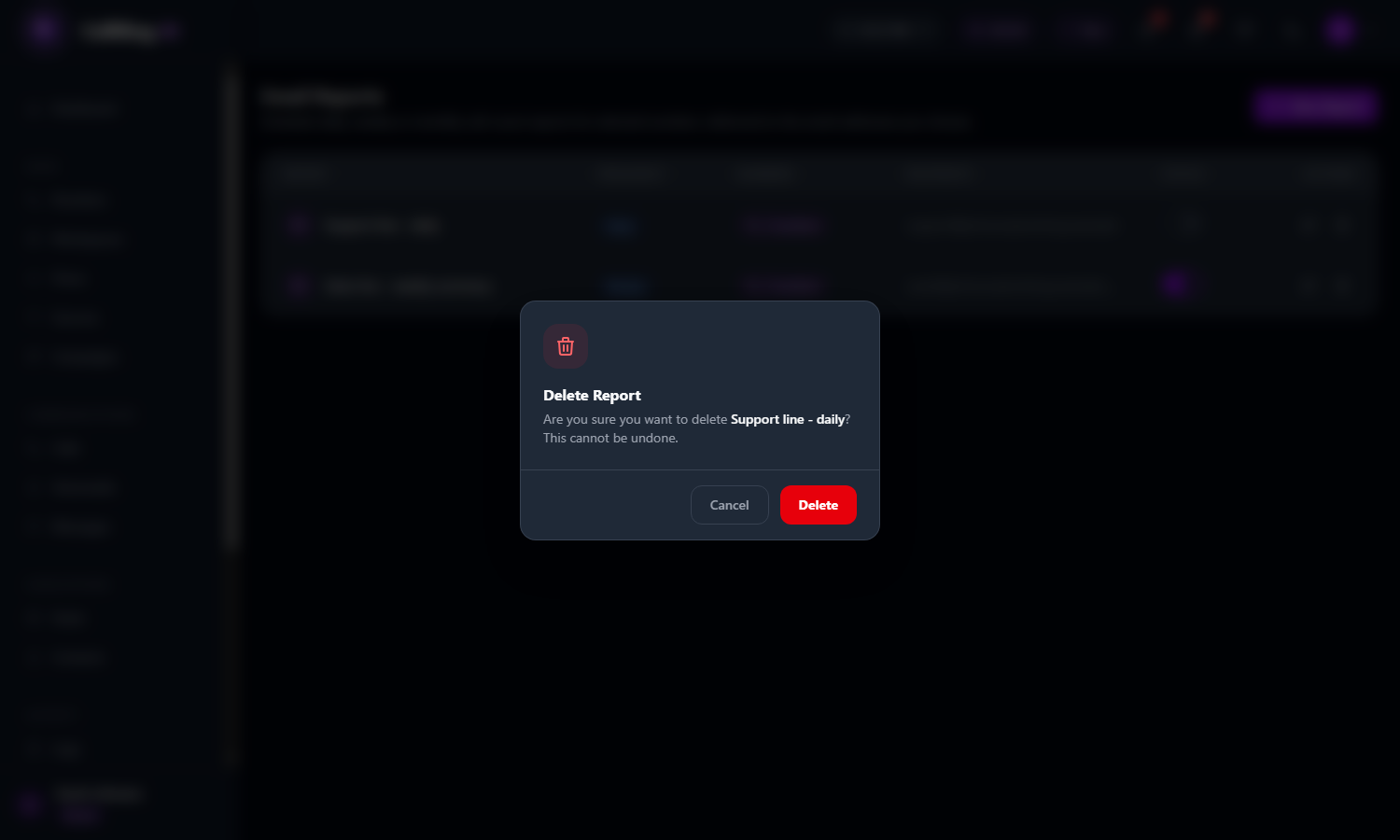
Click Delete to remove the report, or Cancel to keep it Warning: This cannot be undone. To stop emails for a while, switch the report off with the Status switch instead.
Good to know
- You can have as many reports as you need, for example one weekly for the whole team and one daily for a single number.
- Every recipient gets the same email. Anyone with the address can read the totals, so choose recipients carefully.
- Every email has a link to manage or pause the report.
Need help? Open a support ticket from your account.