How to Manage Your Spam Blocklist
The Spam Blocklist is a list of phone numbers and area codes you do not want to hear from. You can add a number, add a whole area code, change an entry, or remove it at any time. Only the main account owner can manage it. Your list and price will look different from the sample data in the screenshots.
4 min read · 7 steps
Before you start
- Only the main account owner can manage the Spam Blocklist.
- It is an add-on feature with its own monthly cost. Step 1 shows how to turn it on.
-
Step 1: Turn on the feature
In the left menu, under Services, click Extra Features. Find the card Spam Blocklist and switch its toggle on. A window shows the cost (in the example, $5.00 / mo). Confirm it. When the card shows Enabled, click Manage Spam Blocklist.
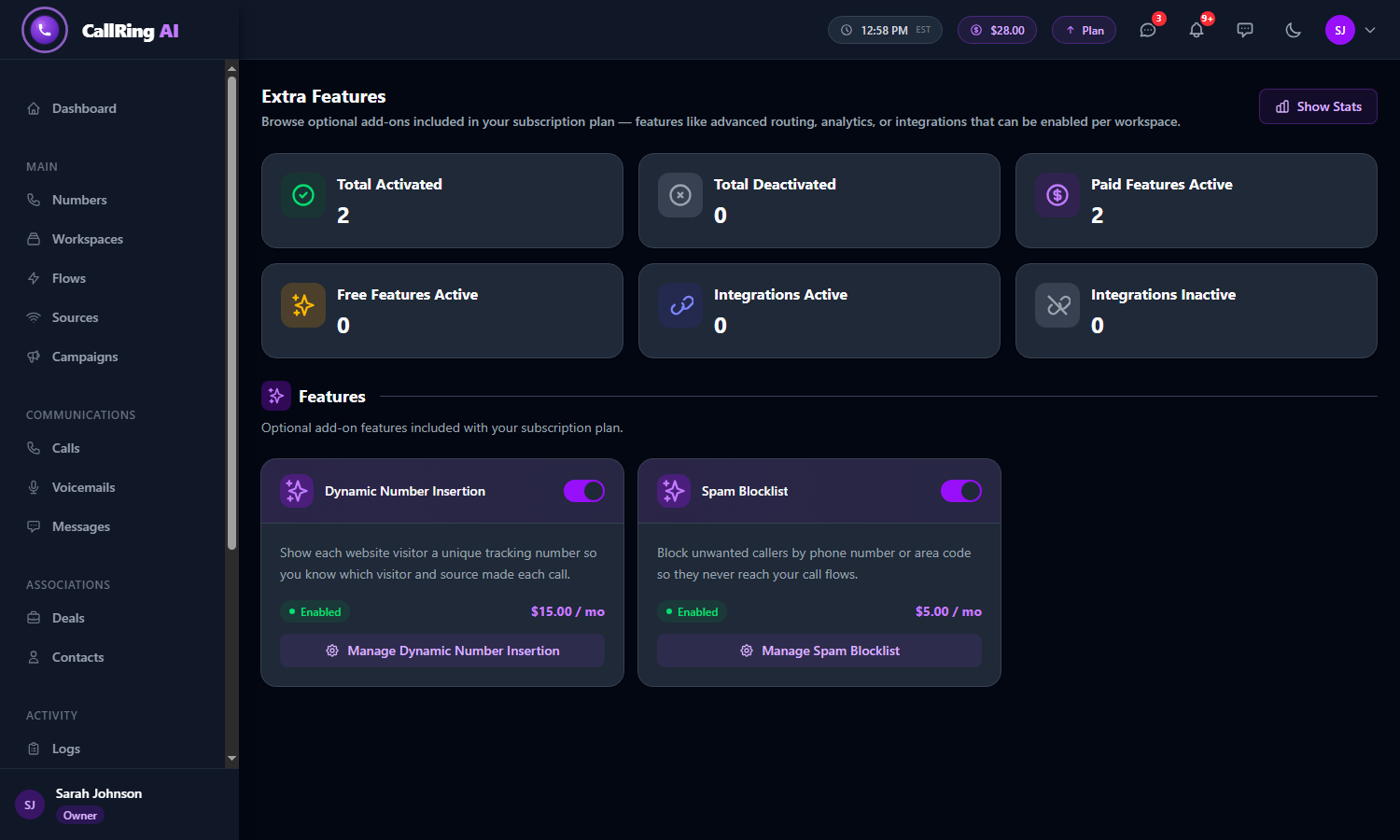
On Extra Features, the Spam Blocklist card shows Enabled: click Manage Spam Blocklist Warning: The cost is taken from your balance. You can switch the feature off at any time. Your price depends on your plan. -
Step 2: Open the blocklist
The Spam Blocklist page opens. When it is empty, it says “No spam entries yet”. Click the purple Add to Blocklist button (top right).
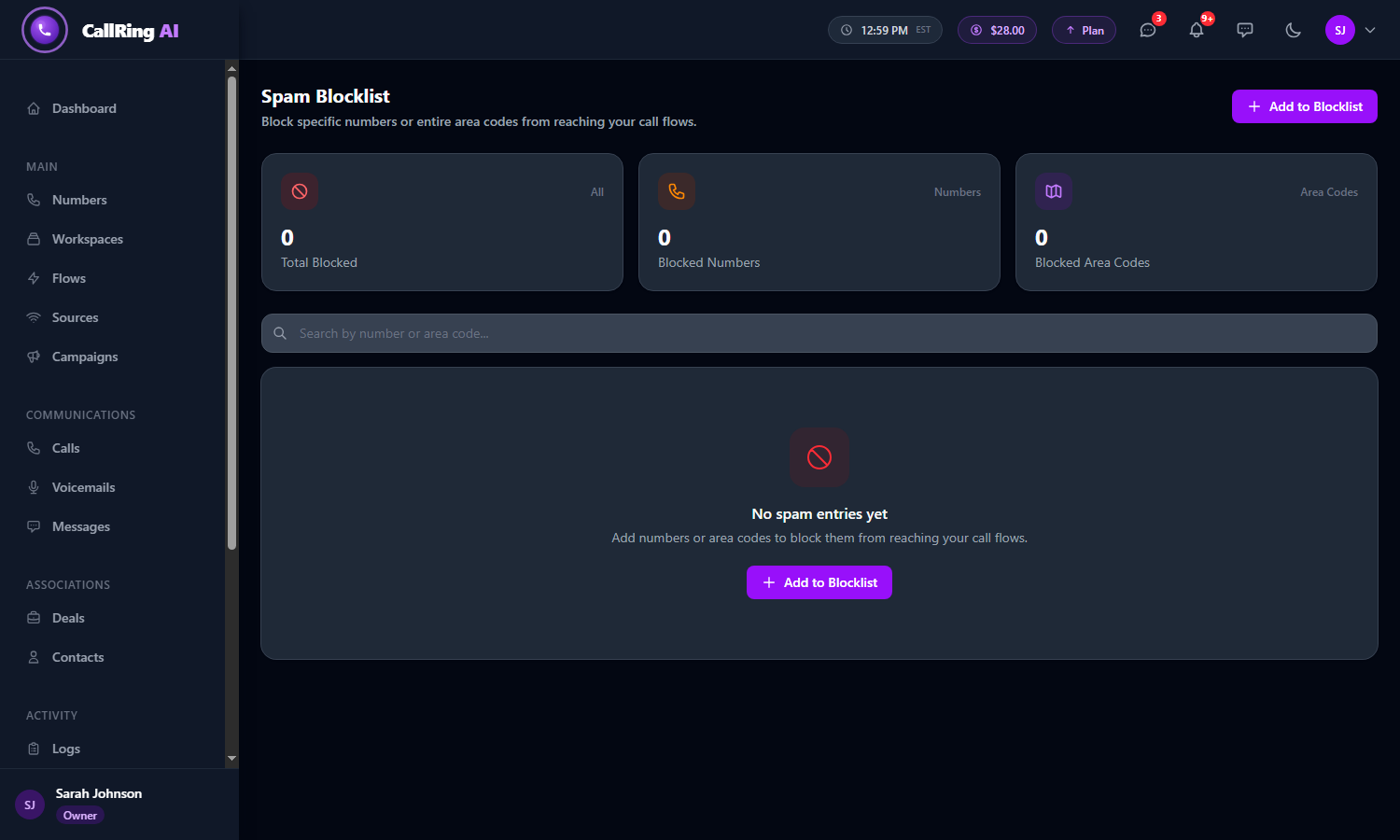
An empty blocklist: click Add to Blocklist -
Step 3: Add a phone number
The Add to Blocklist window opens. Under Block Type, choose Phone Number. Then add the number in one of two ways:
- Type it in Phone Number, for example +12125551234.
- Or use Select from Calls: tick one or more numbers that have already called you. Use Search caller numbers... to find one. A purple label shows how many you selected.
- You can type a number and tick others in the same step. Then click Add to Blocklist.
- A green message appears, for example “3 number(s) added to spam blocklist.”
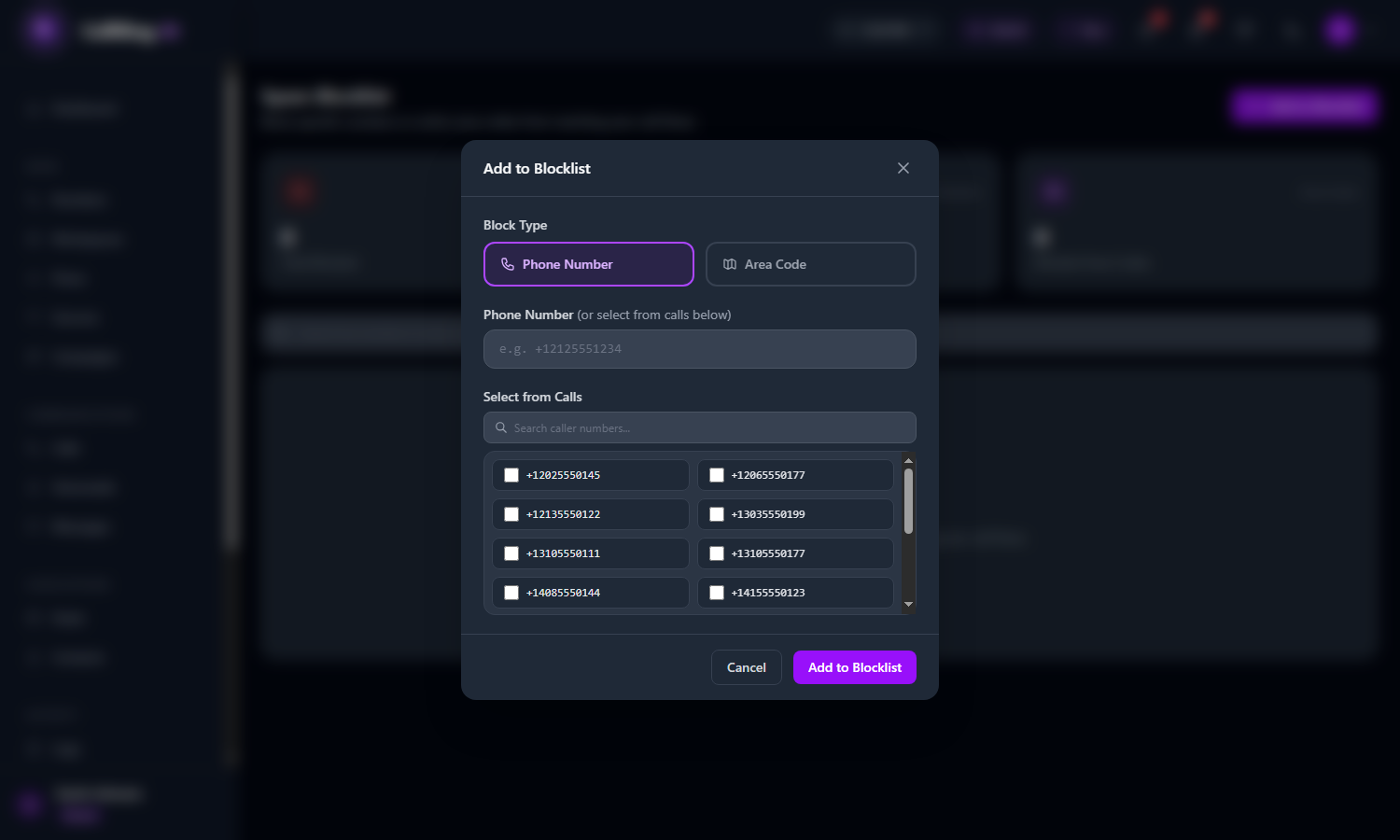
Add to Blocklist: choose Phone Number, then type a number or tick numbers from your calls 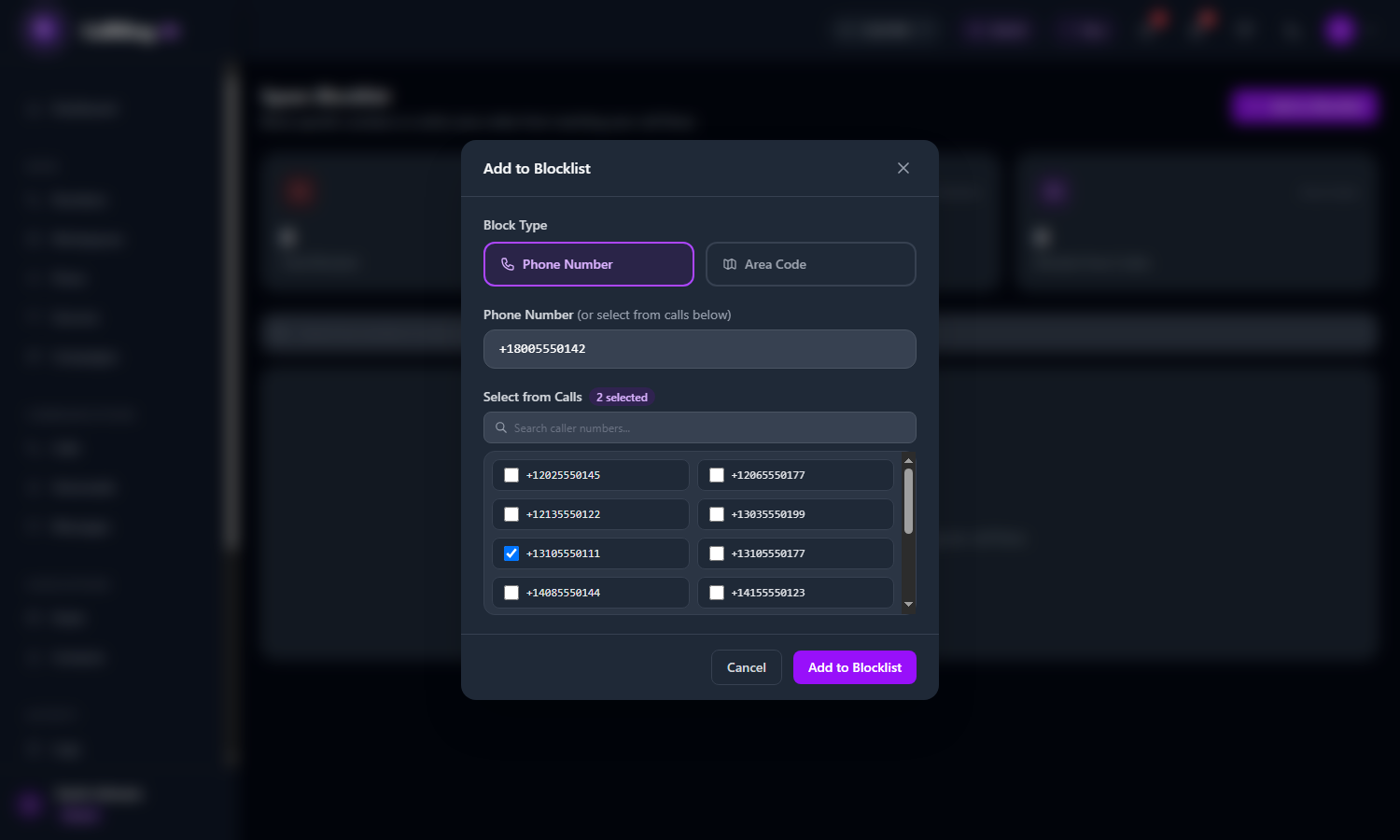
A number typed in, with 2 more selected from your calls -
Step 4: Add a whole area code
Click Add to Blocklist again, then choose Area Code under Block Type. Type the area code, for example 305, and click Add to Blocklist. The message “Added to spam blocklist.” appears.
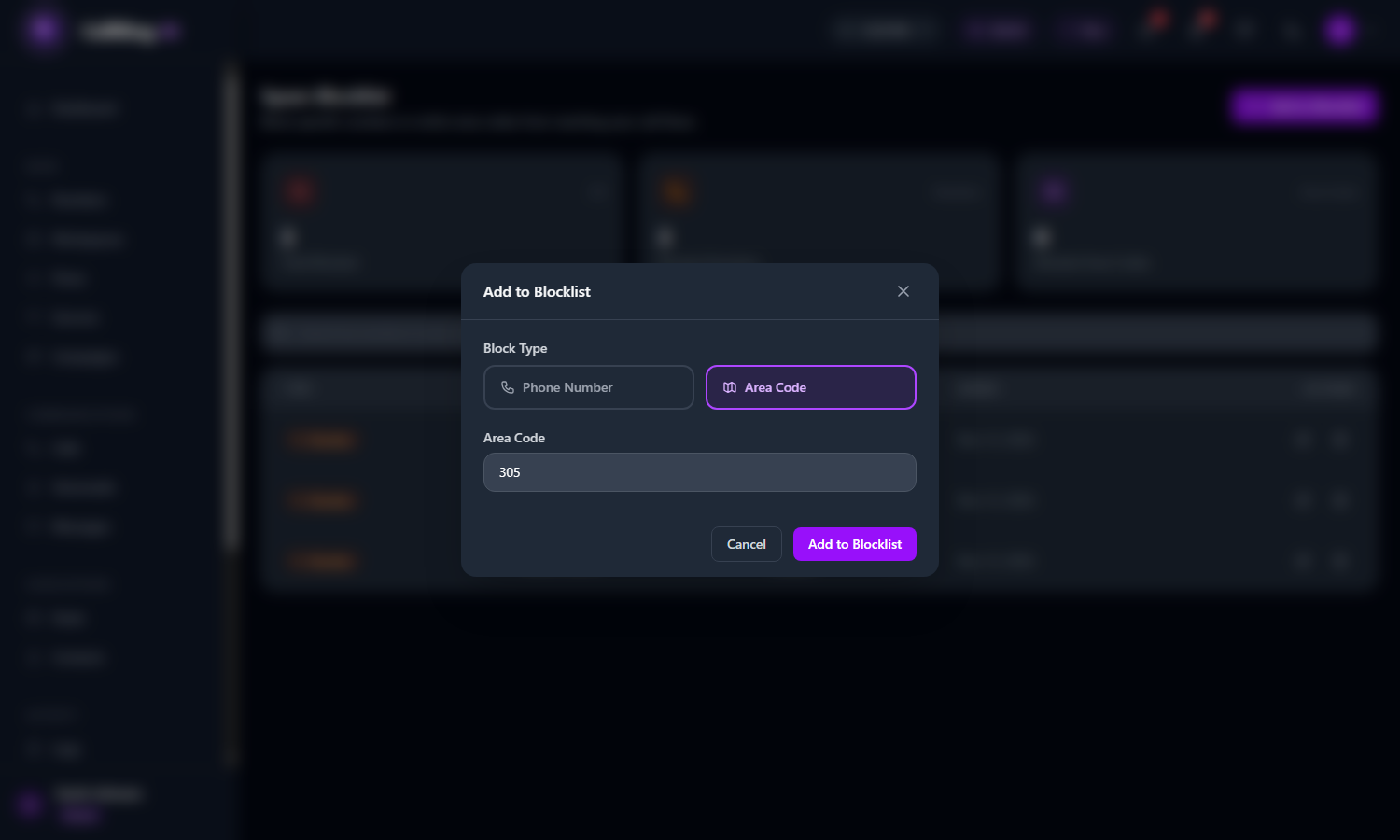
Choose Area Code and type the code Warning: An area code covers every number that starts with it. Use it carefully, so you do not block real customers. -
Step 5: Read your blocklist
The three cards at the top show Total Blocked, Blocked Numbers and Blocked Area Codes. The table shows each entry:
- Type (Number or Area Code) and Value.
- Source: “Manual” means you added it.
- The date Added.
- Use Search by number or area code... to find an entry.
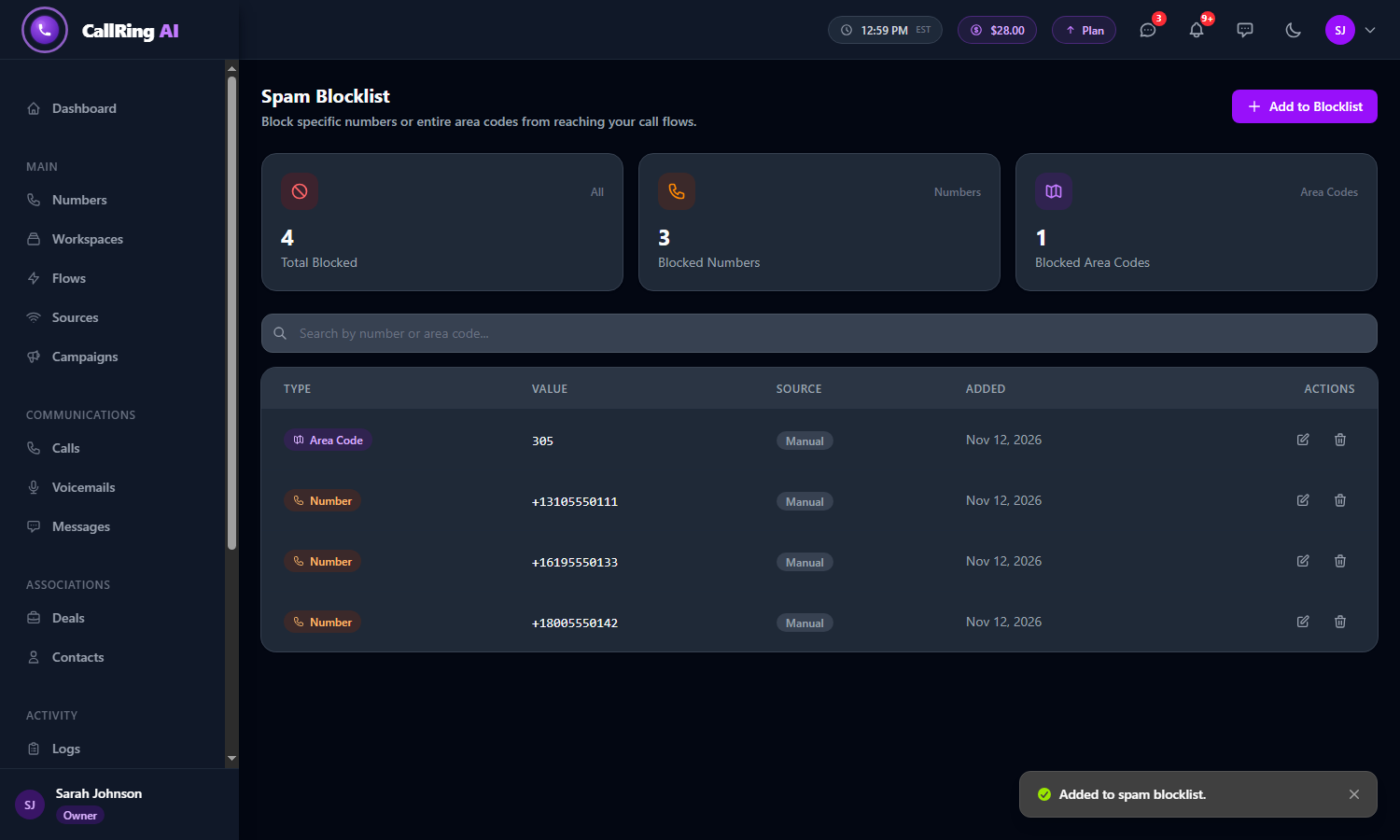
Your blocklist, with the Added to spam blocklist message -
Step 6: Change an entry
Click the pencil icon on a row. The window Edit Spam Entry opens. Change the number or area code and click Update. The message “Spam entry updated.” appears.
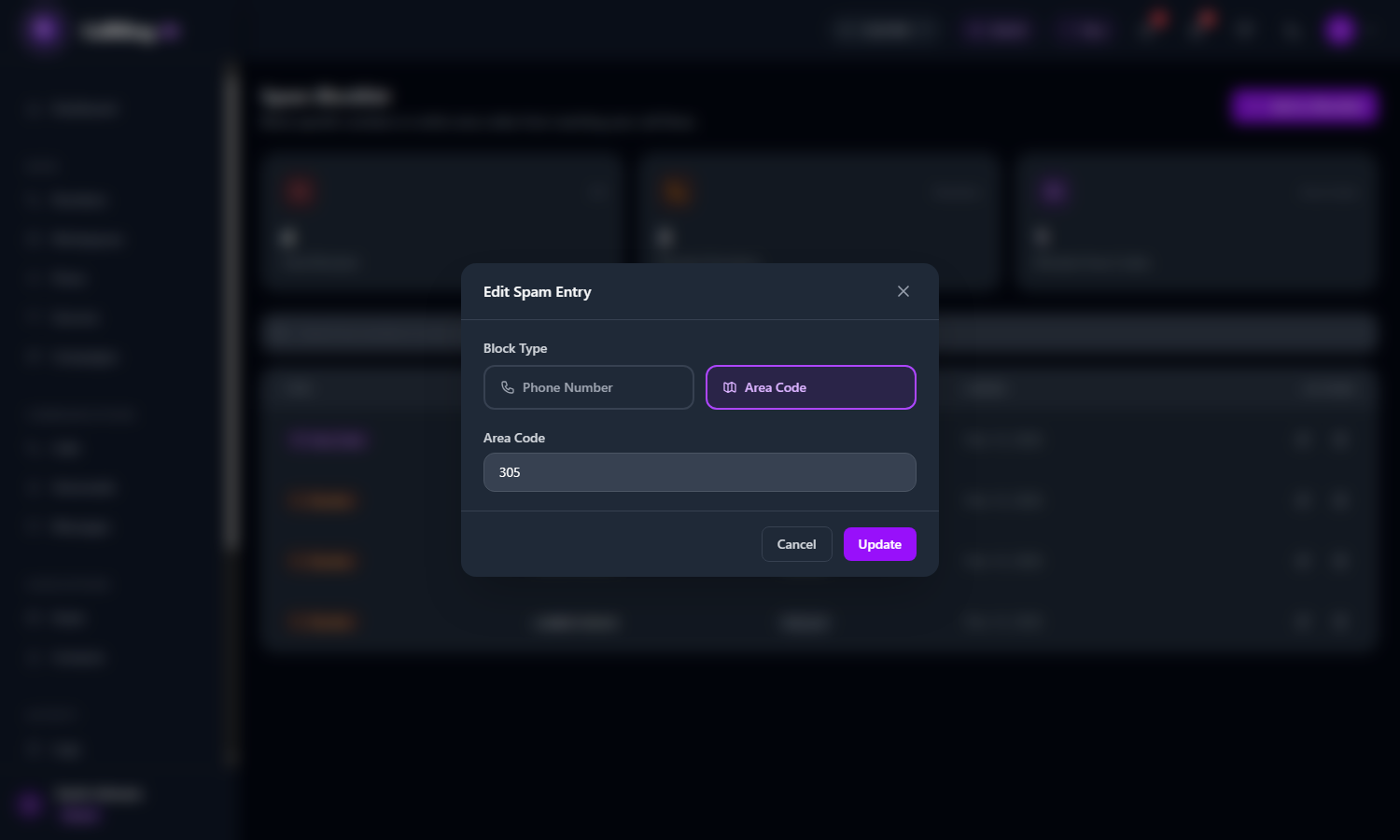
Edit Spam Entry: change the value and click Update -
Step 7: Remove an entry
Click the bin icon on a row. The window Remove from Blocklist? asks you to confirm. Click Remove to take the entry off the list, or Cancel to keep it.
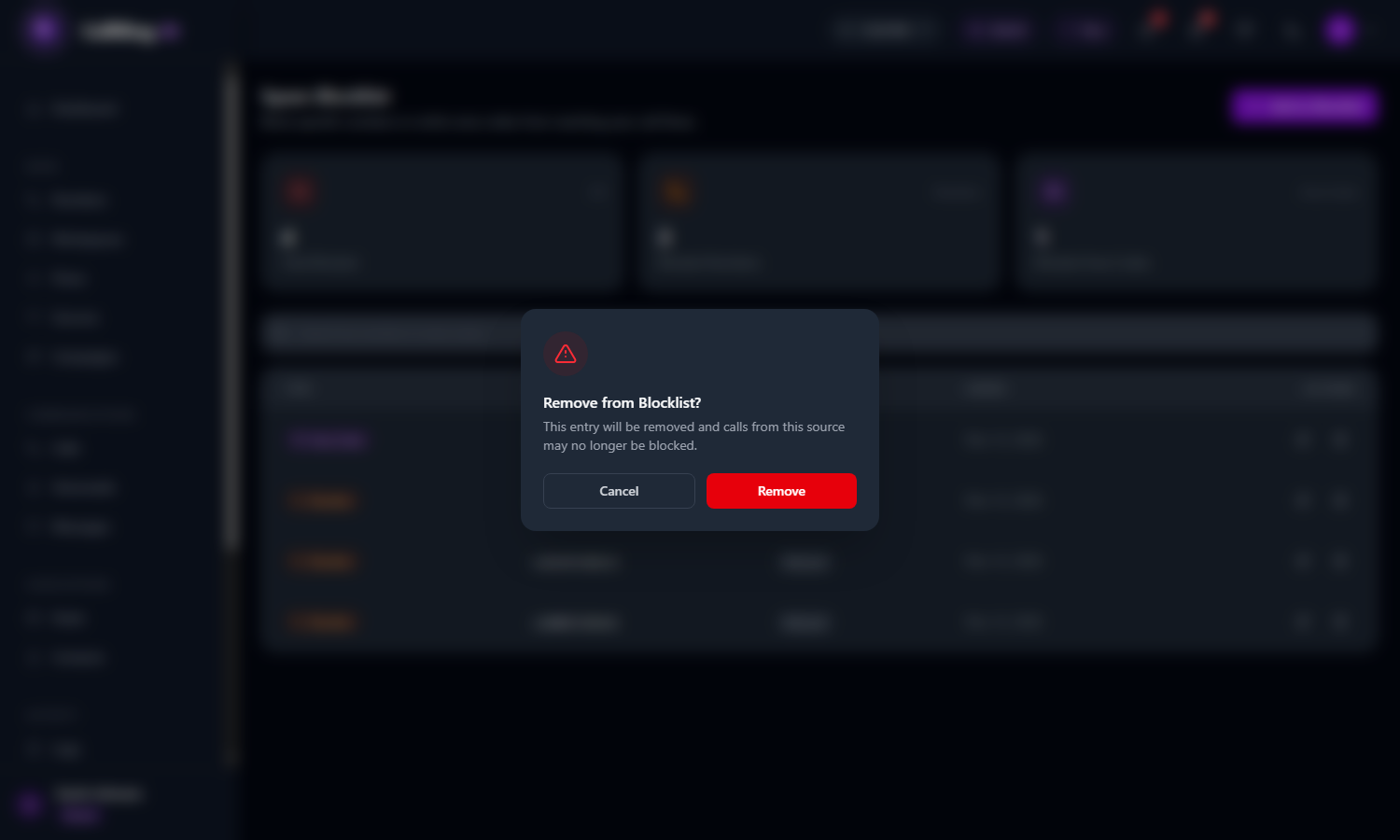
Click Remove to take the entry off the list
Good to know
- Entries are per account. Each owner has their own list.
- Entries added automatically by CallRing’s other protection tools show a different Source (for example “rapidapi” or “ai”).
- Do not add numbers you are unsure about. You can always remove an entry later.
Need help? Open a support ticket from your account.